
 DeltaSnap
 DriveSync
 Noject
 DeltaSync
MacVisor installs macOS from Apple's restore images (IPSW), with Apple's accelerated graphics. macOS 27 guests set themselves up, with an account, Remote Login and the MacVisor Agent; earlier versions go through Setup Assistant. A Mac runs at most two macOS VMs at a time, a limit of Apple's license and Virtualization framework.
Installers
| Installer | Id (aliases) | Source |
|---|---|---|
 macOS Golden Gate 27.2 | macos-27 (macos) | Apple |
| macOS Tahoe 26.6.2 | macos-26 | Apple |
| macOS Sequoia 15.6.1 | macos-15 | Apple |
| macOS Sonoma 14.6.1 | macos-14 | Apple |
| The newest macOS this Mac supports | macos-latest | Apple is asked which build that is, and it is downloaded from the same CDN |
Downloading an installer ahead of time, adding your own .ipsw, and how long installers are kept are in Download, add and remove. Apple logos are trademarks of Apple Inc.
Create a macOS VM
Press ⌘N, choose macOS, pick an installer or a local .ipsw, keep or change the account, and click Create & Install.
Pick macos-27, macos-26, macos-15, macos-14, macos-latest (the newest this Mac supports), or a local .ipsw. The form's Installer menu starts on the newest installer that isn't newer than this Mac's own macOS. If you choose a newer one, or a newer .ipsw, the form warns under the menu, for example: "macOS 27.2 is newer than this Mac's macOS 27.0.1. Apps in the VM may not work reliably: update this Mac first, or choose macOS 27.0.1 or older." Create & Install still works. The menu also lists installers this Mac keeps that the catalogue no longer offers, such as macOS 27.0.1 (26A434). MacVisor downloads the installer from Apple once, verifies it, and installs it in 20 to 30 minutes. Give macOS at least 4 vCPUs, or it won't be responsive. A local .ipsw isn't added to your installers: the install reads a temporary copy, removed when it ends. To keep one for later VMs, add it with + in Templates or mvz images add <file>.
mvz create macos-27 mac --ssh
mvz create macos-latest ci --user builder --ssh
mvz create ~/Downloads/UniversalMac_15.6.1_24G90_Restore.ipsw sequoia
mvz wait mac --ssh --start   # follows the install, starts the VM, returns when SSH answers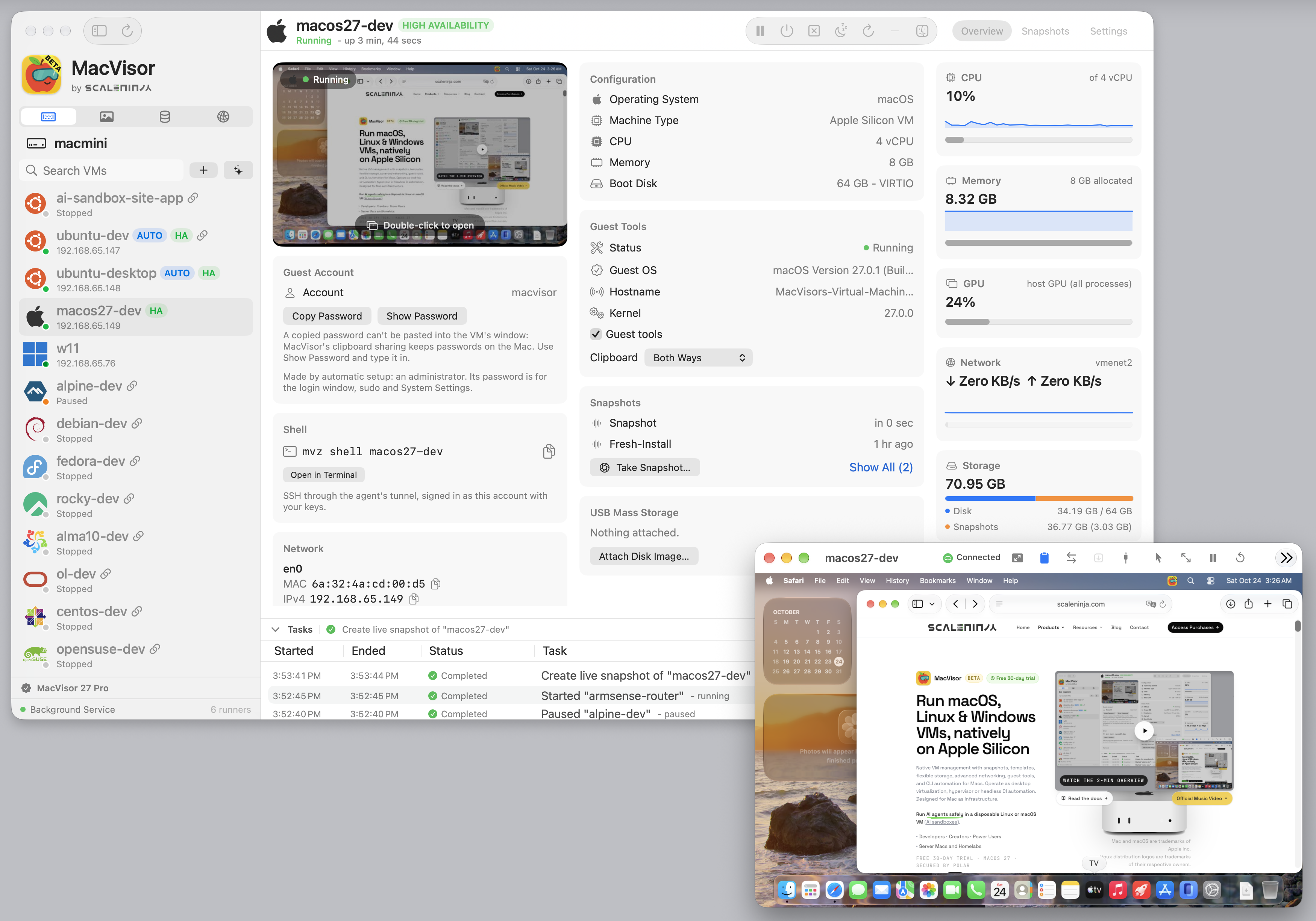
Automatic setup
macOS 27 guests skip Setup Assistant. The first boot creates an account and signs it in. The Overview's macOS VM card shows it as the setup account: an ordinary administrator account, not a guest account. The default account is macvisor, with a random password made for this VM. Under More Options you can choose the name and your own password (the eye button shows what you typed); from the CLI, use --user and --password-file. Show Password on the VM's Overview shows the password for 15 seconds, to type it into the VM. Copy Password copies it for use on the Mac: clipboard sharing keeps passwords on the Mac, so it can't be pasted into the VM. Type Password types it into the VM's window for you, for the VM's keyboard layout (VM Settings > Keyboard & Pointer > Keyboard in the VM, U.S. unless you change it). mvz password <vm> prints it. A password you chose is deleted from the Mac once setup is done, including the agent's setup over SSH; the Task History says when, and the account keeps it.
Remote Login is on by default in the form. From the CLI, add --ssh. With it on, MacVisor installs the MacVisor Agent over SSH, authorises your SSH keys and turns off password logins, so mvz shell connects with your key. This needs the Local Network permission.
--no-autologin keeps the login window. --no-setup goes through Setup Assistant by hand.
macOS 26 and earlier
macOS 26 and earlier always use Setup Assistant: the form says so in place of the account fields, and makes no account or password. Install the agent afterwards from the guest tools volume. A VM an earlier MacVisor made with a password keeps offering it on its Overview, in case you typed it into Setup Assistant. See Signing in.
Signing in
| Guest | Account | Connect with |
|---|---|---|
| macOS 27 with automatic setup | macvisor with a random password (mvz password <vm>), or the account you chose | mvz shell <vm>, with Remote Login on |
| macOS 26 and earlier | The account you made in Setup Assistant | The VM window. mvz shell works once you turn on Remote Login. |
On a macOS 27 guest with Remote Login on, MacVisor installs the agent over SSH after the first boot, authorises your SSH keys, then turns off SSH password logins. If you connect before that finishes, mvz shell asks for the password once.
This needs the Local Network permission from first-run setup. Without it the guest still boots, but without the agent or your keys. The password is one made for this VM and kept in its bundle (mvz password <vm>), so change it in any guest other people can reach.
After mvz ssh-config --install, ssh <vm>.mvz works too. See Names.
Erase and install again
To retry a failed or cancelled install, use Erase and Install macOS… in the VM's menu in the list or the Virtual Machine menu, or mvz reinstall <vm> <file.ipsw>. It erases the disk and installs from an IPSW, and can take a snapshot first. It's only there for a VM whose install failed and that hasn't started since. To start over with a VM that came up, create a new VM and delete the old one. If it fails before writing the disk, the VM keeps the macOS it had.
This doesn't upgrade macOS. Use Software Update in the guest for that. It is unavailable while linked clones share the VM's disk.
More about macOS guests
- Install the MacVisor Agent in a macOS guest that didn't get it automatically.
- Scrolling direction: new macOS 27 VMs scroll the way your Mac does.
- Type Password and Type Clipboard, for the login window and places pasting doesn't reach.