 DeltaSnap
  DriveSync
  Noject
  DeltaSync
 Pairing a folder starts with a one-time Google OAuth setup, which takes about ten minutes. You can reuse that client JSON when authorizing additional folders. The app still asks for the JSON and browser authorization for each new pairing.
Already initialized this folder with dsync? Add it directly without repeating Google setup.
Start from Add Folder… in the menu, or from Settings.
1. Choose the folders
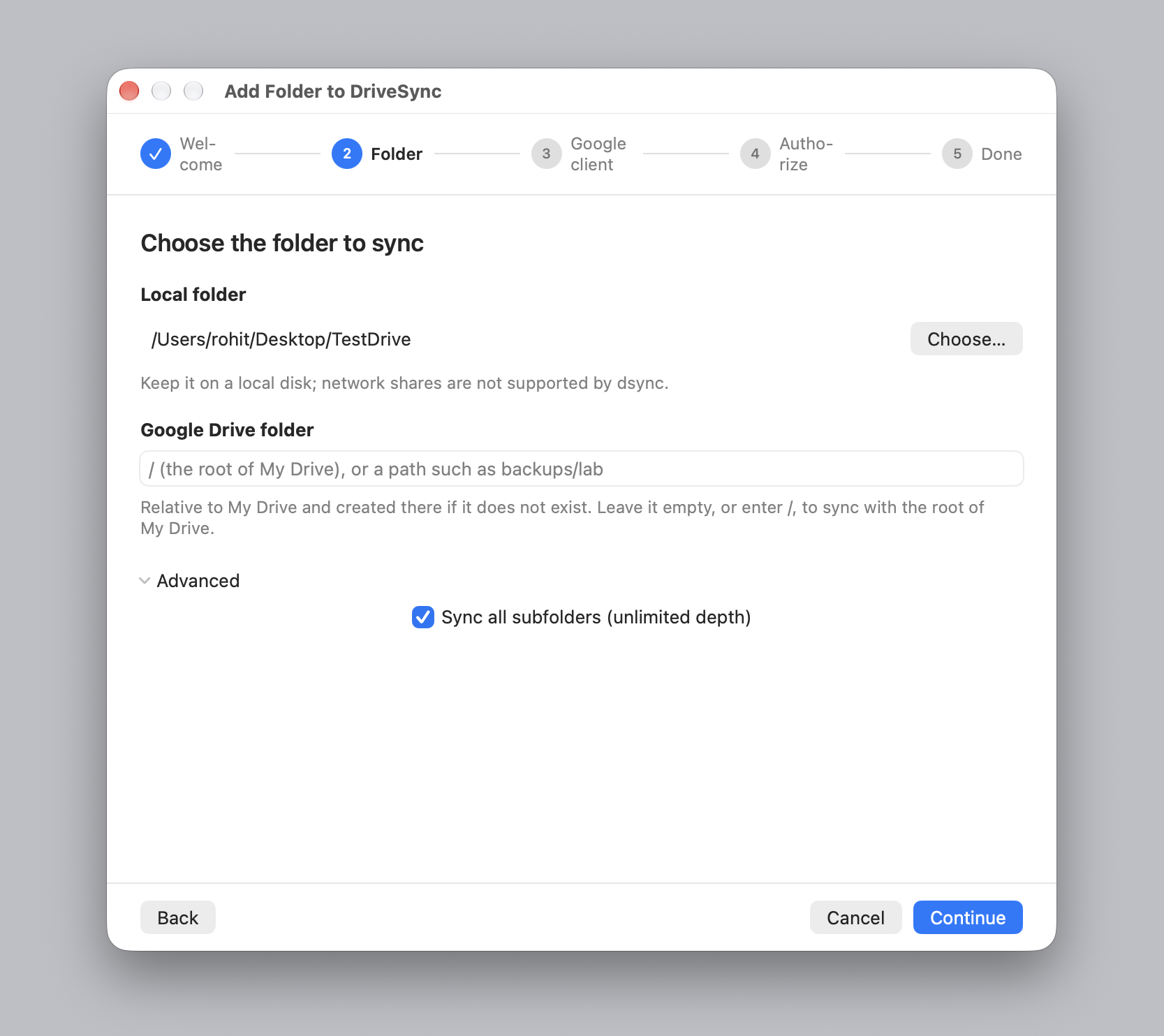
Local folder. Anything on a local disk. Keep it off network shares: dsync needs filesystem behaviour that SMB and AFP do not provide reliably. The wizard says as much under the field, but it will not stop you.
Google Drive folder. A path relative to My Drive, like backups/lab. If it does not exist, DriveSync creates it. Leave it empty, or type /, to use the root of My Drive.
Under Advanced, Sync all subfolders is on. Turn it off and a stepper appears: one to sixty-four levels deep, counted from the folder you picked. Useful for a large tree where you only care about the top of it.
If the folder already has a .gd directory from a previous setup or from the CLI, DriveSync says so and adopts the existing pairing instead of asking you to authorize again.
2. Create a Google OAuth client
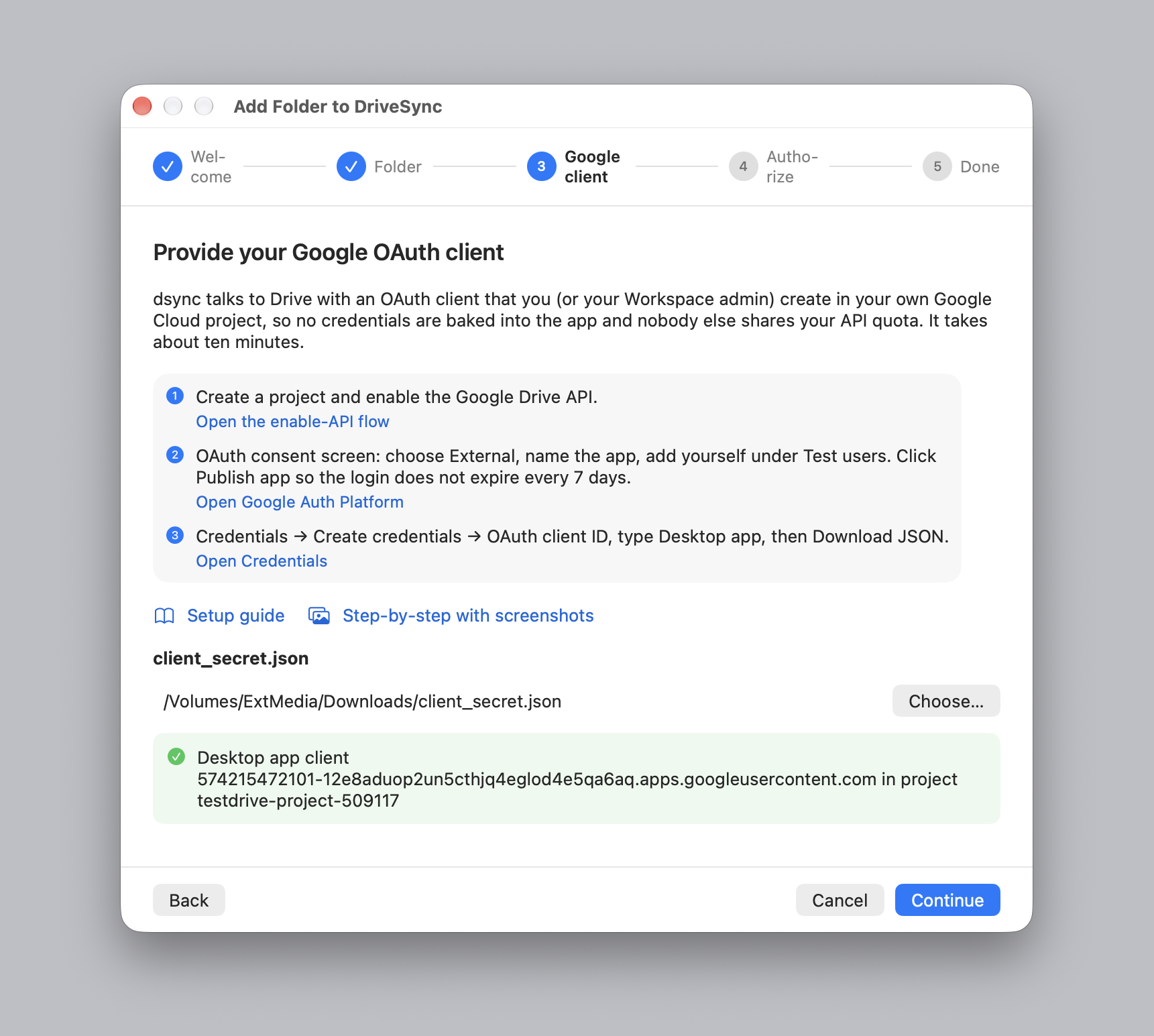
DriveSync has no Google credentials of its own, so you supply your own. Nothing about your Drive then passes through us, and the API quota is yours rather than shared with every other user of the app.
Follow Google setup to create the project, configure consent and download a Desktop app client JSON. That guide is shared by the app and CLI, and explains testing mode, the unverified-app notice and Workspace accounts.
Back in DriveSync, click Choose… and select the file you downloaded. The app checks that it is a Desktop-app client and shows you its client and project. The original JSON is not copied, but dsync stores its client ID and secret in the folder's .gd/config.json for future authorization requests. Keep the downloaded JSON somewhere private if you plan to add more folders. Deleting the download does not break an existing pairing.
If you picked the wrong kind of client, the app says so plainly: a "Web application" client has a web section instead of an installed one and will not work.
3. Authorize
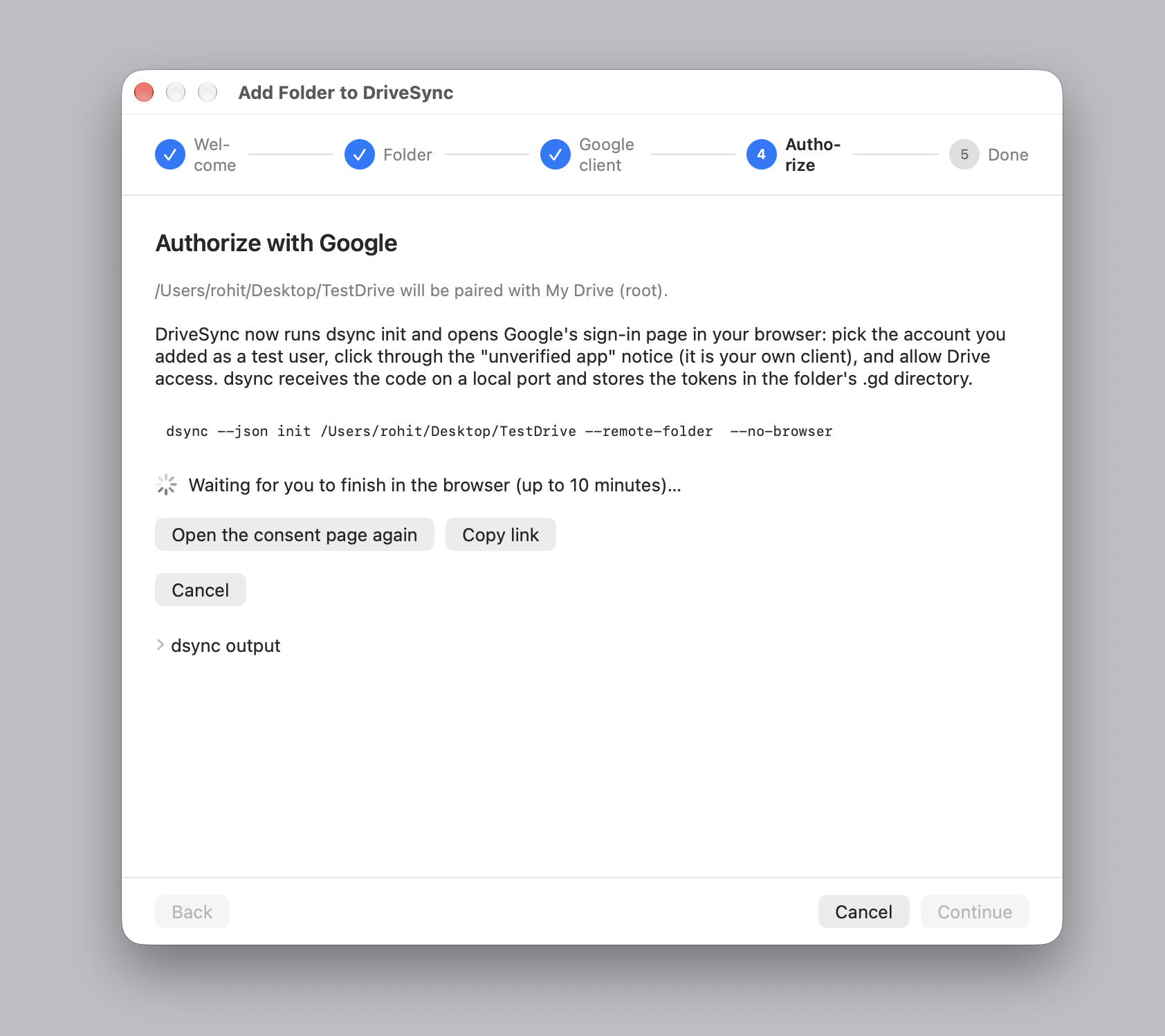
Click Authorize with Google. Your browser opens Google's sign-in page.
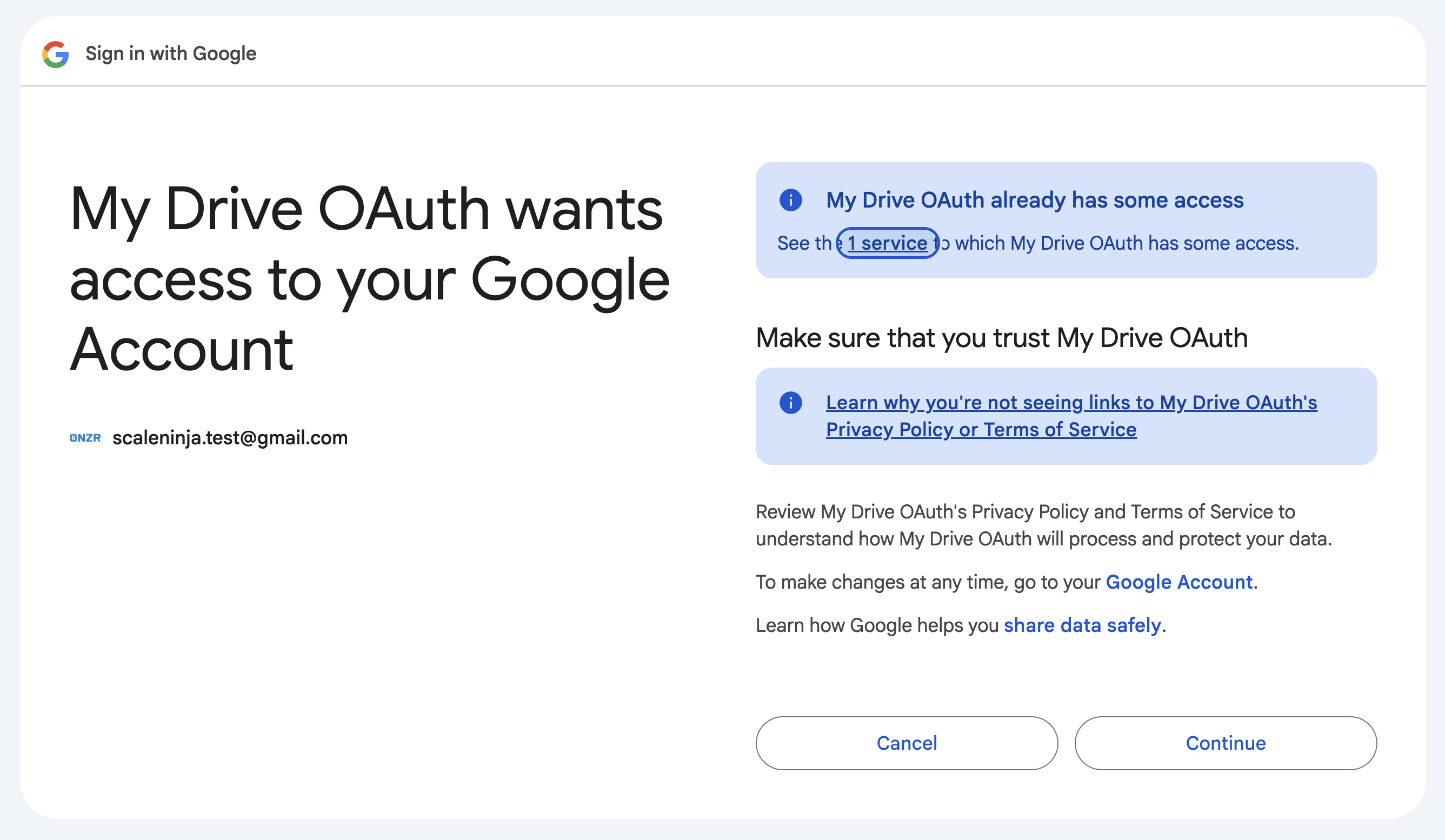
Sign in with the account you configured. If Google shows an unverified-app notice, confirm that the app name matches the client you created before continuing. Review the Drive access requested, then authorize. See Google setup if the account or app name is unexpected.
dsync receives the response on a local port and stores tokens in the .gd folder inside your synced folder, with owner-only file permissions on macOS. It sends tokens to Google as required for authentication; it does not send them to ScaleNinja.
4. Done
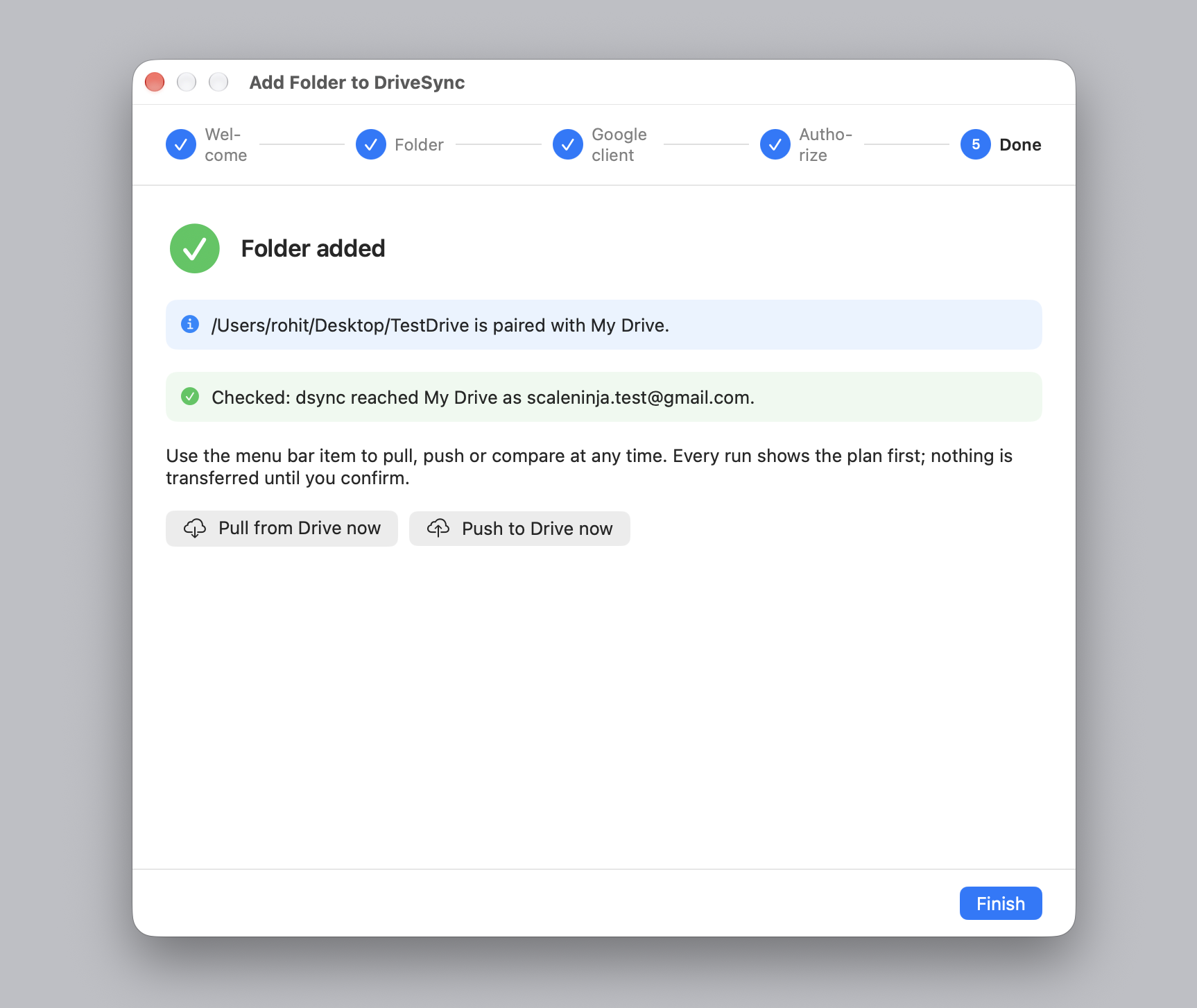
The last step is not just a confirmation screen. DriveSync runs a connection check, confirms the Drive folder exists and reports which account answered. If something is wrong with the pairing, you find out here rather than on your first sync.
From here, Pull from Drive now or Push to Drive now opens the sync window, or click Finish and use the menu when you are ready.
Adding more folders
Use the same wizard and select your saved client JSON. Each new folder pairing is authorized in the browser. A client can be reused for accounts its Google project permits; in Testing mode, add each account as a test user. Workspace policies may require a separate approved project. Only an already-initialized folder skips the client and authorization steps.