
 DeltaSnap
  DriveSync
  Noject
  DeltaSync
 DeltaSnap requires macOS 15 or later. Install the signed and notarized app in /Applications before starting a 30-day local trial or activating a paid license.
Install the app and helper
- Move
DeltaSnap.appto/Applications. - Follow the onboarding assistant, and register the privileged background helper.
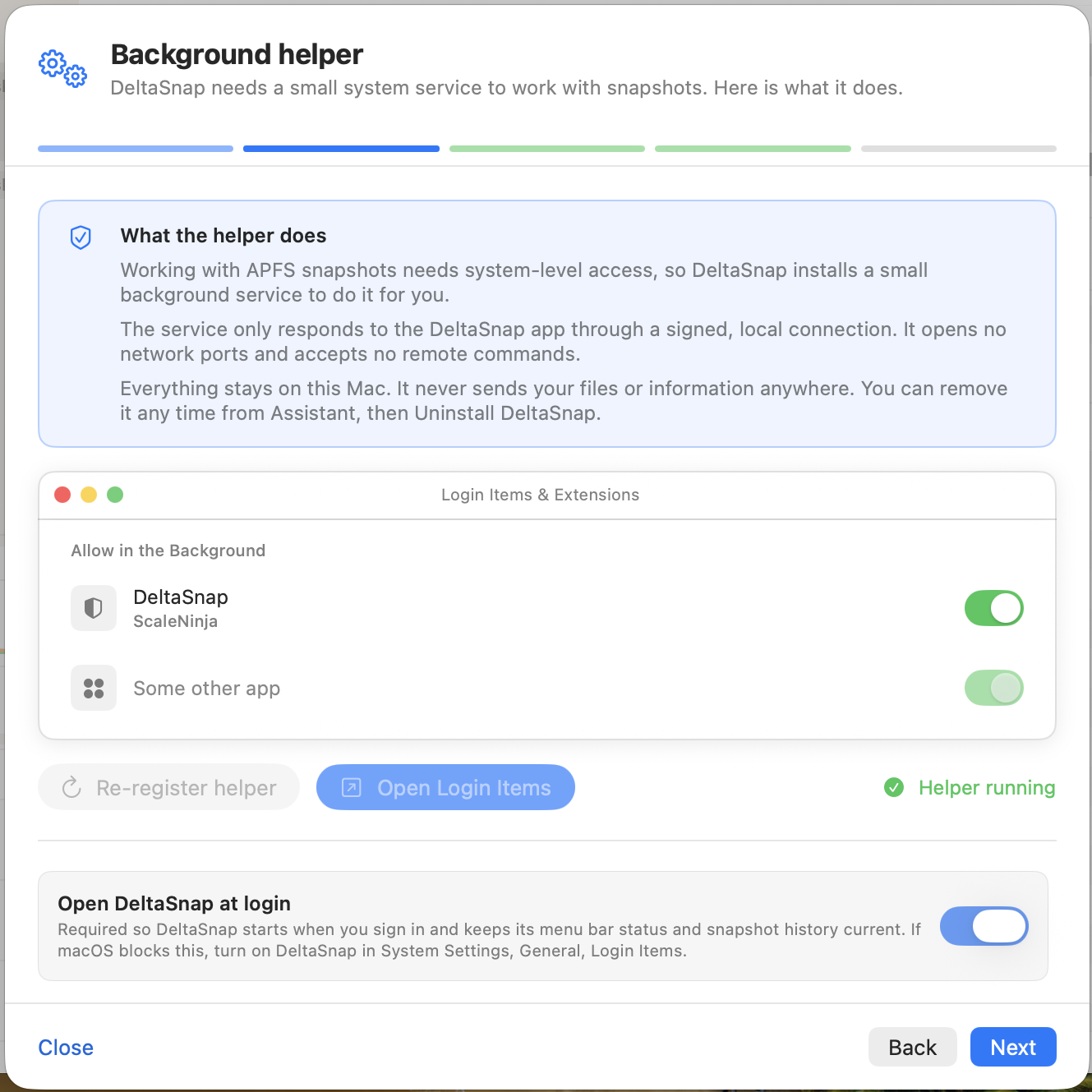
- If macOS asks, approve DeltaSnap under System Settings → General → Login Items & Extensions.
The setup assistant opens on first launch and walks through the same four approvals in order.
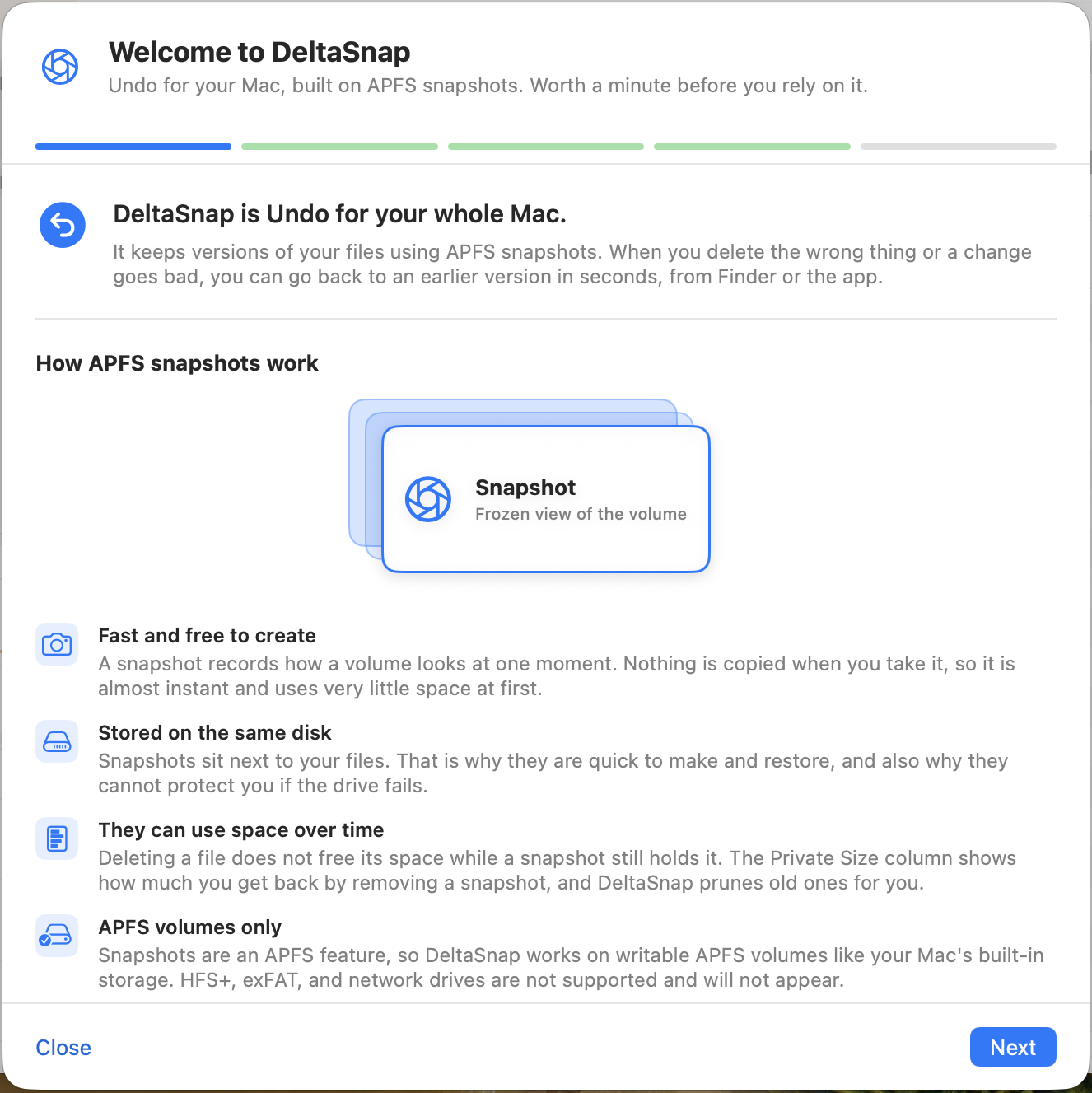
The helper owns the APFS snapshot entitlement and serves the app, Finder extension, and CLI. Schedules, pruning, monitoring, indexing, and restore jobs can continue after the main window closes.
Grant Full Disk Access
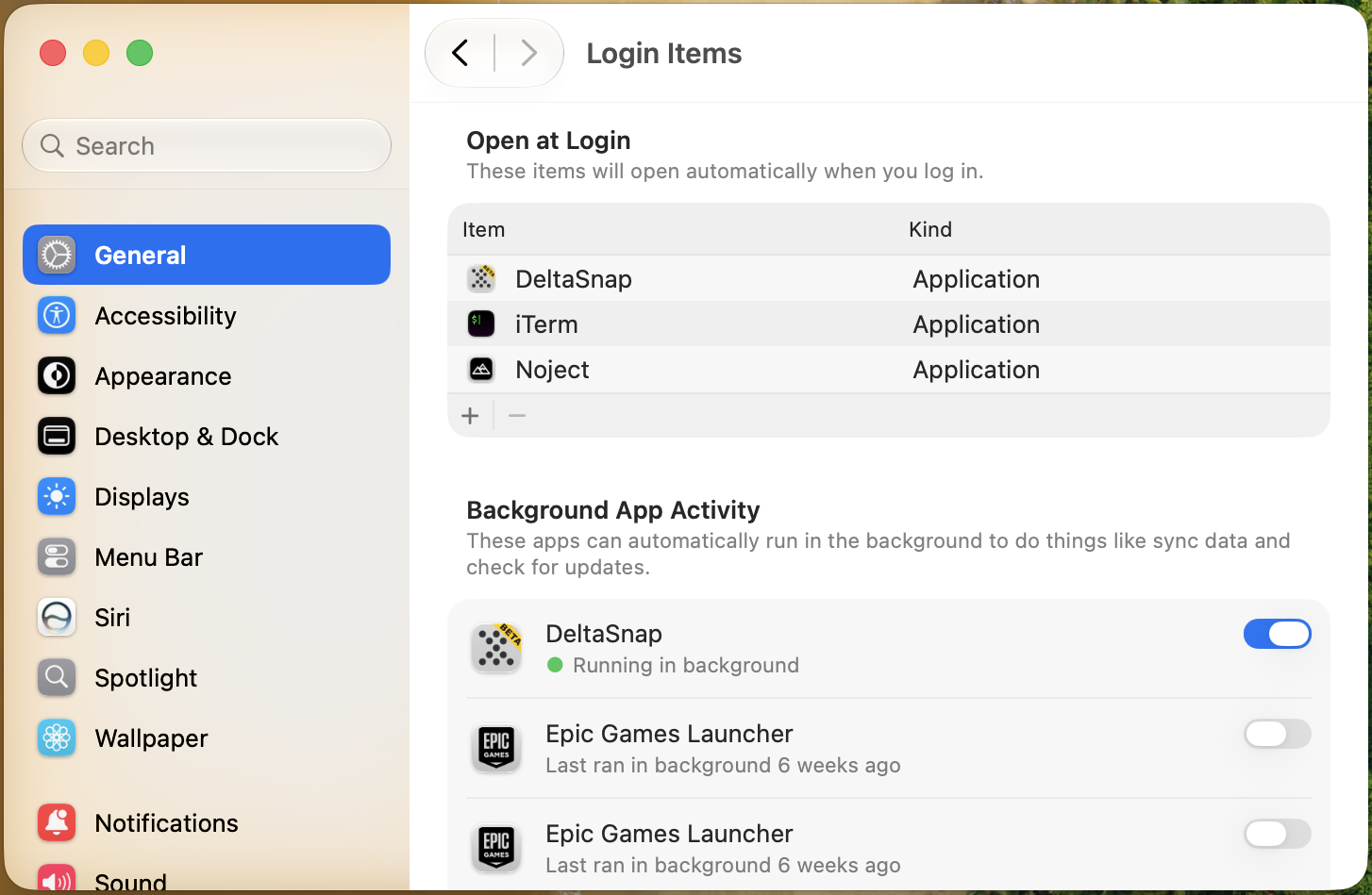
Open System Settings → Privacy & Security → Full Disk Access, enable DeltaSnap, then relaunch it. Full Disk Access lets DeltaSnap enumerate and index protected user data reliably. A mounted historical snapshot can expose old copies of protected files, so grant access only on a trusted Mac.
Enable Finder integration
Open System Settings → General → Login Items & Extensions → Added Extensions and enable DeltaSnap under Finder if it is not already active. Finder may need to be relaunched before the submenu and badges appear.
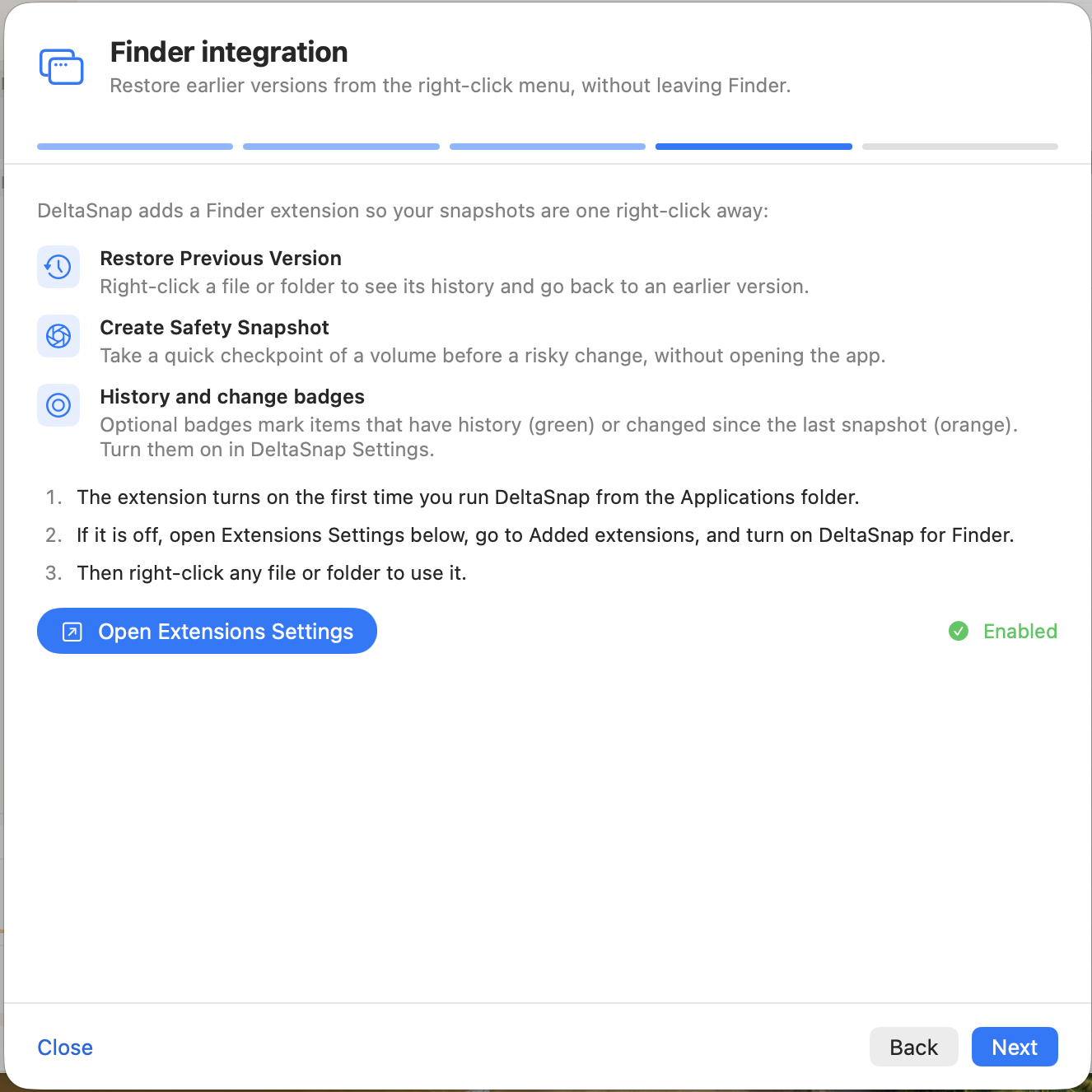
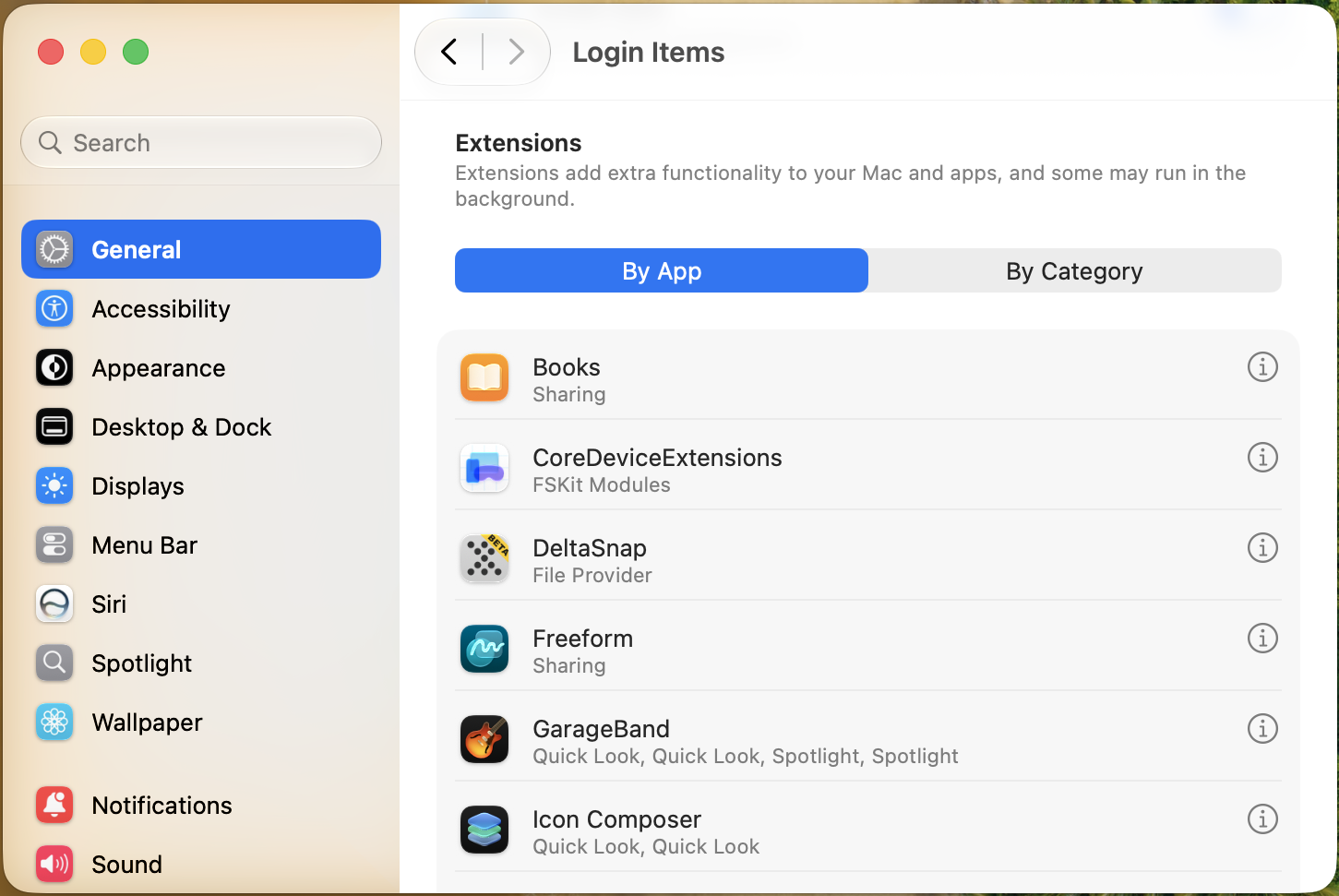
/Applications. If it does not, open Extensions Settings and enable DeltaSnap for Finder there.
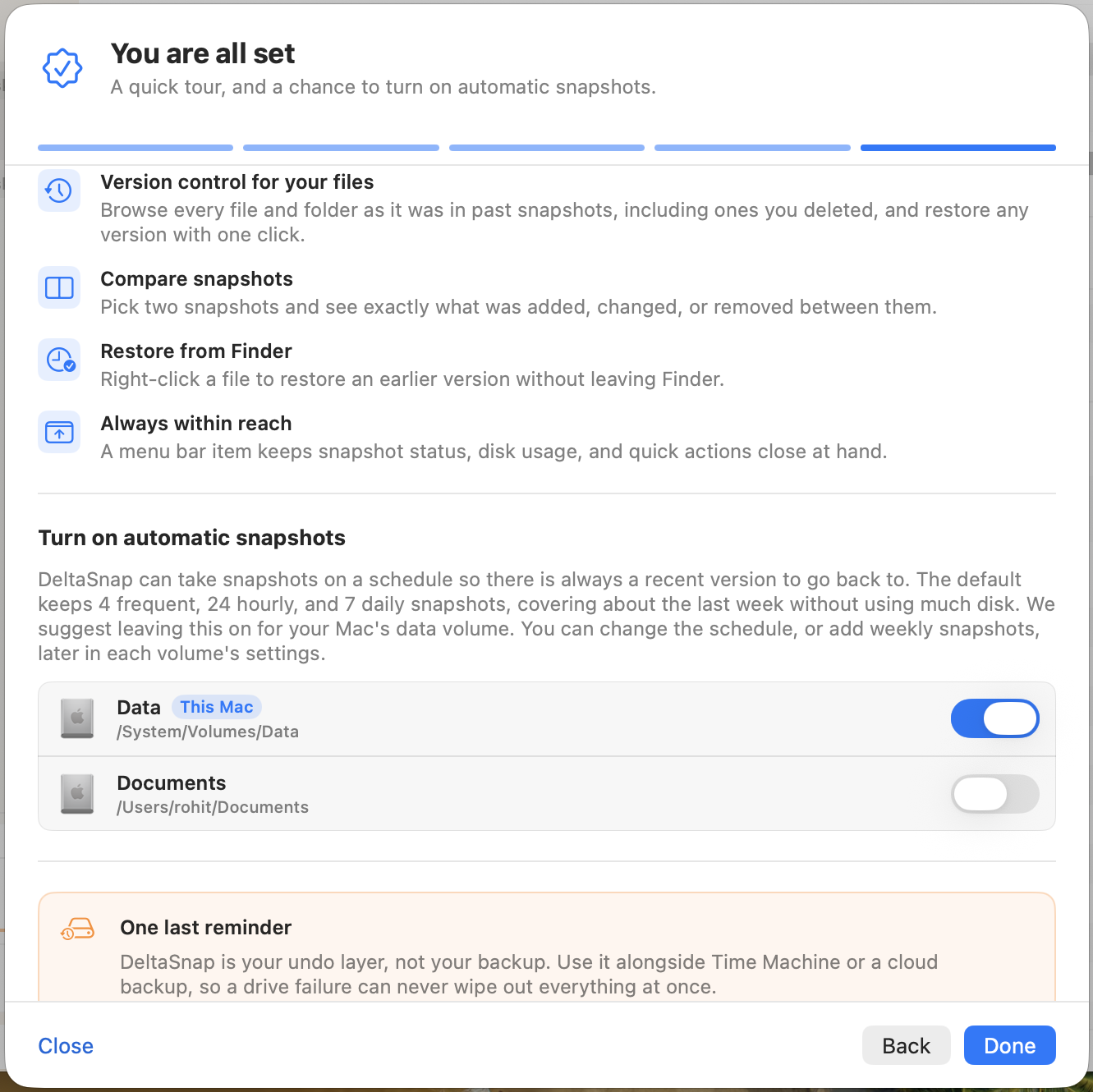
Setup finishes with a short tour and the option to turn on automatic snapshots per volume. The suggested policy keeps 4 frequent, 24 hourly, and 7 daily snapshots, covering roughly the last week.
Verify dsnap
The signed CLI is bundled at:
/Applications/DeltaSnap.app/Contents/MacOS/dsnapThe helper safely reconciles these command links when it starts:
/usr/local/bin/dsnap
/usr/local/bin/deltasnap
Both names invoke the same executable. A conflicting regular file or unrelated link is never replaced automatically. Verify setup with:
dsnap version
dsnap list
Trial and license
The 30-day trial is local to the Mac and starts on first launch. After purchase, open DeltaSnap → Settings → Licensing, paste the DELTA-… key, and choose Activate. The key is checked once, at activation, and never again, so a lapsed connection can never disable a license you paid for. If you would rather DeltaSnap never contact anything, ask us for an offline license instead.
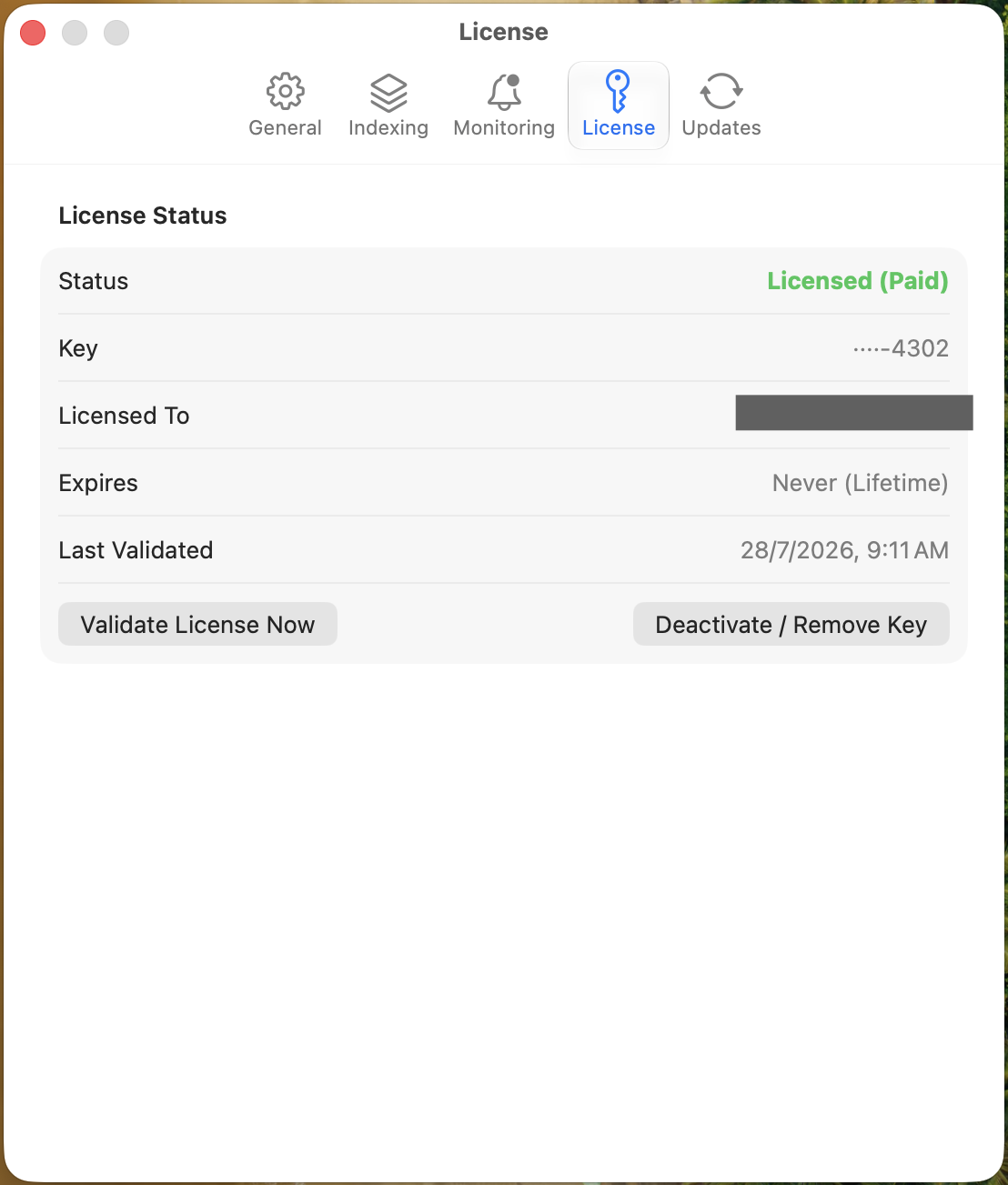
Trial or license state never deletes native APFS snapshots. When entitlement expires, activate a valid license to continue privileged DeltaSnap operations.
Optional: install the AI agent skill
After dsnap version and dsnap list succeed, install the open-source skill so a compatible desktop or CLI agent can create auto-expiring checkpoints before and after risky work:
gh skill install scaleninja/deltasnap deltasnap --agent codex --scope userSee AI agent skill for Claude Code, Codex, Cursor, GitHub Copilot, Gemini CLI, and manual installation examples.
Updating from an earlier version
DeltaSnap updates itself through the app (DeltaSnap → Check for Updates…, or the daily automatic check). Nothing needs to be done by hand, but it helps to know what happens:
- The background service restarts on its own. After the app relaunches it notices the running service is from the previous version and asks it to quit; the new one starts on the next connection. A service caught in the middle of a long scan finishes or gives up within about a minute and is replaced all the same. Only if the app reports that it could not restart the service, use Assistant → Restart Helper.
- Your data carries over. Snapshots, schedules, protection, tags, the history index, and your settings are kept. Anything the new version stores in a new form is converted the first time it runs.
- You may be asked to accept the EULA again when the agreement changed since your last acceptance.
- The Notifications window fills in. From 1.0.0 the service keeps a log of its notifications, so after an update the window shows what happened while the app was closed, unread and without banners.
- Email notifications stay off until you set them up in Settings → Notifications.
Remove DeltaSnap
Use Assistant → Uninstall and Disable DeltaSnap before deleting the app. This unregisters the background services and removes DeltaSnap-owned command links when they still point at the app.
Email notification settings, including the mail password, live in the background service's own store and are removed with it. Nothing is left in your keychain.
Removing the app does not delete native APFS snapshots. Delete unwanted snapshots first and preserve any history used by Time Machine, CCC, or another tool.