
 DeltaSnap
  DriveSync
  Noject
  DeltaSync
 Both products connect directly to Google using an OAuth client in your Google Cloud project. Allow about ten minutes for this one-time setup. You can reuse the resulting client JSON for new folder pairings, which each need browser authorization.
Have a folder already initialized with dsync? Add it to the Mac app without creating another client.
The illustrated walkthrough on GitHub shows the Google Console screens alongside these steps.
1. Create a project and enable the Drive API
Open Google's enable-API flow, select or create your project, and enable Google Drive API. Check the selected project before continuing.
For a managed Google Workspace account, your administrator may need to create or approve the project. DriveSync supports files under My Drive, including on permitted Workspace accounts; Shared Drives are not supported.
2. Configure the consent screen
Open Google Auth Platform. Supply an app name you will recognize, your support email and contact email. For a personal Gmail account, choose External and add your Google account under Audience → Test users.
External clients in Testing receive Drive refresh tokens that expire after seven days. For continued personal use, Publish app changes the status to In production and removes that testing-mode lifetime limit. Publishing and Google verification are separate processes; an unverified personal client can still show a warning.
Tokens can still be revoked or become invalid through inactivity, token limits or administrator policies. See Google's token-lifetime documentation. An organization's internal-client setup depends on its Workspace policies; ask your administrator if needed.
3. Download a Desktop app client
Open Credentials, choose Create credentials → OAuth client ID, and select Desktop app. Download the JSON and keep it in a private location. A Web application client will not work with this flow.
The download is often named client_secret_….json; use its actual filename when selecting it or entering a command. Do not commit it or the initialized folder's .gd directory to source control.
4. Authorize your folder
In the Mac app, return to Add a folder and select the JSON. In the CLI, continue with the quickstart.
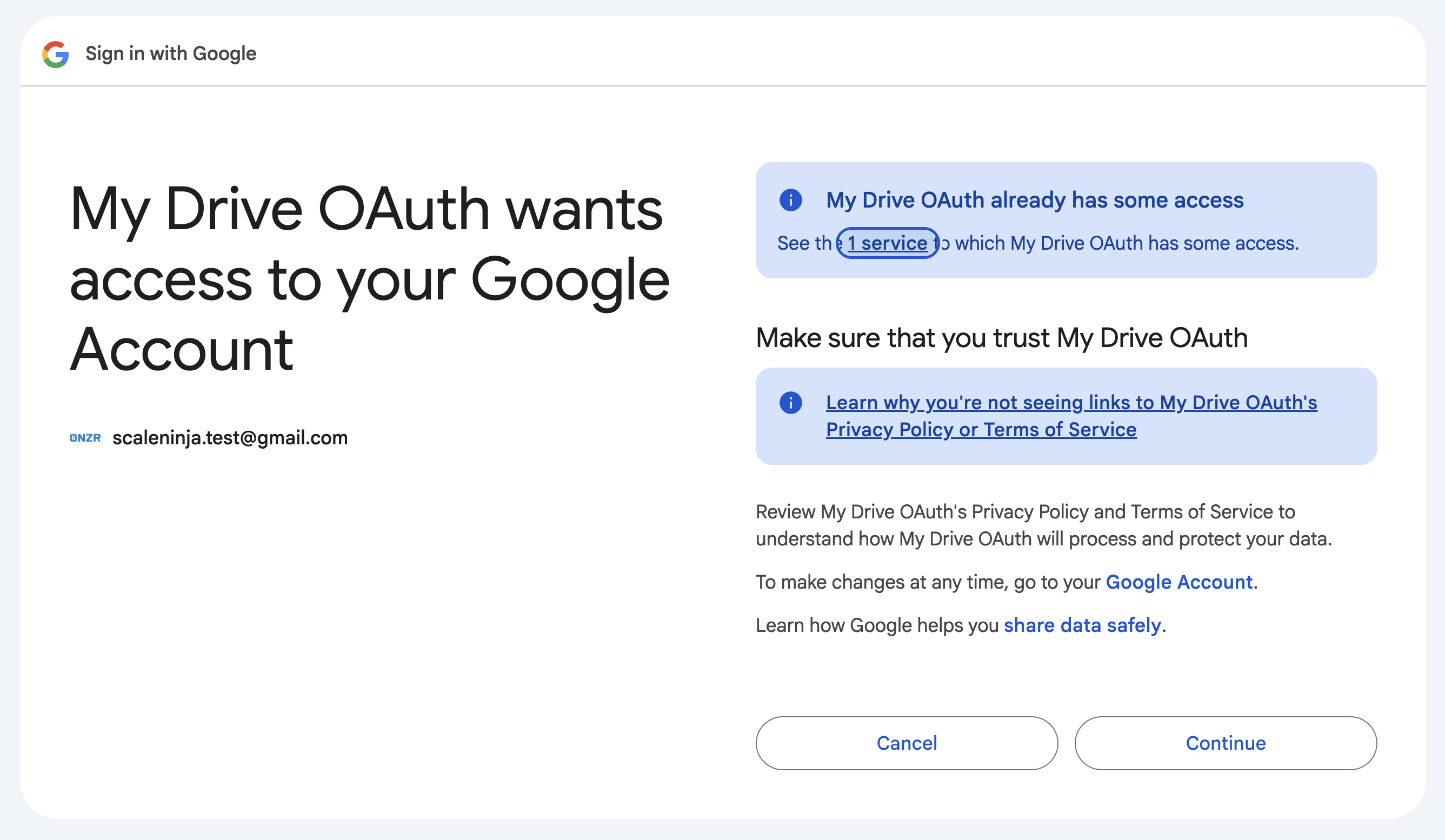
Google opens in your browser. Check the account and app name against your own project. If your personal, unverified client shows Google hasn't verified this app, continue only after confirming it is the client you created. If those details are unexpected, stop and check the selected project and JSON.
The requested Drive permission includes reading, creating, modifying and deleting files. That describes the OAuth scope; the tools operate on the folder you pair and do not delete by default. Review the consent screen before authorizing.
Keep the setup for later
dsync stores the client ID and secret, tokens and index inside the paired folder's .gd directory. On macOS these credential files have owner-only permissions. Tokens are sent to Google as needed to authenticate; they are not sent to ScaleNinja.
Deleting the downloaded JSON does not break an existing pairing, but keeping it privately makes it easier to authorize additional folders. Reusing the client does not automatically authorize another folder. Adding an already-initialized folder to the Mac app reuses that folder's existing authorization.
Deleting .gd removes the local setup, not Google's authorization grant. To revoke that grant, use your Google account permissions.
Continue with Mac app setup or your first CLI sync.