
 DeltaSnap
  DriveSync
  Noject
  DeltaSync
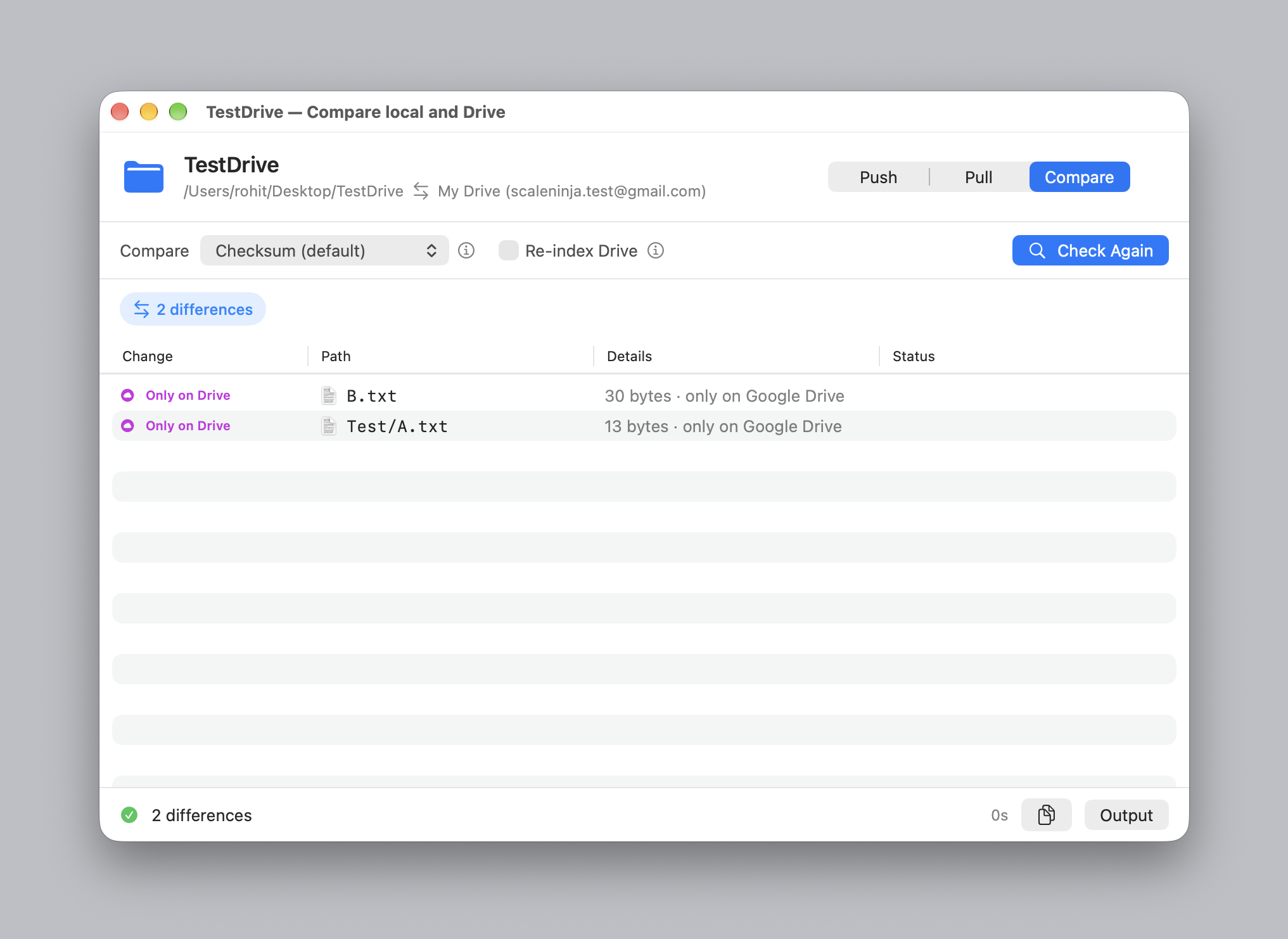
 Pick a folder in the menu, then Push, Pull or Compare. All three open the same window with a different direction selected; you can switch direction with the segmented control at the top right without closing anything.
Compare
Compare reads both sides and lists what differs without transferring, overwriting or deleting your files. It may update the local index and checksum cache. Use Push or Pull's check step to see the plan for that direction.
Push and pull
Both run in two stages. First a check, which produces the plan. Then the apply, which you start by clicking the button that names the count, such as Pull 128 changes. Close the window during the check and nothing has happened.
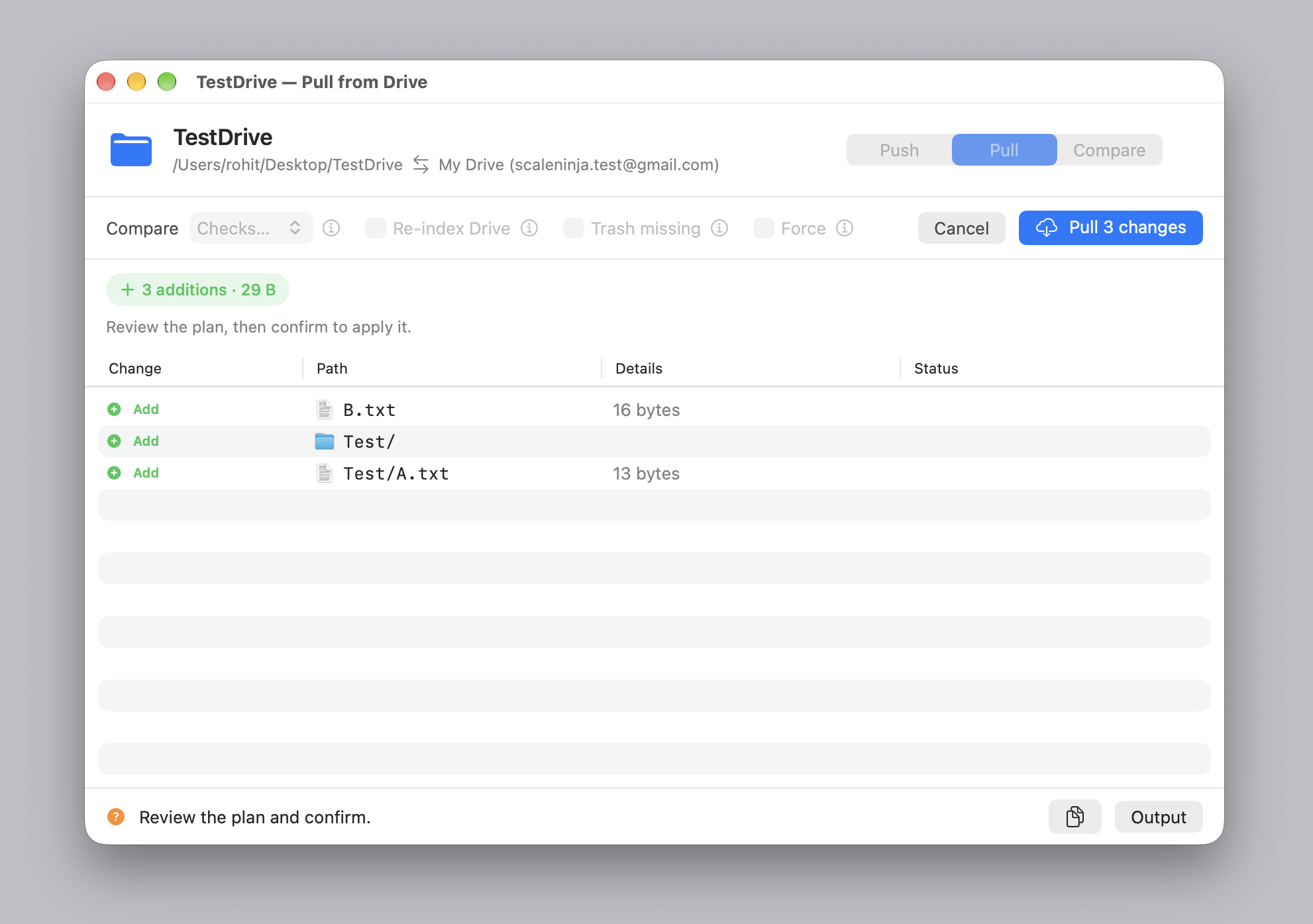
The chips above the table count the plan by kind: additions, updates, deletions, conflicts. Deletions get their own red chip and a line explaining where the files go.
The Change column says what will happen, Details says why the row is there (the local file is newer, only on Google Drive, both sides changed), and Status fills in as the run proceeds.
Right-click a row for Show in Finder, Open on Google Drive, Copy Google Drive Link and Copy Path, or Copy Paths with several rows selected. A row that failed also offers Copy Error Report. The Drive link is exact: it comes from the file's real id, not a search.
The options
Every option sits in one bar above the table, and each has an ⓘ button that explains it in place. All of them apply to the run you are about to start, not to future ones.
Compare. How files are matched.
- Checksum (default): contents are compared by MD5. Drive supplies checksums for its files; local ones are cached and recomputed only when a file's size or date changes.
- Fast: same size and date means identical, without reading the file. Quicker on big folders, but misses a change that kept both.
- Verify: re-read and re-hash every local file instead of trusting the cache. For after a restore, or when a tool rewrote files without touching their dates.
Re-index Drive. Lists the whole Drive folder again instead of using the stored index. DriveSync normally updates that index incrementally, which is much faster. Use this when Drive and DriveSync seem to disagree about what is there.
Trash missing. After the transfers, removes anything on the destination that no longer exists on the source. Off by default. Deletions appear in the plan before anything runs, you are asked once more, and they are skipped entirely if any transfer failed. Pushing sends them to the Google Drive trash; pulling sends them to the macOS Trash.
Force. Also transfers files that would otherwise be reported as conflicts, meaning the destination copy is newer or both sides changed since the last sync. Names that differ only in capitalisation are never overwritten, even with this on.
Trash missing and Force are deliberately per-run. Neither can be made a default.
When a file fails
Google refuses files sometimes: a download flagged as abusive, a file you can read but not modify, a shared drive rule, a full Drive. The row shows what Google actually said instead of the word "failed", and keeps the machine-readable reason underneath.
Failures survive the window. Open Settings and the folder shows what failed on its last run, with a Copy Report button for support threads.
Settings
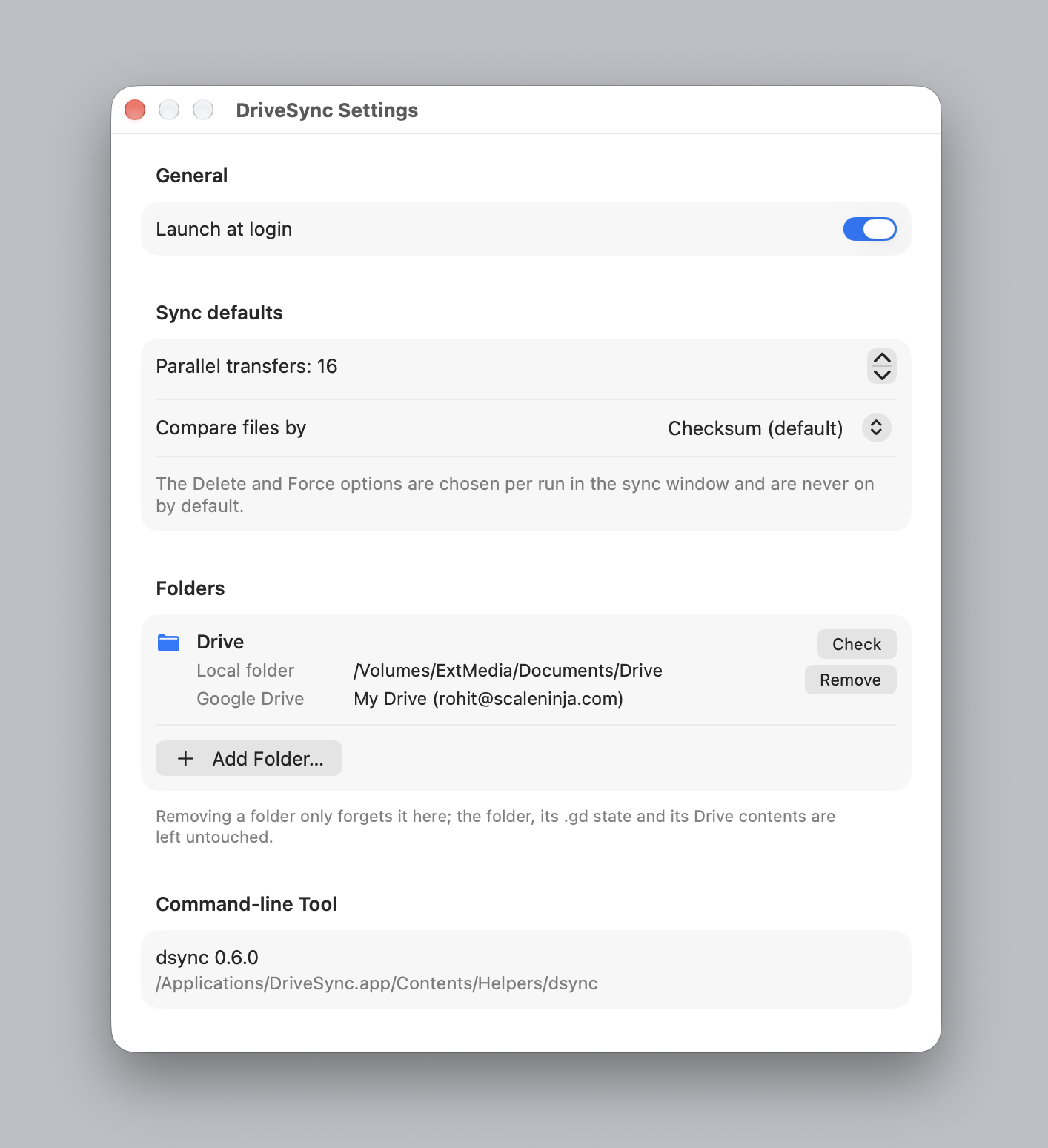
- Launch at login. Off by default.
- Parallel transfers. How many files move at once, 1 to 64, eight by default. Raising it helps with many small files; it does nothing once your uplink is saturated.
- Compare files by. The default for the picker in the sync window.
- Folders. Each pairing, with its local path and its Drive folder and account. Check runs a live connection test; Remove forgets the folder here and leaves the folder, its
.gdstate and its Drive contents alone. - Command-line Tool. The version of dsync inside the app and where it lives. Nothing to configure; it is there so you can see what is running.