
 DeltaSnap
  DriveSync
  Noject
  DeltaSync
 Supported guests
MacVisor creates macOS and ARM Linux VMs. It does not emulate x86 processors or create Windows guests.
Start from an empty disk or a template
The Start From picker at the top of the Create sheet lists every template that matches the selected operating system, plus Empty disk. Choosing a template copies a prepared guest and gives it a fresh identity and MAC addresses, so the first boot lands on a configured system instead of an installer.
macOS
Choose a local .ipsw restore image. MacVisor creates the VM package and runs Apple's restore process automatically. macOS VMs default to at least 4 GB memory and a 64 GB disk.
Compatible macOS guests can receive optional first-boot account details — account name, password, automatic login, and Remote Login (SSH) — which skips Setup Assistant. The password is stored in the VM configuration, so use this only when that storage location is appropriately protected.
Linux
Choose an ARM64 Linux ISO, or create an empty VM and attach media later. The installer appears as USB mass storage on first boot.
Supported hardware can expose nested virtualization to Linux (an M3 or later Mac). Rosetta sharing can help ARM Linux run x86_64 Linux applications where Apple's requirements are met.
Resources
- CPU: allocate only what the workload needs; the host must retain capacity.
- Memory: leave memory for macOS and other VMs.
- Disk capacity: the maximum guest-visible size, not necessarily immediate host usage.
- Storage location: where the
.macvisorpackage is created.
Disks are ASIF
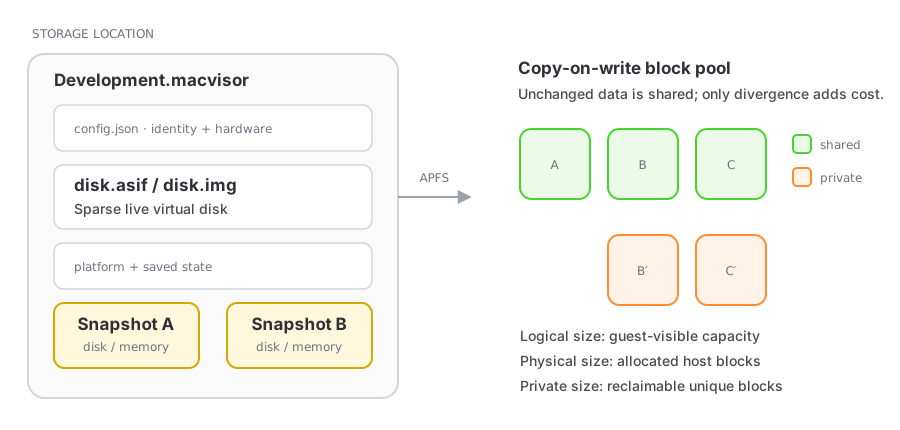
Every disk MacVisor creates — boot disks and additional disks alike — uses ASIF, Apple's sparse virtual disk format. It grows as data is written, can reclaim freed guest space, and is the only format that supports shrinking and linked clones. There is no format picker, in the Create sheet or anywhere else.
Raw images still open and run: a VM imported from another tool, or created by an older MacVisor, keeps working and is shown as Raw (legacy). VM Settings → Storage offers Convert to ASIF… for a stopped VM when you want the newer format's behaviour.
Templates
Convert to Template… in a stopped VM's context menu turns a prepared VM into a reusable base. Templates live in a Templates folder inside their storage location, appear in the sidebar's Templates section, and cannot run directly. Create VM Using This Template… produces a new VM with a fresh identity and MAC addresses.
From the CLI:
vz images                              # list templates
vz create <template-name-or-id> <new-vm-name>
vz template <vm> on                    # promote a stopped VM to a template
vz template <vm> off                   # demote it back to a runnable VM
For a base that many VMs share without copying the disk at all, use a linked clone instead.