
 DeltaSnap
  DriveSync
  Noject
  DeltaSync
 Version Control is the usual recovery surface. Direct mounts remain useful for excluded locations, manual browsing, or whole-tree inspection.
Mount a snapshot
Select a snapshot and choose Mount Snapshot(s) or Reveal. Finder-visible managed mounts use a collision-safe path shaped like:
/Volumes/<volume-name>-<volume-uuid>@snap-<xid>The mounted filesystem is read-only. Internal temporary mounts under /private/var/run/com.scaleninja.deltasnap/mounts/ are for scans and helper jobs, not normal browsing.
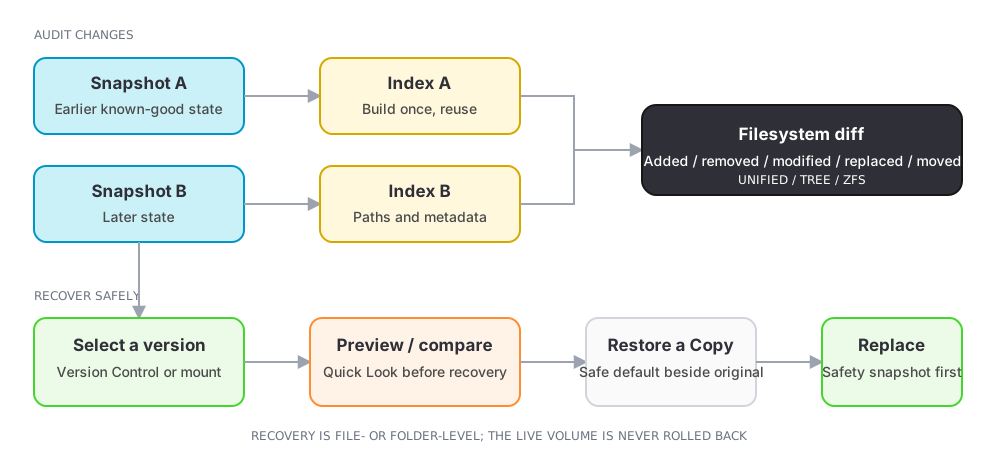
Recover with Version Control
Open Version Control, select the item, and choose a captured version:
- Restore a Copy creates a dated copy next to the original.
- Replace Original… can first take a safety snapshot, then atomically replace the live item.
- Drag a version out to choose another writable destination.
DeltaSnap requests an APFS clone on the same volume and falls back to copying when cloning is unavailable. Large directories can therefore become real copies depending on the destination.
Recover manually
- Mount the snapshot from the required time.
- Find the historical file or folder.
- Copy it to a new writable location.
- Inspect the copy.
- Replace live data only after verification.
Unmount cleanly
Close Finder windows, Quick Look, editors, and terminal working directories using the mount, then unmount it. DeltaSnap reference-counts mounts used by its own windows and will not tear down a mount while another feature still needs it.
dsnap mount data@HEAD~1
dsnap mount
dsnap unmount data@HEAD~1
dsnap unmount /Volumes/<mount-name>
DeltaSnap performs file- and folder-level recovery; it does not roll the running startup volume backward. Use an independent backup product and supported recovery environment for device-wide disaster recovery. See What DeltaSnap cannot do for the full set of boundaries.