
 DeltaSnap
  DriveSync
  Noject
  DeltaSync
 MacVisor Agent is an optional companion installed inside macOS and Linux guests. Basic virtualization works without it, but integrated workflows require the agent.
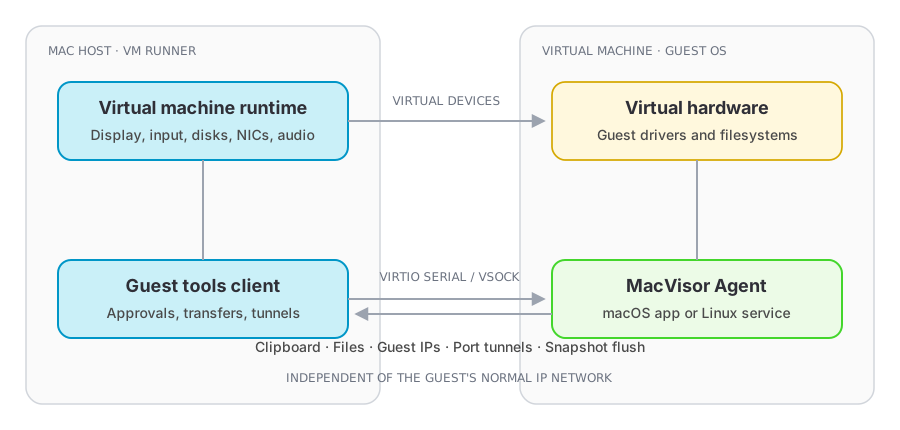
Features enabled by the agent
- Clipboard synchronization.
- Host-to-guest and guest-to-host file transfer.
- Live guest operating-system and IP information.
- Port-forwarding tunnels.
- Snapshot filesystem preparation.
- Clock resynchronisation after resume or host wake.
- Push notifications about guest-side requests and transfers.
The agent talks to its VM runner over a virtual socket device, not over the guest's IP network, so it works on a host-only network or a guest with no route to anywhere.
Enable it
VM Settings → Sharing → Guest Tools has two switches:
- Enable Guest Tools — the host side of the channel.
- Attach Guest Tools Image at Boot — mounts the MacVisor Agent volume in the guest at each start, so the installer is always at hand.
The agent's channel needs the Virtio Socket (vsock) device, which is on by default under Advanced.
Install in a macOS guest
The MacVisor Agent volume opens its window by itself when it is attached while you are logged in.
- Drag MacVisor Agent onto the Applications alias in that window.
- Open it from Applications.
That is the whole installation. On first launch the agent registers itself as a login item so it comes back after a reboot, and starts listening immediately. It appears in the menu bar, and in System Settings → General → Login Items & Extensions as MacVisor Agent with its own switch.
If macOS asks you to approve the background item, turn MacVisor Agent on in Login Items & Extensions; the agent says so once rather than failing silently.
Install in a Linux guest
Mount the volume and run the installer once:
sudo /path/to/volume/MacVisorGuestLinux/install.shIt installs a systemd unit, so the agent starts with the system.
Checking the connection
The VM's Overview tab reports whether guest tools are unavailable, connecting, or connected, and names the next step when they are not. vz ip <vm> returning addresses is the quickest CLI confirmation.
Trust controls
Guest settings can require host approval for files, URLs, and automatic port forwards requested by the guest. Clipboard synchronization can also be disabled by default.
These approvals matter because the agent is an intentional communication bridge between isolated environments. Accept only actions you expect from software inside the guest.
File transfer
Send files or folders from the toolbar or CLI:
vz send <vm> ~/Downloads/example.zip
vz operations list <vm>
Long transfers appear as operations and can be inspected or cancelled.
Shared folders versus file transfer
Use a shared folder for ongoing access to a host directory. Use file transfer for an explicit copy whose destination should be independent after delivery.