
 DeltaSnap
  DriveSync
  Noject
  DeltaSync
 Schedules are per APFS volume and run in the background helper. The main window does not need to remain open.
Choose which volumes DeltaSnap manages
Track Volume sits in the volume header, immediately left of the automatic-snapshot card. It is the master switch for that volume.
Turn it off and DeltaSnap leaves the volume alone: no automatic snapshots, no indexing, no background enumeration, no Finder badges, and nothing reported about it in helper health. Snapshots already on the volume stay listed and can still be deleted by hand, the same read-only treatment a Time Machine destination disk gets.
This is the setting to reach for when a drive is attached mostly as a backup destination, or is simply none of DeltaSnap's business. Turning tracking off also parks that volume's schedule, so switching it back on later does not silently start taking snapshots you did not ask for.
Two things worth knowing:
- Untracked means untracked in both directions. DeltaSnap stops deleting on that volume too, so snapshots there stop expiring on their natural lifespans and hold their space until you remove them or switch tracking back on.
- Turning a volume off never needs a licence. If a trial lapses, you can always tell DeltaSnap to stop touching a drive.
The dsnap equivalent is dsnap schedule set <volume> --tracked=off.
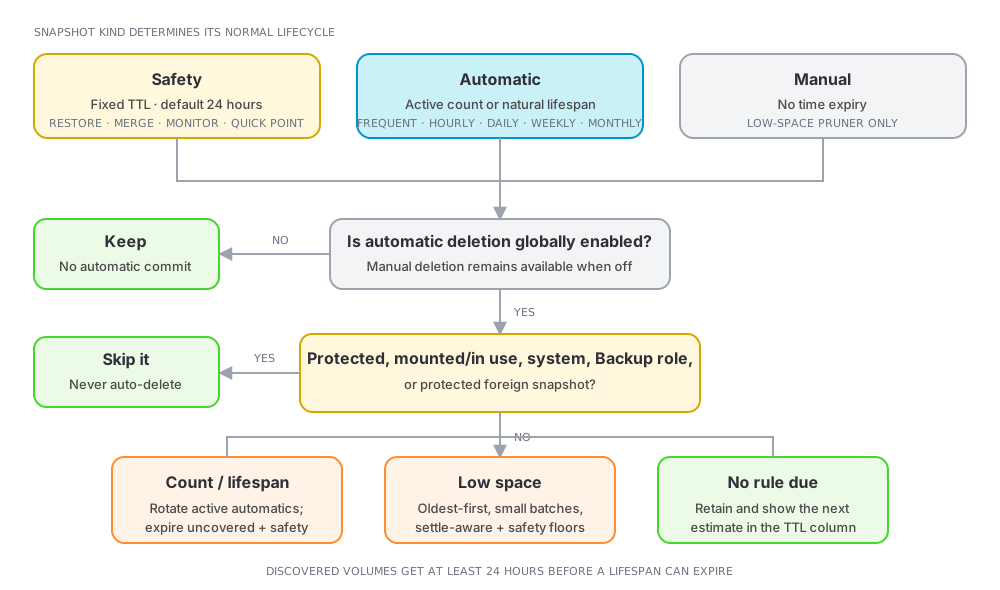
Cadences and default counts
| Cadence | Boundary | Default kept | Natural lifespan when not actively rotated |
|---|---|---|---|
| Frequent | every 15 minutes | 4 | 1 hour |
| Hourly | top of each hour | 24 | 24 hours |
| Daily | local midnight | 7 | 7 days |
| Weekly | Monday midnight | 4 | 30 days |
| Monthly | first of month | off by default | 365 days |
New policies enable Frequent, Hourly, and Daily, covering about the last week with 35 snapshots. Weekly and Monthly start off; Weekly is prefilled with 4 when enabled, and Monthly can keep from 1 to 12. Missed boundaries while the Mac sleeps are skipped rather than replayed in a burst.
Open Configure… in the volume header to edit the policy for that volume.
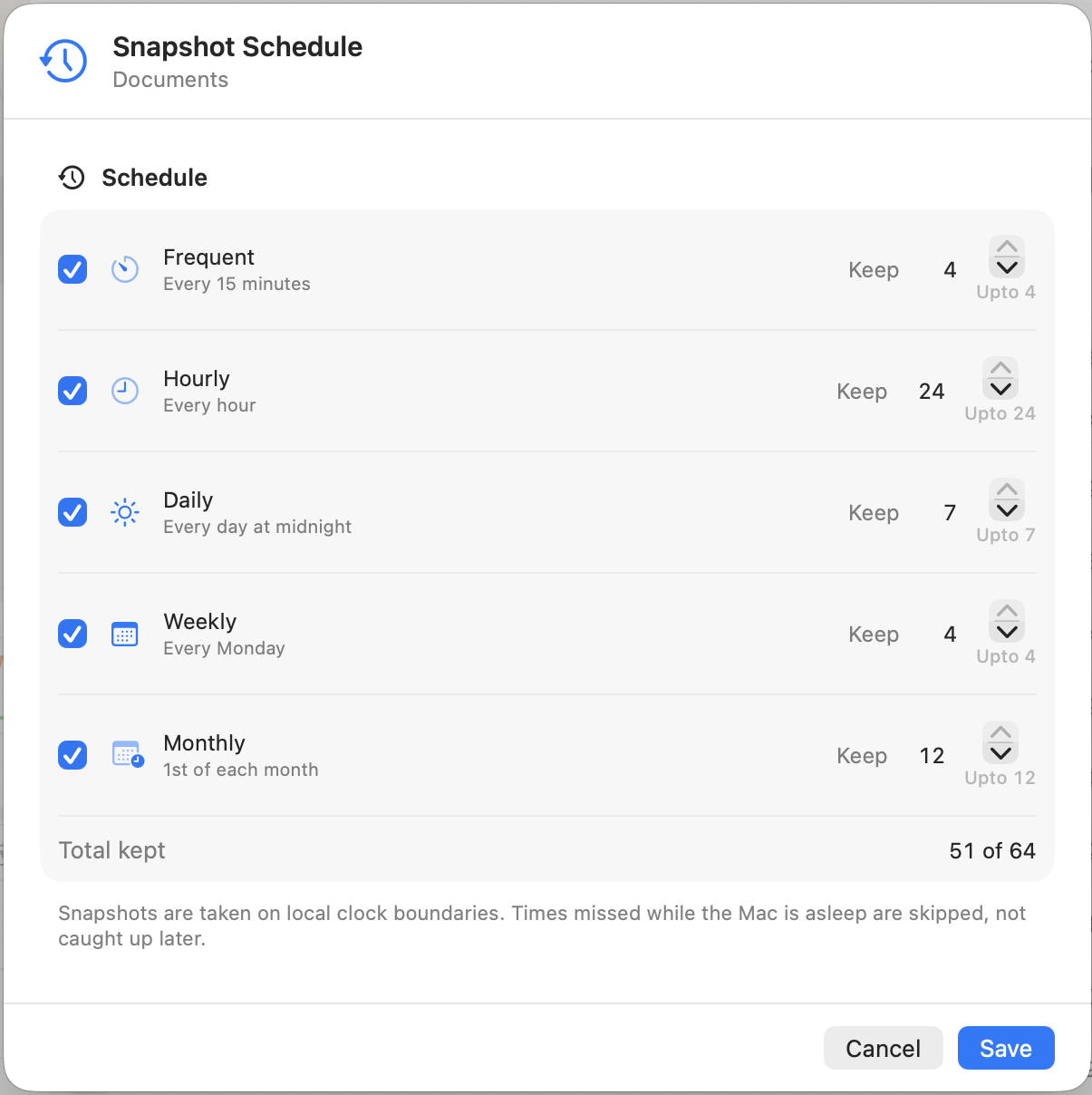
Three automatic deletion paths
- Count rotation removes automatic snapshots beyond the keep count of an enabled cadence.
- Lifespan expiry removes safety snapshots after their configurable TTL and automatic snapshots whose cadence is no longer actively rotating them.
- Low-space pruning removes oldest eligible snapshots in small batches when free space falls below the per-volume threshold. It is the only automatic path that can remove manual snapshots.
There is no user-configurable “delete everything older than N days” rule.
The one-clock rule
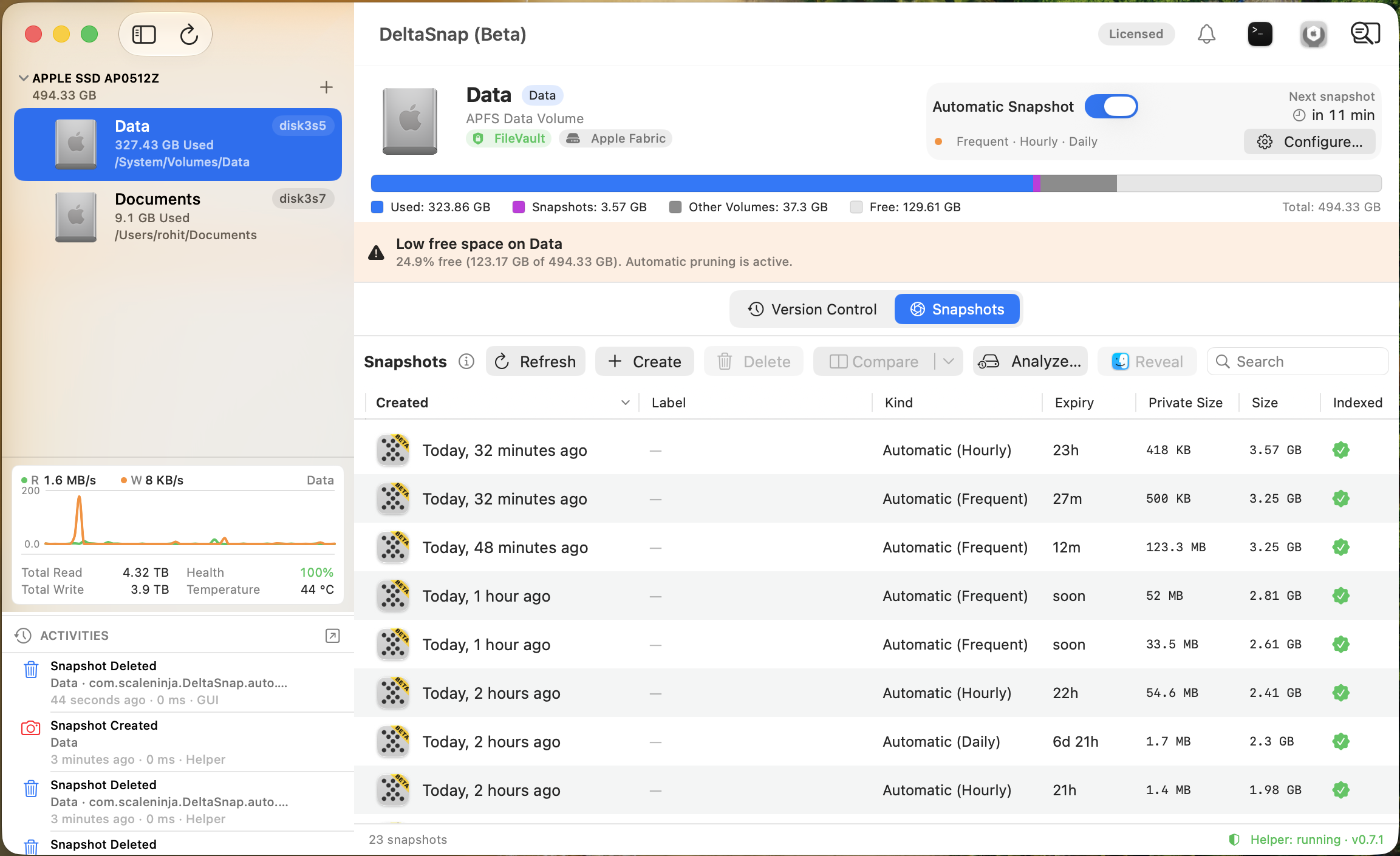
An uncovered automatic snapshot's lifespan starts from the latest of its creation, this installation's first discovery of the volume, or the moment its cadence/schedule stopped rotating. Nothing expires by lifespan within 24 hours of first discovery. The TTL column shows the applicable estimate.
Low-space behavior
The default threshold is 30 GB with a 5 GB floor. DeltaSnap deletes gradually, waits for APFS accounting to settle, and aims above the threshold to avoid repeatedly hovering at the trigger. It keeps the newest snapshot of each cadence and never automatically deletes the last snapshot on a volume.
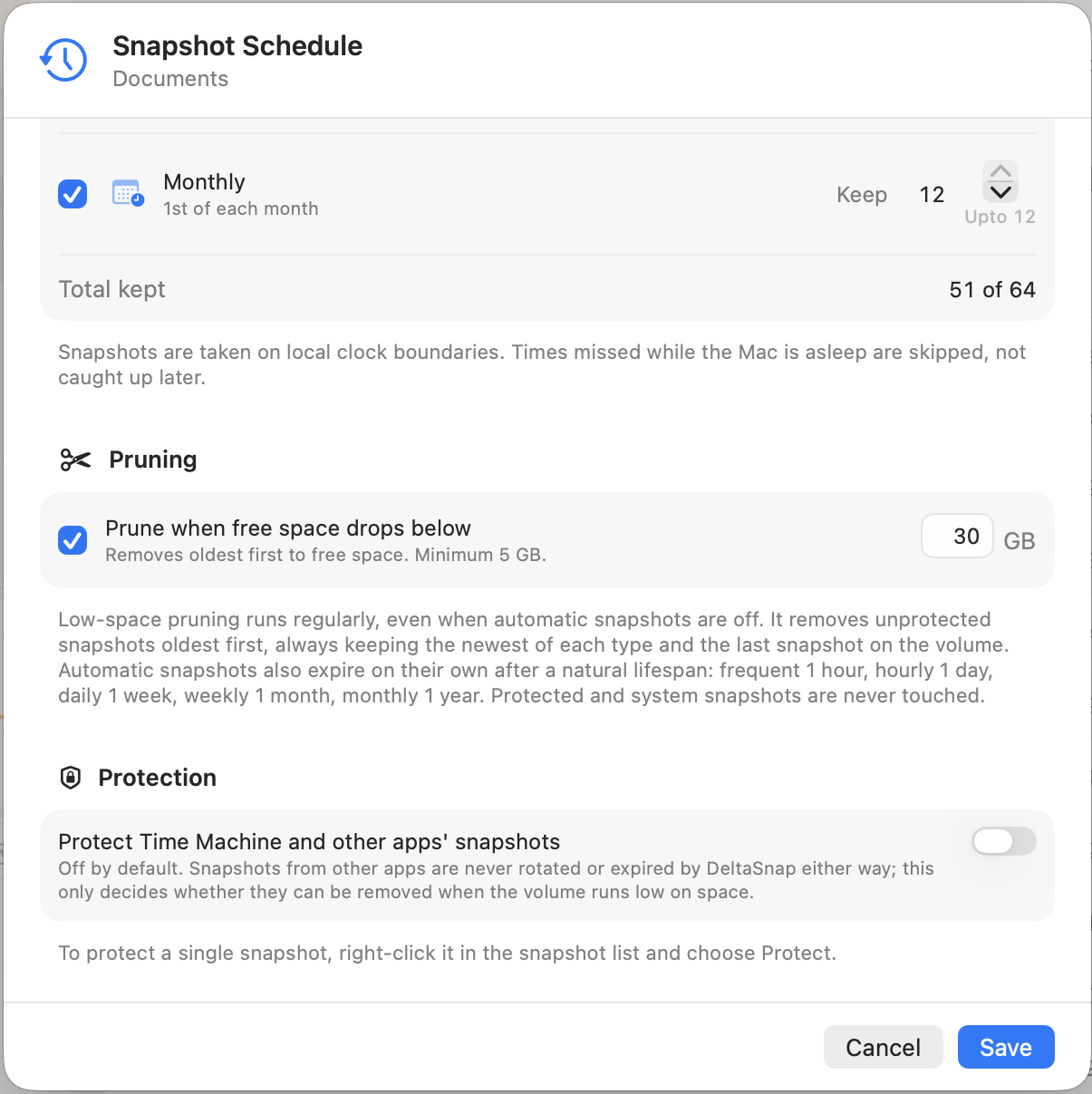
Low-space pruning defaults on for the internal startup Data volume and off for newly discovered external volumes.
DeltaSnap posts a general notification as free space approaches the threshold, and a critical one when it is below the threshold with nothing left it is allowed to prune. Both can reach you by email; see Notifications and email alerts.
What every pruner skips
- protected snapshots;
- mounted or actively leased snapshots;
com.apple.os…snapshots;- snapshots on Backup-role volumes; and
- third-party snapshots while Protect Time Machine and other apps' snapshots is enabled. This now starts on, because DeltaSnap can present another tool's snapshot as browsable, restorable history and deleting one to reclaim space would destroy that tool's restore point. Third-party points are excluded from count, lifespan, and safety-TTL pruning either way, and become relevant only to low-space pruning.
The global Settings → General → Automatic Deletion switch is an additional commit-point gate. Turning it off keeps manual deletion available.
CLI policy controls:
dsnap schedule show data
dsnap schedule set data --freq=4 --hourly=24 --daily=7 --weekly=4 --monthly=1
dsnap schedule enable data
dsnap schedule disable data
The CLI edits counts and pruning values; enable or disable individual cadences in the app.