
 DeltaSnap
 DriveSync
 Noject
 DeltaSync
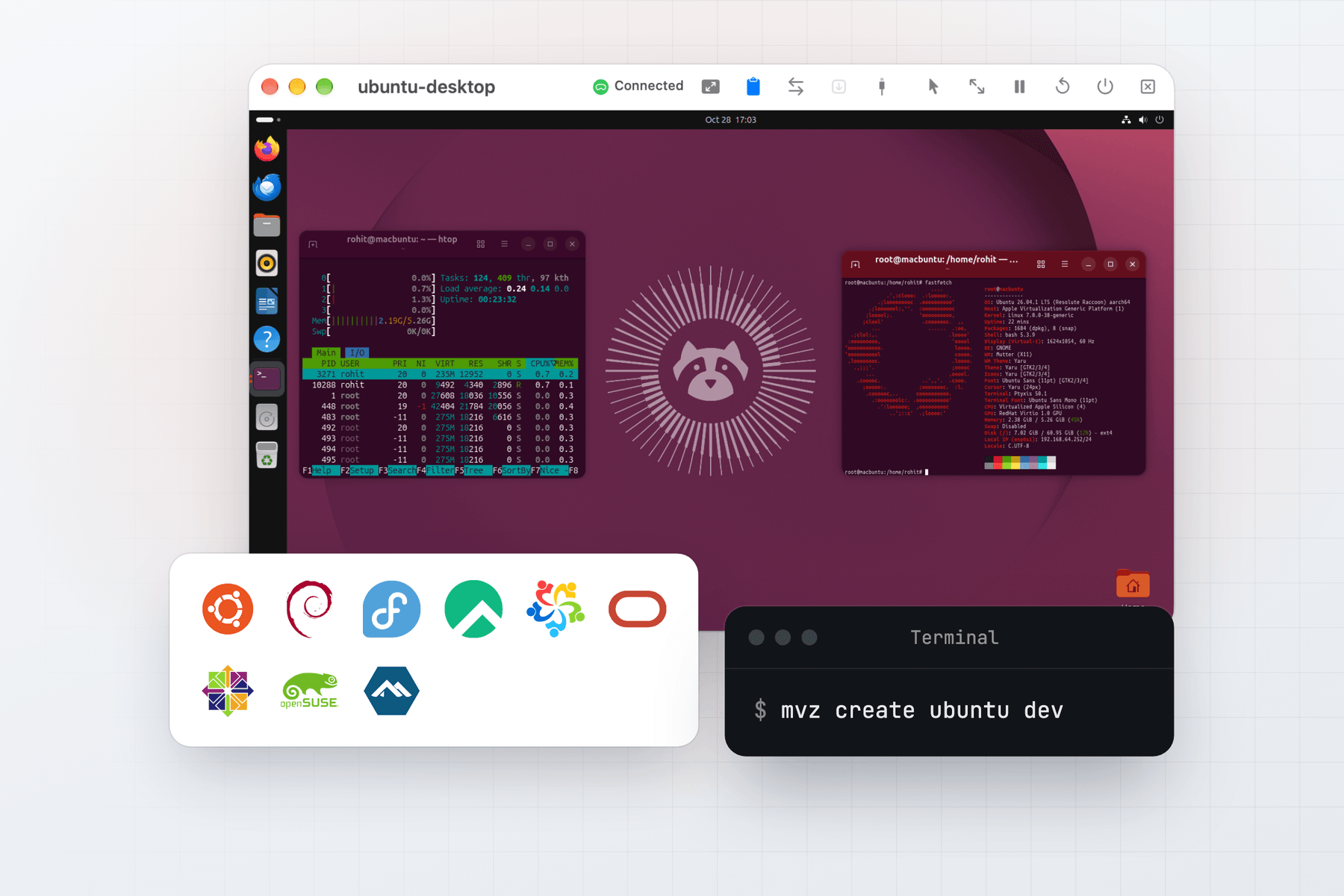
Make a Linux VM in one command
In the app, choose New VM → Linux → Cloud Image, pick a distribution, and create. From Terminal:
mvz create ubuntu dev          # downloads Ubuntu 26.04 LTS the first time, then makes the VM
mvz shell dev --start          # starts it without a window and opens a shell
mvz images lists the catalogue. A new VM gets 4 vCPUs, 4 GiB of memory and a sparse 64 GiB disk unless you pass --cpus, --memory or --disk.
The catalogue is signed and ships inside MacVisor. Every image downloads from the vendor's own site over HTTPS and is checked against the vendor's checksum before use. See How downloads are verified.
Nine distributions in the catalogue
All images are ARM64. Use the id or an alias with mvz create.
| Distribution | Versions | Command | Runtimes |
|---|---|---|---|
| Ubuntu | 26.04 LTS, 24.04 LTS | mvz create ubuntu dev | All four |
| Debian | 13 (trixie), 12 (bookworm) | mvz create debian dev | All four |
| Fedora | 44, 43 | mvz create fedora dev | All four, Podman preinstalled |
| Rocky Linux | 10, 9 | mvz create rocky dev | All four |
| AlmaLinux | 10, 9 | mvz create alma dev | All four |
| Oracle Linux | 10, 9 | mvz create oracle dev | No k3s; no Docker Engine on 10 |
| CentOS Stream | 10 | mvz create centos dev | All four, Podman preinstalled |
| openSUSE Leap | 16.1 | mvz create opensuse dev | All four |
| Alpine Linux | 3.24.3 | mvz create alpine dev | containerd and Docker |
The four runtimes are containerd with nerdctl, Docker Engine, Podman and k3s. The full table, with sources and build policy, is in Linux images.
Templates and linked clones
The first VM from an image makes a template: MacVisor converts the download to an ASIF disk and keeps it in your storage location's Templates folder. Every VM after that is a linked clone of the template, so it starts without a download and stores only its own changes. mvz images pull debian-13 downloads an image ahead of time, and fetches a newer build later. Existing VMs keep the build they were made from.
What the first boot sets up
cloud-init runs once, on the first boot:
- Your account, with your Mac user name and UID, so files in shared folders belong to you on both sides. It has no password and uses sudo without one.
- Your SSH keys, every public key in
~/.sshand your SSH agent. With none, MacVisor offers to make~/.ssh/id_ed25519. - The MacVisor Agent, for clipboard, file transfer, shared folders, clean shutdown and port forwarding.
- Rosetta, when it's installed on the Mac, so x86-64 Linux programs run in the guest.
- Automatic port forwarding. A port the guest listens on appears on the Mac's
localhostat the same number, except ports below 1024 other than 80 and 443, and ports Mac services usually hold, such as 5432 and 6379.--no-forwardturns it off.
mvz wait dev returns when that setup has finished. Your own #cloud-config goes in --user-data <file> and runs after MacVisor's. See What cloud-init sets up.
Work in the VM from your Mac
mvz shell dev                  # a shell over the MacVisor Agent, no network setup
mvz ssh-config --install       # once; then:
ssh dev.mvz                    # plain ssh, scp and VS Code Remote-SSH by name
curl http://dev.mvz:8080       # reach the guest directly by name
--home shares your home folder read-only at the same path in the guest. Share a project folder read-write with mvz shares dev add ~/src/app, or in VM Settings → Shared Folders. Shares mount at the Mac's own path, so mvz shell opens in the folder you're in on the Mac when that folder is shared. See Shared folders.
Containers and Kubernetes, when you want them
A VM gets no container runtime unless you choose one. That keeps a plain dev box plain.
mvz create ubuntu web --runtime docker
mvz start web --headless && mvz wait web
docker --context macvisor-web ps

mvz create ubuntu k8s --runtime k3s --memory 8
mvz kubeconfig k8s --save --start
--runtime takes containerd, docker, podman, k3s or none. A Docker or Podman VM's API is forwarded to the Mac while it runs, and mvz create makes the macvisor-<vm> docker context when docker is installed. Only one running k3s VM can hold 127.0.0.1:6443. Not every distribution runs every runtime: see Runtimes by distribution.
Ubuntu Desktop
For an Ubuntu image, the New VM form offers Install Ubuntu Desktop. The first boot then installs GNOME (about 1 GB, 10 to 20 minutes longer) and signs your account in to it. The VM gets 6 GiB of memory, and its resolution follows the window. It's in the app only, and only for Ubuntu. See Ubuntu Desktop.
Other distributions and your own images
- An ISO. Choose Linux → Installer ISO, or run
mvz create ~/Downloads/distro-arm64.iso mylinux --os linux, and install in the VM's window. Kali Linux installs this way. Keep the default 512-byte sectors: Debian's and Kali's installers fail on 4 KB ones. Then install the guest tools. - Your own image.
mvz images add ~/Downloads/custom.qcow2turns a qcow2, raw or.xzimage into a template. Images made for cloud-init are set up like catalogue ones. - A registry image.
mvz create ghcr.io/cirruslabs/ubuntu:latest u1pulls Tart's Ubuntu image and makes a VM from it. See Registry images. - An appliance, such as a router or firewall image, boots as it is with
--no-cloud-init. See Appliances.
Networks
Cloud-image VMs join the Default MacVisor Network, where they reach each other and the internet through the Mac. Inside the guest, host.mvz.internal is the Mac. For a lab, make custom networks with DHCP reservations, a firewall per network, host-only isolation or bridging to your LAN, and put a VM on one with --network <name>. The network lab page walks through it.
Limits
- ARM64 guests only. MacVisor doesn't emulate x86, so x86 images don't boot. Rosetta covers x86-64 programs inside an ARM64 guest.
- Nested virtualization needs an M3 or later. On M1 and M2, the guest can't run KVM.
- No GPU acceleration for Linux guests. A desktop draws with the Mac's CPU.
- Linux disks only grow.
mvz set dev --disk 128grows one, and the filesystem follows at the next boot.
When MacVisor isn't the right choice
If you only need containers, a container tool such as OrbStack or Docker Desktop is lighter than a full VM. If you need an x86 Linux system, use an emulator such as UTM, which runs QEMU, or an x86 machine. If you want a free, open-source command-line tool for Linux VMs, Lima and Multipass do that well. MacVisor fits when you want Linux VMs alongside macOS and Windows VMs, managed as infrastructure: a background service, snapshots, backups, networks with a firewall, and the mvz CLI with JSON output. See MacVisor compared.
Every single-Mac feature is in every license. Try MacVisor free for 30 days, then keep it with a one-time Pro license (pricing).
 Ubuntu
 Debian
 Fedora
 Rocky Linux
 AlmaLinux
 Oracle Linux
 CentOS Stream
 openSUSE Leap
 Alpine