
 DeltaSnap
 DriveSync
 Noject
 DeltaSync
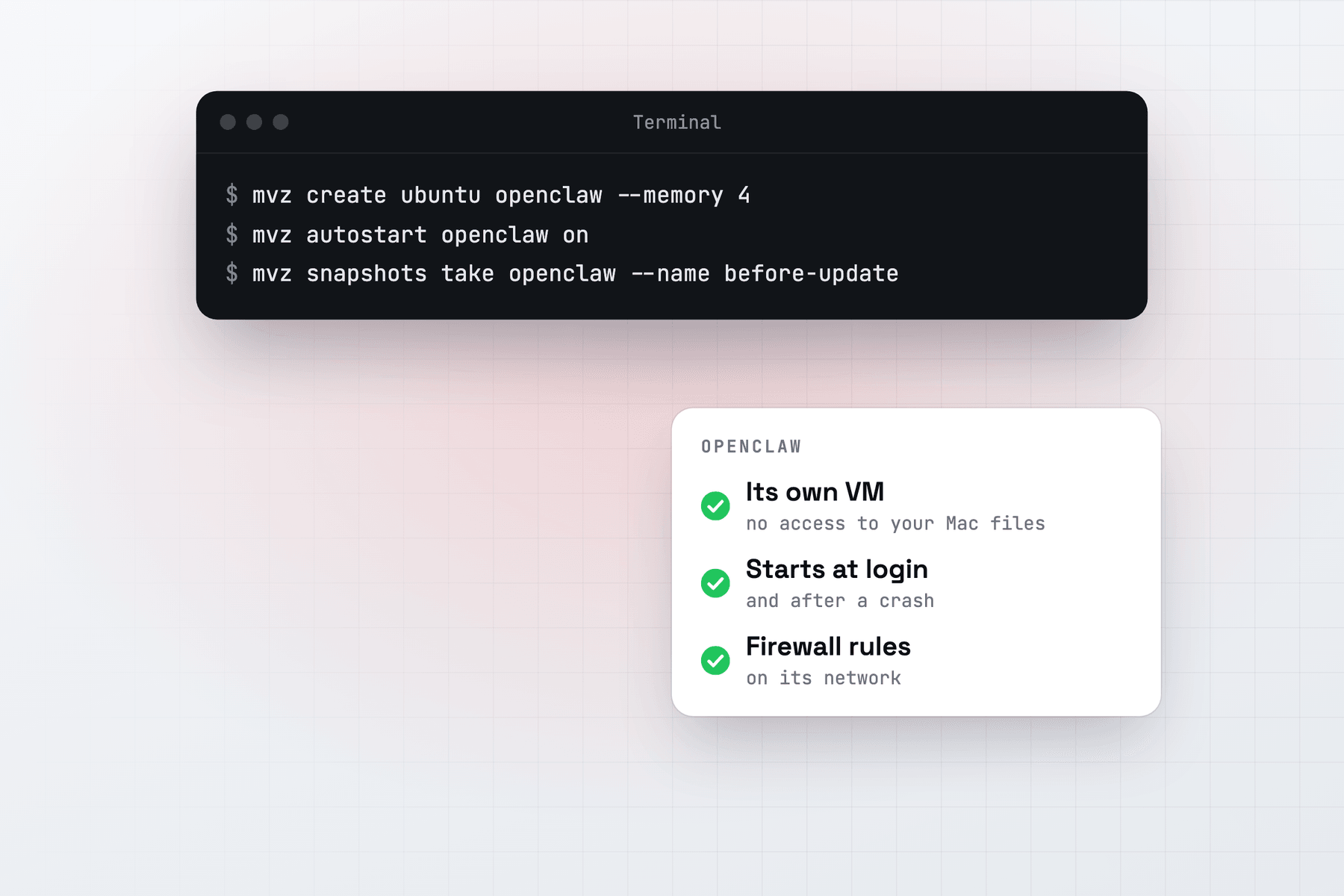
OpenClaw is an open-source personal AI agent. Its gateway runs all the time, connects to your messaging apps, and acts for you with your accounts, a shell and the web. That is a lot of reach for software that reads what other people write and runs skills you didn't write. OpenClaw's own Linux server guide recommends keeping it "on a dedicated runtime (VPS/VM/container + dedicated OS user/accounts)".
MacVisor gives OpenClaw that machine on a Mac you already own, often a Mac mini: an Ubuntu VM that runs in the background, holds none of your files, reaches only what you allow, and rolls back in seconds.
MacVisor doesn't install or configure OpenClaw. You install it in the VM with OpenClaw's own installer, as on any Linux server.
Create a network and the VM
Give the agent a network of its own first, with a firewall that lets it reach the internet but not your router, NAS or the Mac's own services:
mvz networks create agents
mvz networks firewall agents on --inbound deny --outbound allow \
  --deny out:any::10.0.0.0/8 --deny out:any::172.16.0.0/12 --deny out:any::192.168.0.0/16
mvz create ubuntu openclaw --network agents --start
mvz wait openclaw
mvz shell openclaw
In the app, choose New Custom Network in the sidebar's Networks section, switch on Enable Firewall and add the rules. Then make the VM with New VM… → Linux → Cloud Image → Ubuntu 26.04 LTS, and choose the network in VM Settings → Network (it applies at the next start).
cloud-init sets the VM up on its first boot with your user name, your SSH keys and the MacVisor Agent. It shares none of your folders. --home (Share my home folder (read-only) in the form) is off unless you choose it, so leave it off. mvz set openclaw --clipboard off keeps your clipboard out too. The VM starts with 4 CPUs, 4 GiB of memory and a 64 GiB disk; mvz set openclaw --memory 8 gives it more at its next start.
Install OpenClaw in the VM
In the VM's shell, run OpenClaw's installer. On Ubuntu it installs Node 24 LTS from NodeSource when Node is missing, then OpenClaw into ~/.npm-global/bin, which isn't on the shell's PATH yet:
curl -fsSL --proto '=https' --tlsv1.2 https://openclaw.ai/install.sh | bash -s -- --no-onboard
echo 'export PATH="$HOME/.npm-global/bin:$PATH"' >> ~/.bashrc && source ~/.bashrc
openclaw onboard --install-daemon
openclaw gateway status
To manage Node yourself, the Linux guide recommends Node 26 and npm i -g openclaw@latest --allow-scripts=openclaw (leave the flag off on npm 11.15 and earlier), followed by the same onboarding.
Onboarding sets up your model provider, channels and gateway. --install-daemon makes the gateway a systemd user service that restarts when it exits, and turns on lingering so it keeps running with nobody logged in. Then run openclaw security audit and openclaw channels status --probe.
Open the dashboard on the Mac
The gateway listens on port 18789, on the VM's loopback by default. MacVisor forwards the ports a cloud-image VM listens on to the same port on the Mac's 127.0.0.1, services bound to the guest's own loopback included, so the Control UI is at http://127.0.0.1:18789/ on the Mac with no SSH tunnel. 18789 isn't one of the ports MacVisor holds back for the Mac's own services, and the forward is reachable from this Mac only.
The gateway asks for its token. In the VM, openclaw dashboard --json prints a one-time browserUrl to open on the Mac.
Keep it running
systemd restarts the gateway inside the VM. MacVisor keeps the VM itself up:
mvz autostart openclaw on        # start in the background at every login
mvz ha openclaw on --watchdog    # restart after a crash, or when the guest stops responding
Both are in VM Settings → General, and the background service runs VMs whether or not the app is open. On a Mac mini, also set automatic login and power-failure restart, and keep the Mac awake, because a sleeping Mac freezes its VMs. See Run a Mac mini as an always-on VM host and VM Watchdog.
Snapshots before updates and new skills
mvz snapshots take openclaw --name before-update
# in the VM: openclaw update, or install the skill
mvz snapshots revert openclaw before-update      # if it goes wrong
In the app, use the VM's Snapshots tab. A revert discards everything since the snapshot, OpenClaw's configuration and memory included, and at a terminal it takes a safety snapshot first. Messages the agent already sent stay sent.
Snapshots live inside the VM, so back it up too:
mvz set openclaw --auto-snapshots daily
mvz set openclaw --backup-to /Volumes/T7/Backups    # daily at 03:00, keeps the newest 7
A backup holds everything in the VM, OpenClaw's tokens and channel sessions included, so keep it on an encrypted drive. See Backups.
What the firewall does
The agents network denies connections into the VM and to private address ranges, so OpenClaw reaches model providers and messaging services on the internet but not the devices on your network. MacVisor enforces the rules in the Mac's packet filter, where nothing in the guest can change them. DHCP and DNS to the network's gateway stay open.
The dashboard forward isn't affected: port forwards travel through the MacVisor Agent, not the network. To let the agent reach one device, such as a Home Assistant box, put an allow rule for it before the denies (rules are checked in order, and --clear starts the list again). The firewall filters IPv4 only and drops IPv6 on the network, and it doesn't filter traffic between VMs on the same network, so keep other VMs off agents. See Network firewall.
Local models on the Mac
A Linux VM reaches the Mac at host.mvz.internal. Ollama listens only on the Mac's 127.0.0.1 by default, so pick one of two ways:
- Let Ollama listen on the network. On the Mac,
launchctl setenv OLLAMA_HOST "0.0.0.0:11434"and restart Ollama. Your local network can then reach it too. Find the Mac's address on the network withmvz exec openclaw -- getent hosts host.mvz.internaland allow it first:mvz networks firewall agents --clear --allow out:tcp:11434:<that address>followed by the three--denyrules above. - Keep Ollama on localhost and carry its port into the VM from the Mac:
mvz ssh-config --installonce, thenssh -N -R 11434:127.0.0.1:11434 openclaw.mvz. SSH to a VM goes through the MacVisor Agent, so the firewall needs no change, and the VM sees Ollama at127.0.0.1:11434, OpenClaw's default. The tunnel lasts as long as thatsshruns.
OpenClaw uses Ollama's native API, so give the base URL without /v1. See OpenClaw's Ollama guide.
An AI sandbox or a regular VM?
MacVisor's AI sandboxes take --agent none for an agent you bring yourself: model requests go to MacVisor's gateway with a placeholder key, your real keys stay in the Mac's Keychain, and the VM reaches only allow-listed hosts. They are built for coding tasks, though. mvz sandbox create needs a git repository, copies it in and hands changes back as a diff, sandboxes on the allow-list network can reach each other, and the feature is a Tech Preview. For an always-on assistant, use the regular VM above, and give OpenClaw its own API keys with spending limits where your provider offers them.
macOS-only integrations
MacVisor also runs macOS 27 VMs, and OpenClaw documents a macOS VM setup for integrations that need macOS. We haven't tested any of them in a MacVisor macOS VM, so try yours first. Apple allows two macOS VMs at a time per Mac.
When something else fits
- OpenClaw's Docker setup runs the gateway in a container, and its agent sandbox runs tools in Docker or Podman containers. On a Linux server you already run, that may be all you need. Inside the MacVisor VM you can have both: create it with
--runtime docker. - A cloud VPS is what OpenClaw's docs suggest first for most people, and it stays up without your Mac. Its docs also note that many sites block data-centre addresses, which a Mac at home avoids.
MacVisor has a free 30-day trial, and every feature on this page is in every license, including the one-time Pro license.