
 DeltaSnap
 DriveSync
 Noject
 DeltaSync
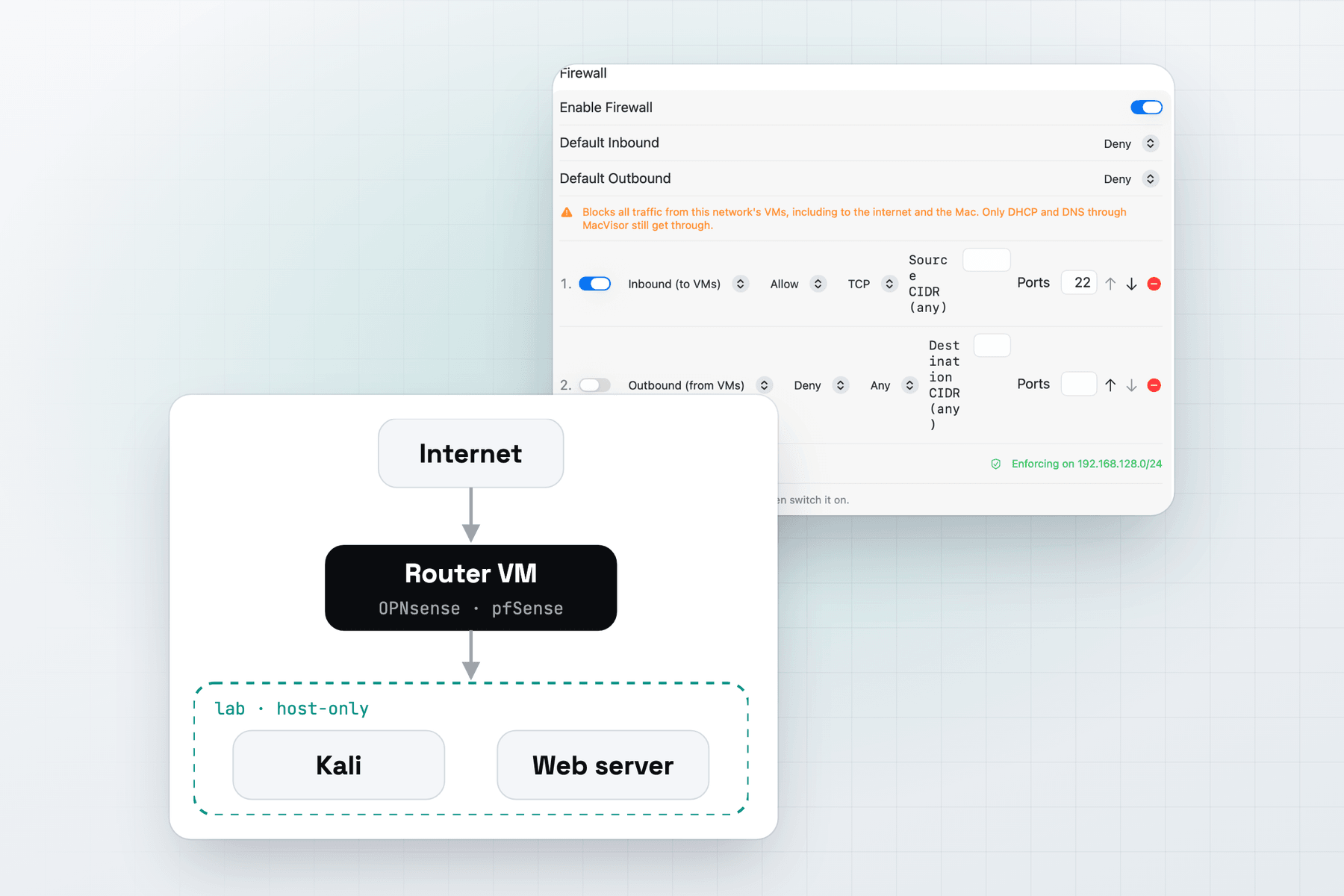
A lab needs three things: machines you can break, networks you control, and a quick way back to a clean state. MacVisor gives you all three on one Apple Silicon Mac, from the app or from the mvz command line.
What you can build
- A router or firewall between a WAN and a LAN: OpenWrt, VyOS, or ARM64 builds based on pfSense or OPNsense.
- An attacker and its targets on a segment of their own, such as Kali Linux and a few Linux servers.
- Isolated segments that reach nothing but each other, or the internet only on the ports you allow.
- VMs on your real network, bridged to an Ethernet port or to a tagged VLAN.
Every guest must be built for ARM64. MacVisor doesn't emulate x86, and many firewall distributions publish x86-64 images only, so check what the project offers for 64-bit ARM before you start.
The networks you build it from
| Mode | What it connects |
|---|---|
| NAT | The VM and the internet, through the Mac |
| Bridged | The VM joins a physical network, or a VLAN interface, as its own device |
| Shared custom network | The VMs on it, plus a NAT uplink through the Mac, with DHCP, DNS, reservations, port forwards and a firewall |
| Host-only custom network | The VMs on it and the Mac, nothing beyond |
mvz networks create lab                     # shared, subnet chosen by macOS
mvz networks create lan --host-only         # host-only, subnet chosen by macOS
mvz set kali --network lab                  # applies at the next start
mvz nics add router --network lan           # a second adapter, up to four per VM
macOS chooses each network's subnet inside 192.168.0.0/16. A host-only network can take a fixed subnet, but on macOS 27.2 its VMs get no network link, so leave it automatic for now. VMs on one network reach each other directly. See Custom networks.
For tagged segments, click New VLAN Interface… in the Networks section: give it a tag from 1 to 4094 and a parent interface. A VM can bridge to it, or a shared network can use it as its uplink. See VLAN interfaces.
A router VM between two networks
A router image has no cloud-init, so MacVisor boots it as an appliance: no seed, no account, no SSH keys and no agent. You set it up through its own web UI or console.
mvz networks create lan --host-only
mvz create ~/Downloads/router.qcow2 router --no-cloud-init    # WAN: the first adapter, on the Default MacVisor Network
mvz nics add router --network lan                             # LAN: a second adapter, on the host-only network
mvz start router --headless
mvz ip router --wait                                          # the WAN address the Mac sees
In the app, choose Linux, or FreeBSD for a FreeBSD-based image, then Image File or URL…, and turn off Set up with cloud-init. Add the LAN adapter in VM Settings → Network.
- FreeBSD-based images, such as pfSense-based and OPNsense-based ones, need
--os freebsd. They boot through MacVisor's own FreeBSD boot volume, so nothing in the image changes. They have no screen after FreeBSD's loader: use the web UI, or SSH if the appliance runs it. - Image formats. MacVisor takes raw, qcow2 and ASIF images, and
.xzfiles of them. Decompress any other download first. - The LAN. Keep the LAN adapter on a host-only network. Never bridge it to a network that has its own DHCP server or uses the same subnet, or the appliance's DHCP server answers there too. Decide which DHCP server serves the lab segment: the appliance's, or macOS's on the host-only network.
- Reaching the LAN from the Mac. The Mac reaches the appliance only at an address inside the host-only network's subnet, which
mvz networksshows. macOS 27.2 can't pin a host-only network to192.168.1.0/24, so give the appliance's LAN an address in the network's subnet. pfSense-based images block their web UI on the WAN side. - Shutting down. Shut Down works for every appliance, through its power button, its agent or a QEMU guest agent. For one that ignores all three, give it a shutdown command that logs in over SSH.
See Appliances: images without cloud-init and How MacVisor boots FreeBSD.
Kali Linux from its ISO
Download Kali's ARM64 installer ISO, then make the VM in New VM → Linux → Installer ISO, or:
mvz create ~/Downloads/kali-linux-installer-arm64.iso kali --os linux --network lab
mvz start kali
Keep the default disk format, ASIF with 512-byte sectors. Debian's installer, which Kali uses, fails at partitioning on 4 KB sectors. Install Kali in the VM's window, then install the MacVisor Agent from the guest tools volume MacVisor attaches. See From an ISO and Debian and Kali installers need 512-byte sectors.
Fence the lab in with the firewall
Any custom network can have a firewall: a default action for each direction and an ordered list of rules. MacVisor enforces it in the Mac's packet filter (pf), outside the VMs, so nothing in a guest can turn it off.
# Kali's network: no inbound, no route to the home LAN, only web traffic out
mvz networks firewall lab on --inbound deny --outbound deny \
  --deny out:any::192.168.1.0/24 --allow out:tcp:80 --allow out:tcp:443
mvz networks firewall lab          # is it in force, and the rules in order
In the app, select the network under Networks and switch on Enable Firewall. Rules match from the top and the first match wins, so put exceptions above the broader rule. DHCP and DNS to the gateway stay open. The rules load when the first VM on the network starts, and the helper applies them again at boot, before anyone logs in. See Network firewall.
Fixed addresses and port forwards
- DHCP reservations tie a VM's MAC address to an address in the subnet:
mvz networks reserve lab web 192.168.105.50. Cloud-image Linux VMs get one automatically. Appliances and VMs installed from an ISO don't, because their DHCP clients often don't identify by MAC address. MacVisor shows the address they lease instead, and<vm>.mvzfollows it from the Mac. - Network port forwards map a port on the Mac to an address on the segment, so other devices on your network reach a lab VM. Set them in the network's Port Forwarding tab in the app.
See DHCP reservations and Network port forwarding.
Reset the lab with snapshots
Take a snapshot of each VM once it's set up, and revert after every exercise. On APFS a snapshot costs almost nothing when you take it.
mvz snapshots take router --disk-only --name "Clean"
mvz snapshots take kali --name "Before exercise"           # live: memory too
mvz snapshots revert kali "Before exercise" --resume
The app has the same in each VM's Snapshots tab. A revert can take a safety snapshot first. Snapshots aren't backups, since they live inside the VM. See Snapshots and recovery.
Limits
- IPv4 only in the firewall. The Mac drops all IPv6 on a firewalled network.
- No filtering between VMs on one network. Their traffic never leaves the virtual switch. Put machines that must not reach each other on separate networks.
- Custom networks only. NAT and bridged VMs don't pass through a MacVisor network, so the firewall can't see them.
- Four adapters per VM, and 32 across the Mac.
- Some features are in the app only, such as VLAN interfaces, network port forwards and the per-network DHCP, DNS and NAT switches.
When MacVisor isn't the right choice
- Your lab needs x86 images, such as vendor router images built only for x86-64. They won't boot on Apple Silicon. Use an x86 machine with a hypervisor such as Proxmox VE.
- You need IPv6 filtering, or filtering between hosts on one segment. Run a firewall appliance VM between segments instead, or use a platform with a distributed firewall.
To try it, download MacVisor and use the free 30-day trial. A one-time Pro license has every networking feature.