
 DeltaSnap
 DriveSync
 Noject
 DeltaSync
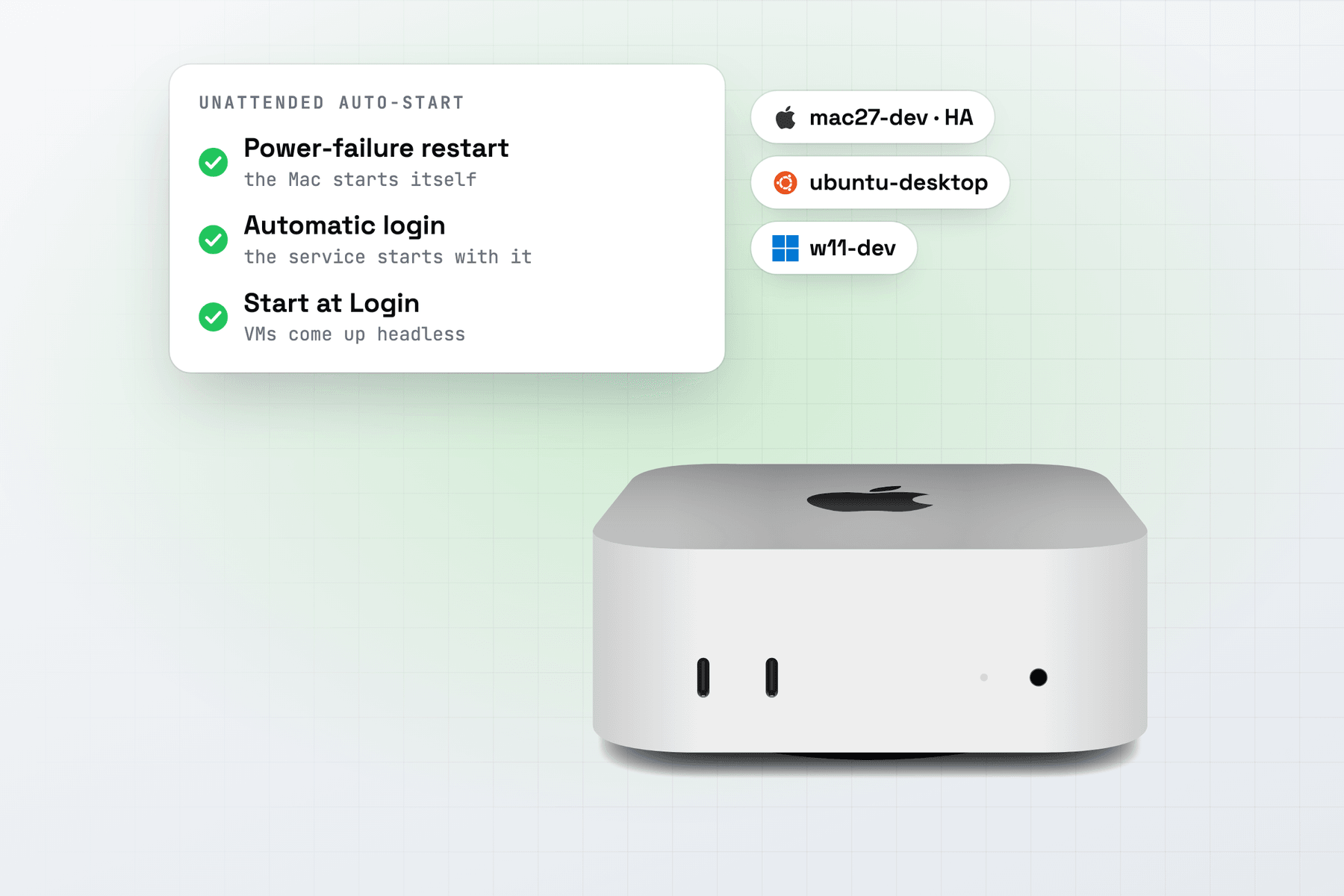
A Mac mini is quiet, small and frugal, which makes it a good home for the VMs you want running all the time: Home Assistant OS, a Linux box for your services, a router appliance, a macOS VM for builds. MacVisor runs them the way a hypervisor host does. A background service runs the VMs whether or not the app is open, and brings them back after a reboot without anyone at the keyboard.
Guests must be ARM64 builds, because MacVisor doesn't emulate x86. macOS allows two macOS VMs at a time on one Mac.
How MacVisor keeps VMs running
- A background service owns the VMs. Each VM runs in its own process, so a crash affects only that VM. Closing the app or installing an app update doesn't stop running VMs.
- Start at Login has the service start a VM at every login, whether or not the app opens. Turn it on in VM Settings → General, or with
mvz autostart <vm> on. - Headless VMs run with no window. Start one with
mvz start <vm> --headless, or turn on Headless in VM Settings → Display so it never has a display.mvz open <vm>shows the window of a VM started without one.
Desktop VM apps are mostly built for someone at the screen. UTM's documentation says its app must stay open while a headless VM runs, and Parallels Desktop 27.1 deprecated its "Start when Mac starts" option.
Set the Mac up for unattended reboots
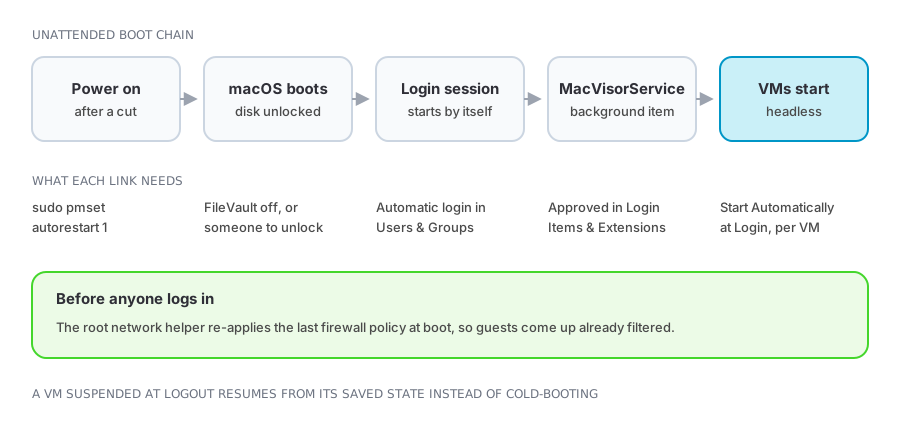
A VM only comes back after a reboot if every step before it holds. Once any VM is set to start at login, the dashboard shows an Unattended Auto-Start panel that checks each one.
| Step | Where to set it | If it's missing |
|---|---|---|
| Restart after power failure | sudo pmset autorestart 1 | The Mac stays off after a power cut |
| FileVault off | System Settings → Privacy & Security | Boot stops at the unlock screen |
| Automatic login | System Settings → Users & Groups | No login session, so nothing starts |
| Background service | Login Items & Extensions, or the dashboard | No VM starts |
| Start at Login | VM Settings → General, mvz autostart | That VM stays stopped |
| No sleep when idle | System Settings → Energy → Prevent automatic sleeping when the display is off, or sudo pmset -c sleep 0 | VMs stop until the Mac wakes |
MacVisor doesn't keep the Mac awake by itself, so the last row matters on a server.
The network firewall doesn't wait for a login. MacVisor's helper applies the last firewall policy at boot, so guests come up filtered. See Always-on host for the details.
Make a VM a service
mvz autostart homeassistant on        # start at every login; add --window to open its window
mvz ha homeassistant on               # start it again after a crash or a failed start
mvz ha web on --watchdog              # also restart a guest that stops responding
mvz hooks web check set 'curl -fsS -m 10 http://web.mvz/health' # add --restart once you trust it- High availability (VM Settings → General → Startup → High Availability) restarts a VM that crashes, stops with an error or fails to start, with growing waits and at most 10 restarts an hour. It honours stops you ask for, from MacVisor or from inside the guest.
- VM Watchdog restarts a guest that stopped responding, as the MacVisor Agent reports it, or a QEMU guest agent in appliances that can't run MacVisor's. It needs one of the two, and acts only while high availability is on.
- A health check is your own command that exits 0 while the VM is healthy. It can tell you when it keeps failing, and restart the VM at most once a day.
- Hooks run your commands on the Mac after a VM starts or stops, also with the app closed, and give an appliance its own shutdown command.
See High availability, VM Watchdog and health checks and VM hooks.
Logout, restart and updates
What VMs do when the Mac logs out or restarts is one setting for the whole Mac: Settings → General → Logout and Shutdown, or mvz service at-logout.
mvz service at-logout              # show the current choice
mvz service at-logout shutdown     # the default; or suspend
Shut Down VMs asks each guest to shut down, and VMs set to start at login boot fresh next time. Suspend VMs saves their memory and resumes them at login. On a server, shut down is the safer choice. A suspend unplugs passed-through USB devices for a moment, and a saved session doesn't restore after a macOS or MacVisor update, so those VMs start from disk anyway. See When you log out or restart the Mac.
Networks your other devices can reach
The Default MacVisor Network and NAT are reachable only from the Mac. For services the rest of your home uses:
- Bridge the VM to the Mac's Ethernet port, so it's a device on your LAN with an address from your router: VM Settings → Network, or
mvz set <vm> --network bridged:en0(networksetup -listallhardwareportsnames the Mac's interfaces). - Use a custom network with DHCP reservations, a network port forward that other devices reach, and a firewall that the Mac enforces with its own packet filter, outside the guests.
- Reach VMs by name from the Mac:
ssh web.mvzorcurl http://web.mvz:8080follows the VM when its address changes.
mvz networks create services
mvz set web --network services
mvz networks firewall services on --outbound deny --allow out:udp:53 --allow out:tcp:443
The firewall filters IPv4 only. See Networking, Custom networks and Network firewall.
USB radios and drives
A VM can take a USB device from the Mac, such as a Zigbee or Z-Wave radio or a USB disk. Remember it once and MacVisor attaches it whenever the VM runs, window or not, and again after you unplug and plug it in.
mvz usb list homeassistant
mvz usb attach homeassistant 10c4:ea60      # attach now, and at every start
mvz usb remember homeassistant "ZWA-2"      # remember while the VM is stopped
In the app, click USB in the VM window's toolbar. The first time, macOS may ask on the Mac's screen whether to allow the accessory for MacVisor VM. On a Mac you reach over SSH, answer it over Screen Sharing. While a VM has a device, the Mac can't use it. See USB devices.
Backups and snapshots
Snapshots live inside the VM's package, so they don't protect you from losing the drive. Time Machine leaves VMs out. MacVisor's own backups copy the whole VM to another drive or a share, daily or weekly, also while it runs.
mvz set homeassistant --backup-to /Volumes/T7/Backups    # daily at 03:00, keeps the newest 7
mvz set web --auto-snapshots daily                        # disk-only snapshots while it runs
mvz backups list homeassistant
The same settings are in VM Settings → Backup. See Backups and Automatic snapshots.
Manage it over SSH
Over SSH, mvz covers creating and running VMs, snapshots, clones, networks, firewall rules and licensing. In an SSH session on the Mac:
mvz license trial                  # start the free trial, or:
mvz license activate               # prompts for your key
mvz list
mvz console router                 # a Linux or FreeBSD VM's serial console; Control-] detaches
These still need someone at the Mac or Screen Sharing: approving the background service, the network helper and Local Network access the first time, a VM's display, the app-only features such as VLAN interfaces and network port forwards, and restoring a suspended session, which needs an unlocked screen. See Managing a Mac you aren't sitting at.
Limits
- A logged-in session. The background service runs per user, while that user is logged in. An unattended host needs automatic login.
- No remote console yet. There's no web console, VNC or remote API. Use SSH and Screen Sharing.
- USB prompts on the Mac's screen. macOS may ask before handing a device to a VM.
- Memory can't be overcommitted. vCPUs can be shared out, memory can't. The dashboard compares what you've assigned with what the Mac has.
- A sleeping Mac freezes its VMs. Keep the host awake in its energy settings.
When MacVisor isn't the right choice
- You need VMs running before anyone logs in, or with FileVault on through a reboot. MacVisor needs a user session. A dedicated hypervisor such as Proxmox VE on a small x86 PC boots straight into its VMs.
- You need x86 guests. Apple Silicon runs ARM64 guests only. Again, an x86 box fits better.
- You want a web dashboard to manage the host from a browser. MacVisor is managed from its app, Screen Sharing and
mvzover SSH today.
If those don't apply, download MacVisor and use the free 30-day trial on the Mac mini. A one-time Pro license keeps it running after that.