
 DeltaSnap
 DriveSync
 Noject
 DeltaSync

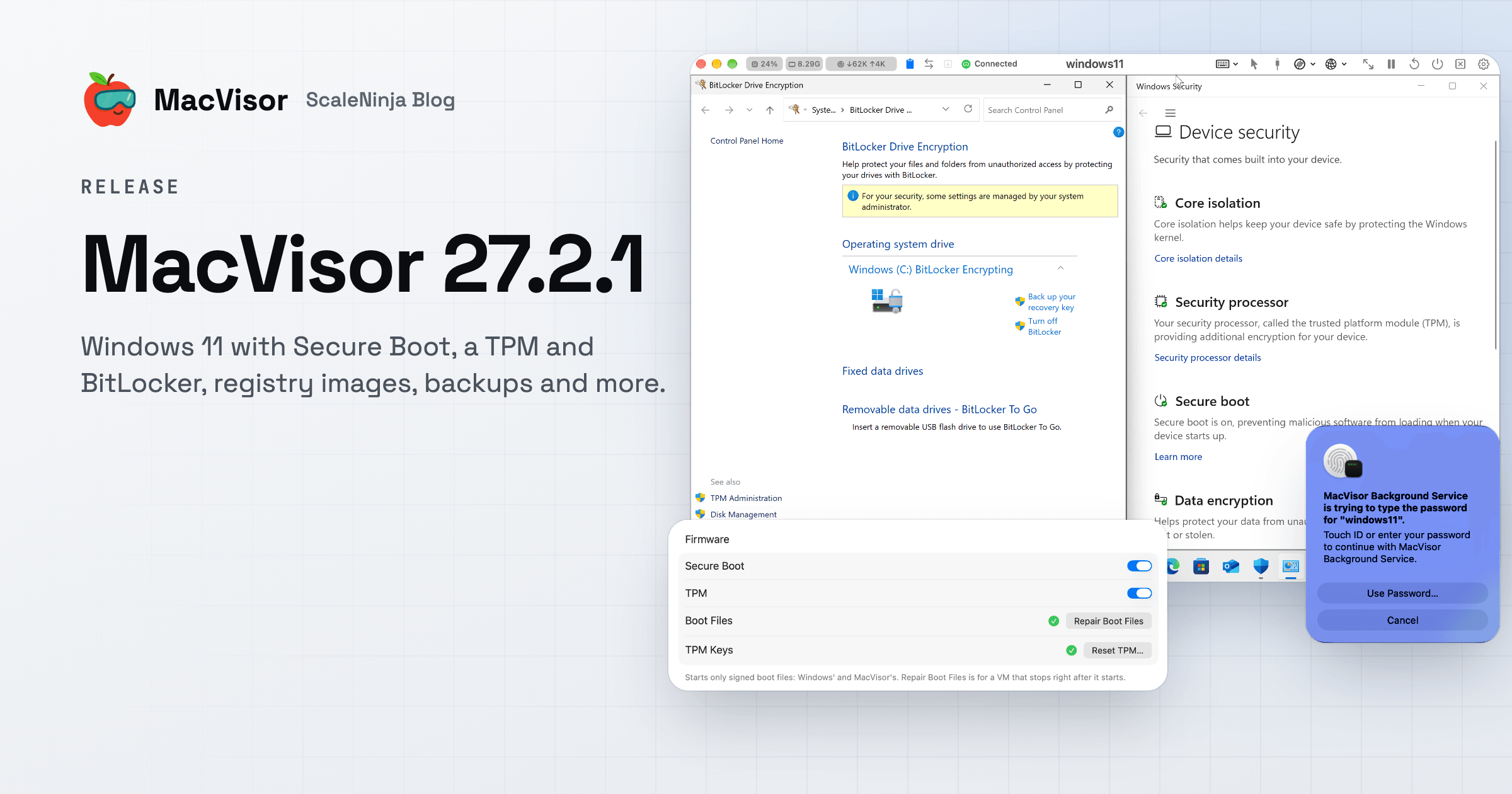
MacVisor 27.2.1 is out. It collects everything from the release candidates since MacVisor 27.2.0, our first general release, whose post covers what MacVisor is and does. It's a free update for every MacVisor 27 license, and for anyone on the free trial.
Some of it came from issues people reported in public. Thank you. The headline changes come first, then the rest, then what to do before you update.
Windows 11 with Secure Boot, a TPM and BitLocker
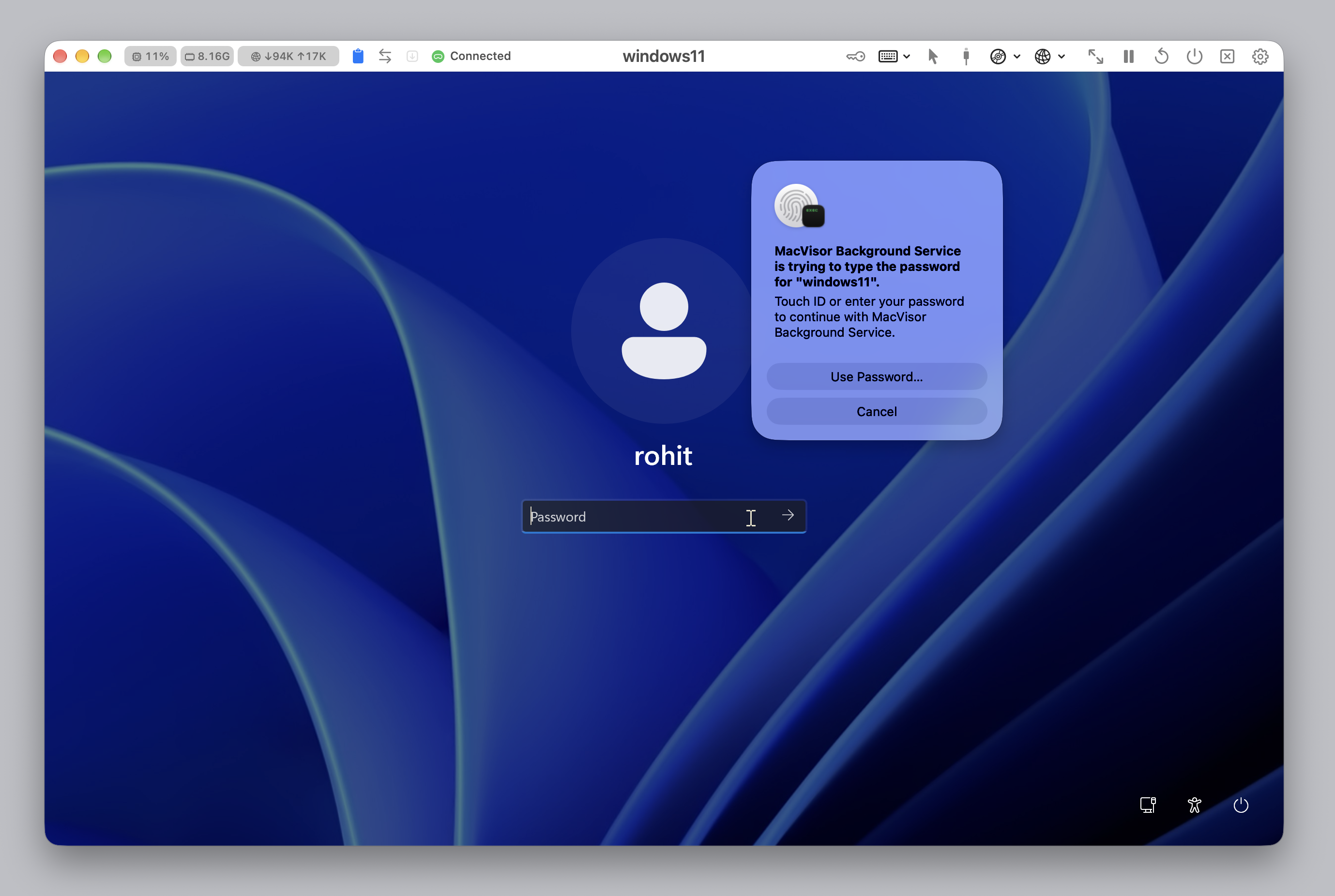
Windows and FreeBSD VMs are now fully supported, no longer Tech Previews. New Windows 11 VMs have UEFI Secure Boot and a TPM 2.0, so Windows 11's own hardware checks pass with nothing bypassed. BitLocker seals its key to the VM's TPM through measured boot and unlocks from it at each start, as on a PC. With Secure Boot on, System Information shows PCR7 Configuration: Bound.
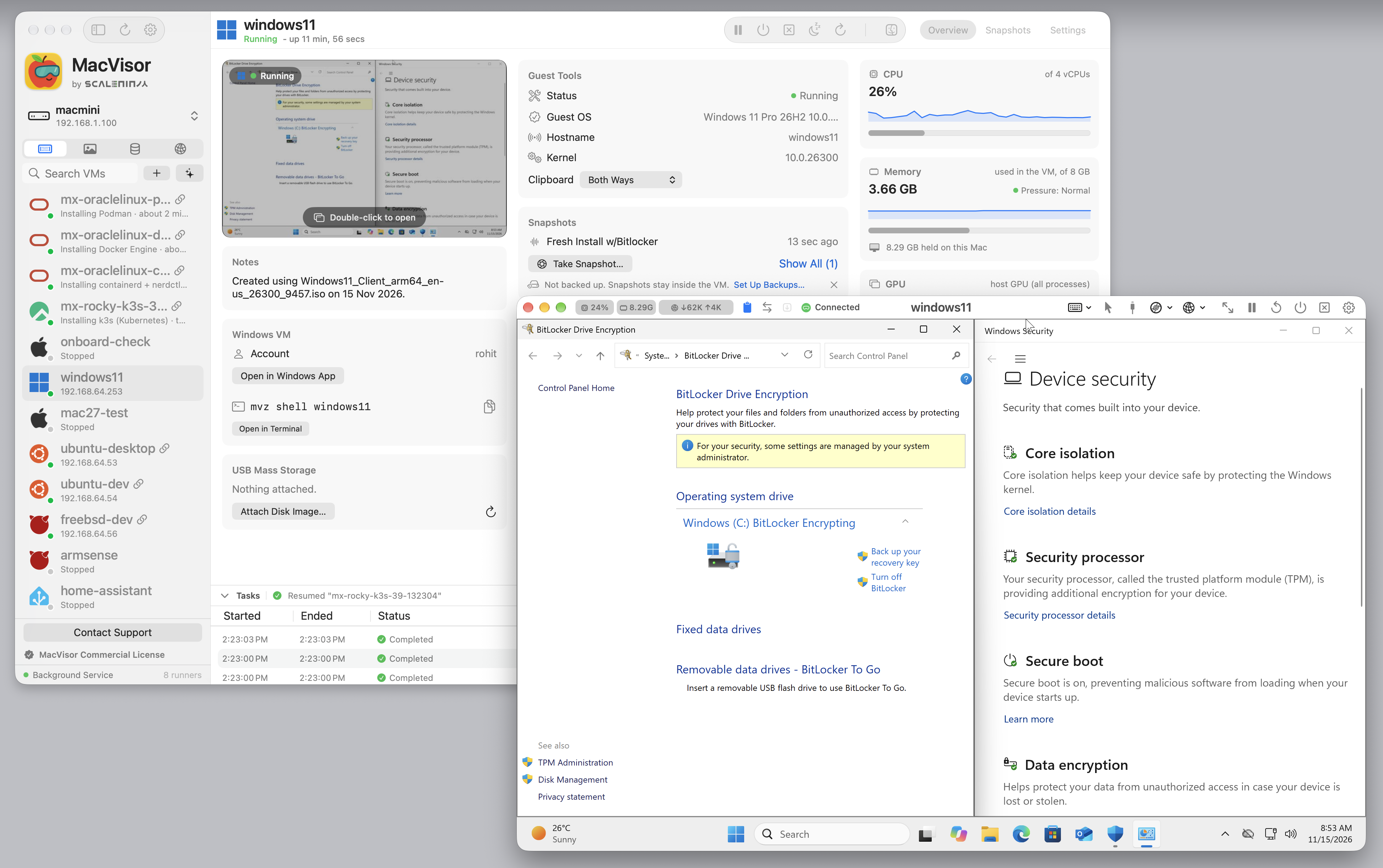
- The TPM stays with this Mac. Its state is encrypted with a key only this Mac's Secure Enclave can open, so a copy of the VM on another Mac carries no usable TPM secrets.
- It can move on purpose.
mvz tpm exportseals it with a passphrase instead, andmvz tpm importseals it to the next Mac. - Reset TPM is under Firmware in VM Settings → System, or
mvz tpm reset <vm>. - Windows doesn't encrypt the disk by itself. MacVisor turns automatic device encryption off, so a clone or a move doesn't surprise anyone with a recovery screen. BitLocker you or your IT turn on works.
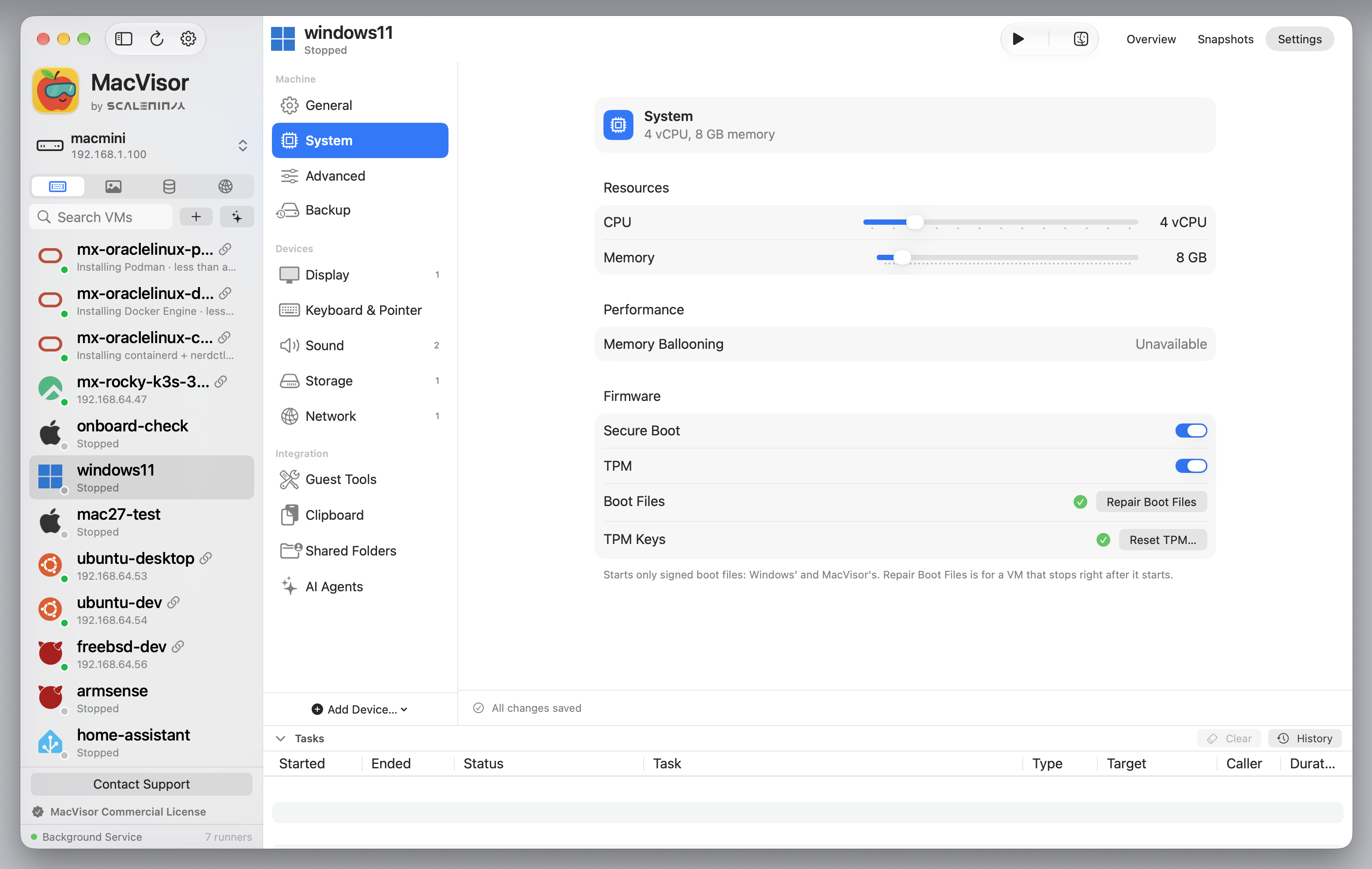
MacVisor also warns before a change that makes BitLocker ask for its recovery key: turning Secure Boot or the TPM off, or mvz repair-boot --reset-keys. TPM attestation, Memory Integrity and Credential Guard aren't available. If you run Windows VMs for a team, read BitLocker and the TPM for administrators before you roll it out. For how it works under the hood, see A TPM that BitLocker trusts, on Apple's Virtualization framework.
Linux VMs can have the same TPM, off until you turn it on (TPM under Firmware, or mvz set <vm> --tpm on). See A TPM for Linux VMs.
Registry images, Tart's included
MacVisor now pulls VM images from any OCI registry: ghcr.io, Docker Hub, Amazon ECR, Google Artifact Registry, Azure, Harbor, or one on your own network. It reads Tart's images as they are, so the public macOS and Linux images made for Tart work in MacVisor with nothing to convert. It pushes your own VMs and templates in MacVisor's format, with linked clones sent as layers.
mvz images inspect ghcr.io/cirruslabs/macos-golden-gate-base --tags
mvz clone ghcr.io/cirruslabs/macos-golden-gate-base mac      # as tart clone does
mvz images push dev ghcr.io/you/dev:1.0
In the app, it's New VM → Registry, Templates → + → Get an Image from a Registry…, Push to Registry… on a stopped VM or template, and Settings → Registries to sign in. A pulled image becomes a template, and VMs made from it are linked clones. Windows VMs can't be pushed yet.
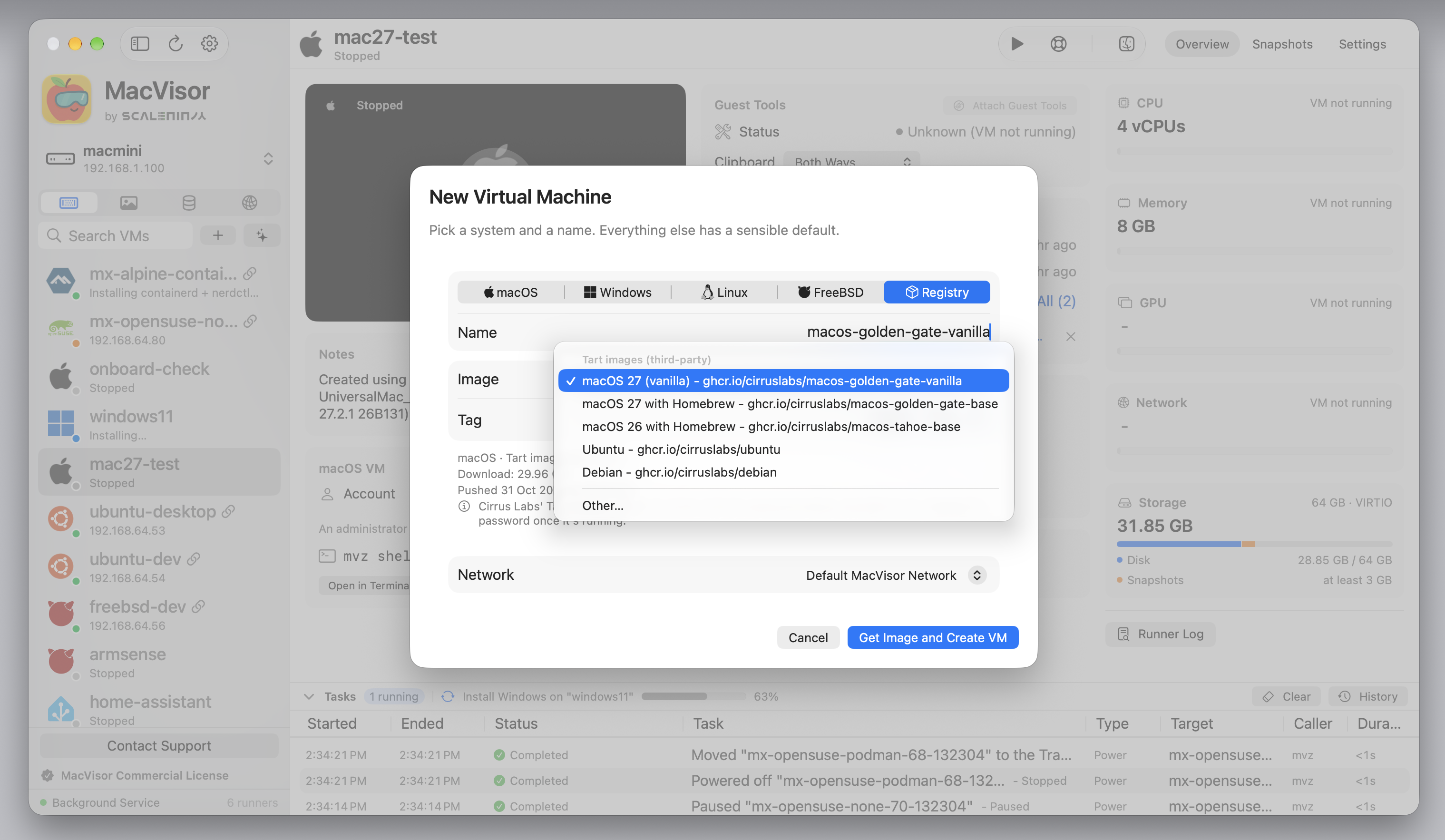
The guide Tart images in MacVisor walks through it, and Registry images has every detail.
Backups and automatic snapshots
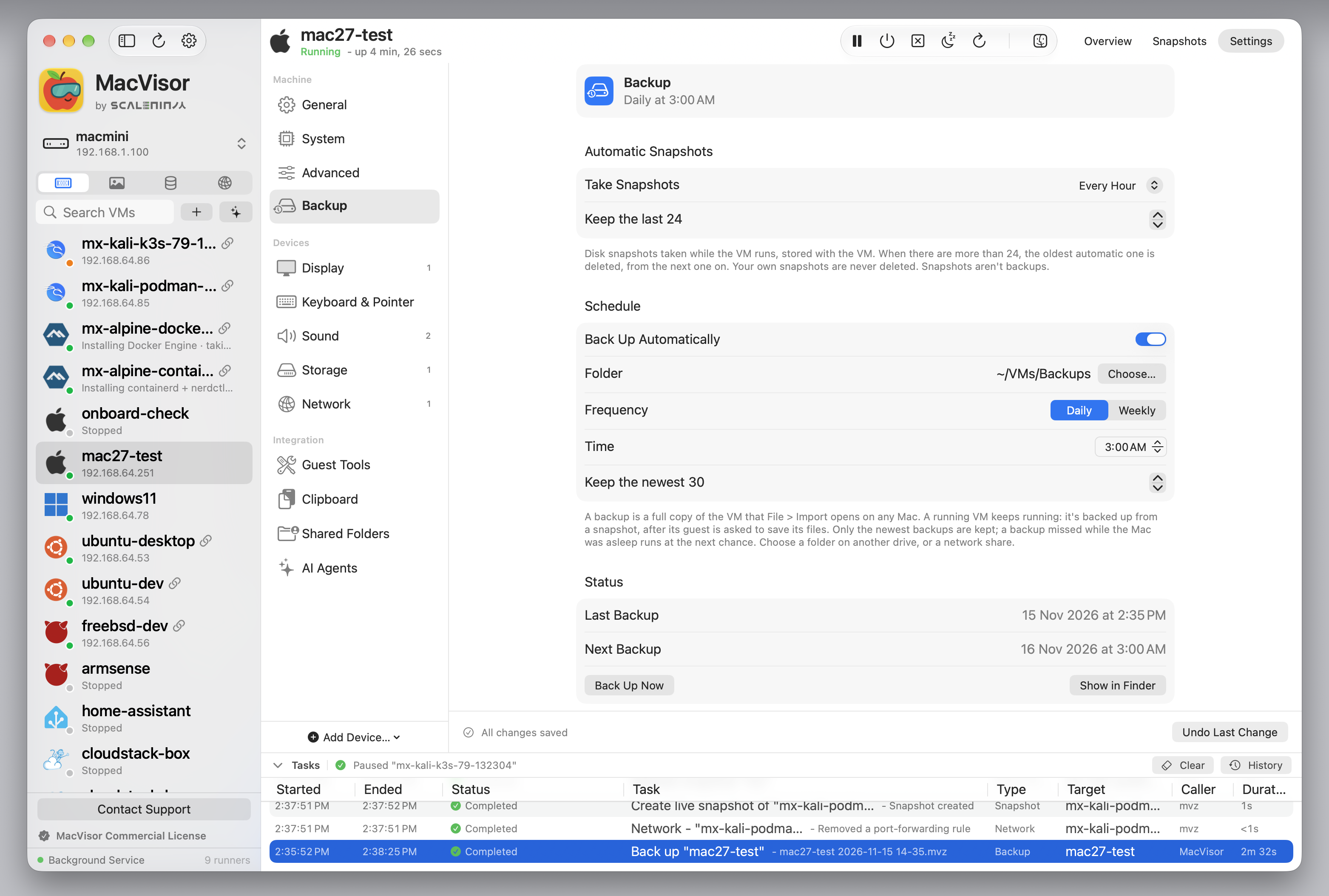
MacVisor backs VMs up by itself, daily or weekly, to a folder on another drive, an external disk or a network share. A running VM keeps running: MacVisor flushes the guest's file systems, takes a disk-only snapshot, copies it and checks every file by SHA-256. A backup restores like any VM package.
mvz set dev --backup-to /Volumes/T7/Backups     # daily at 03:00
mvz backup dev                                  # one now
In the app, it's VM Settings → Backup, with Back Up Now. The same page has Automatic Snapshots, hourly, daily or weekly, kept inside the VM (mvz set <vm> --auto-snapshots hourly). Snapshots live with the VM, so they don't replace backups. See Backups.
Updates in the background
Automatic updates are now on by default. MacVisor downloads an update in the background and installs it when you quit the app, or while the app is closed and only its background service runs. It never installs while a VM is suspended, and running VMs keep running. Settings → Updates turns it off.
VMs that look after themselves
For Macs that run VMs unattended:
- VM Watchdog restarts a VM whose guest stops responding, as its guest agent reports it. It's part of high availability (VM Settings → General → Startup, or
mvz ha <vm> on --watchdog). - Health checks run your own command, on the Mac or in the VM, and can restart the VM when it keeps failing (VM Settings → Advanced → Health Check, or
mvz hooks <vm> check set). - Hooks run commands after a VM starts or stops, and replace the shutdown command for a guest that has no agent.
- High availability now carries on through a restart of the background service.
See High availability and Hooks.
VM passwords behind Touch ID
The passwords MacVisor makes for a VM's account now live in your login Keychain, where only MacVisor's background service reads them. Show Password, Copy Password and Type Password, and mvz password, ask for Touch ID or your Mac's password first. mvz password --set tells MacVisor a VM's password, such as one you changed in the guest or one from another Mac, and mvz password --prune clears those of VMs that are gone. See Where VM passwords live.
Bring your VMs over
File → Import… finds VMs from UTM, Parallels Desktop, VMware Fusion (Linux and FreeBSD VMs for Apple silicon), VirtualBuddy and Tart on the Mac, takes VMDK disks and OVAs, and says what will come across before you import (mvz import --scan from the command line). A short tour now opens the first time you start MacVisor. See Import VMs from other apps.
Appliances, Kali Linux and the macOS 27.3 beta
The Templates list has a new Appliances section with Home Assistant OS and OpenWrt, made in one click with auto-start and high availability on. Kali Linux joins the Linux images, with an optional Xfce desktop, and the macOS 27.3 beta sits beside the current release (never the default). See Home Assistant OS on a Mac with MacVisor.
Windows display and sound
- Windows takes the window's exact size as you resize it, and its scaling follows the screen's pixel density. Sharpen Display in the VM window helps where Windows couldn't take the size.
- Windows' recovery environment, Safe Mode and BitLocker's recovery screen now show in the VM's window.
- Free Unused Space works for Windows VMs too, and the Overview's Storage card shows the space the guest uses, what freeing could give back, and what snapshots take.
- New Windows VMs get MacVisor's own audio device, so sound plays in the VM's window, not only over Remote Desktop. Sound has fewer gaps when the Mac is busy.
Also new
- A new VM window bar with CPU, memory and network readings, a Keyboard menu (Type Clipboard, Ctrl+Alt+Delete and your own key combinations) and a Network menu that disconnects the adapter or moves it to another network while the VM runs.
- When the VM Starts: open a VM's window maximized, minimized, full screen or not at all (
mvz set <vm> --start-window). - Deletion protection per VM, enforced by the service for the app,
mvz, AI agents and sandboxes (mvz protect <vm> on). - Attach an ISO or disk image to a running VM as a read-only USB drive (VM → Attach Disk Image…, or
mvz usb attach <vm> --image <path>). - One-click MCP setup for Claude Code, Codex, Cursor, VS Code, Zed, Goose, Gemini CLI and more, in Settings → AI → Agent Access or with
mvz mcp install. - FreeBSD is its own OS type, with a serial console you can switch to in the VM's window. Linux VMs get the same switch.
- VMs that start at login wait for the networks, drives and firewall they need.
- A new macOS or Windows VM's account is named after your Mac account, not
macvisor. - After an update, MacVisor sets its Login Items and Local Network access up again by itself and shows What's New.
- QEMU guest agent support for appliances where MacVisor's own agent can't run.
- VM Settings save by themselves, with Undo Last Change.
- Disk space checks: MacVisor warns when a VM's drive gets low and pauses its VMs before the drive fills up.
- Networks: a VM alone on its network keeps its reserved address after its cable was out, and
mvz networks releasetakes out a reservation made by hand. - New VM picks the system from one row, and has a Kali Linux icon.
And many smaller fixes. The changelog has the full list.
Before you update
- Shut Windows VMs down, rather than suspending them. A session suspended with a TPM in 27.2.1 doesn't resume in an earlier build. The same goes for every VM: a suspended session or a live snapshot's memory may not restore after an update, though the disk is never affected. See Updates.
- Windows VMs made by 27.2.0 don't get Secure Boot or a TPM by themselves. Shut one down and turn them on under Firmware in VM Settings → System, or with
mvz set <vm> --secure-boot onandmvz set <vm> --tpm on. MacVisor writes its signed boot files to the VM first. Once it has a TPM, Repair Boot Files lets its recovery environment show in the window. The new audio device is for new VMs only, and Remote Desktop carries sound either way. - In older Windows VMs, the MacVisor Agent turns automatic device encryption off where nobody set it, and makes a power off no longer count as a failed boot.
- Going back to an earlier build: copy your VMs' passwords first, since earlier builds don't read the Keychain. A Windows VM made by 27.2.1 loses Secure Boot and its TPM there, so if you turned BitLocker on, it asks for its recovery key. See Going back to an earlier version. FreeBSD VMs need 27.2.1 or later once it has scanned them. See FreeBSD VMs made before.
- Windows doesn't apply its own Secure Boot certificate and revocation updates on MacVisor VMs. The 2023 certificates are in every VM's keys already. See TPM and Secure Boot.
- The guest agent updates itself, and until an agent from before is updated, the clipboard, file transfer and port forwards wait for it. See Agent authentication.
- Port forwards that 27.2.0 had listening on
0.0.0.0or a LAN address move to127.0.0.1, and Tasks lists them. - After the trial or license ends, the VMs you had keep working, but a VM added afterwards (a copy, or a backup restored beside its VM) starts only once MacVisor is licensed. See Activate your license.
How to update
- In the app: MacVisor → Check for Updates…, then Install and Relaunch. MacVisor names any suspended VMs and asks first.
- With Homebrew:
brew upgrade --cask --greedy macvisor, thenmvz service restart. - On a Mac you reach only over SSH: see Updating a Mac you reach only over SSH.
The background service moves to the new build once the work it has in hand is done. Running VMs keep running on the runner they started with until you shut them down. mvz service status shows which build the service runs.
Launch pricing ends 1 December
MacVisor 27 Pro is a one-time license, and launch prices end on 1 December 2026 at midnight IST. The current prices are on the MacVisor page. The free 30-day trial has every single-Mac feature, with no sign-up.
Questions, feature requests and bug reports go to support@scaleninja.com.