
 DeltaSnap
 DriveSync
 Noject
 DeltaSync
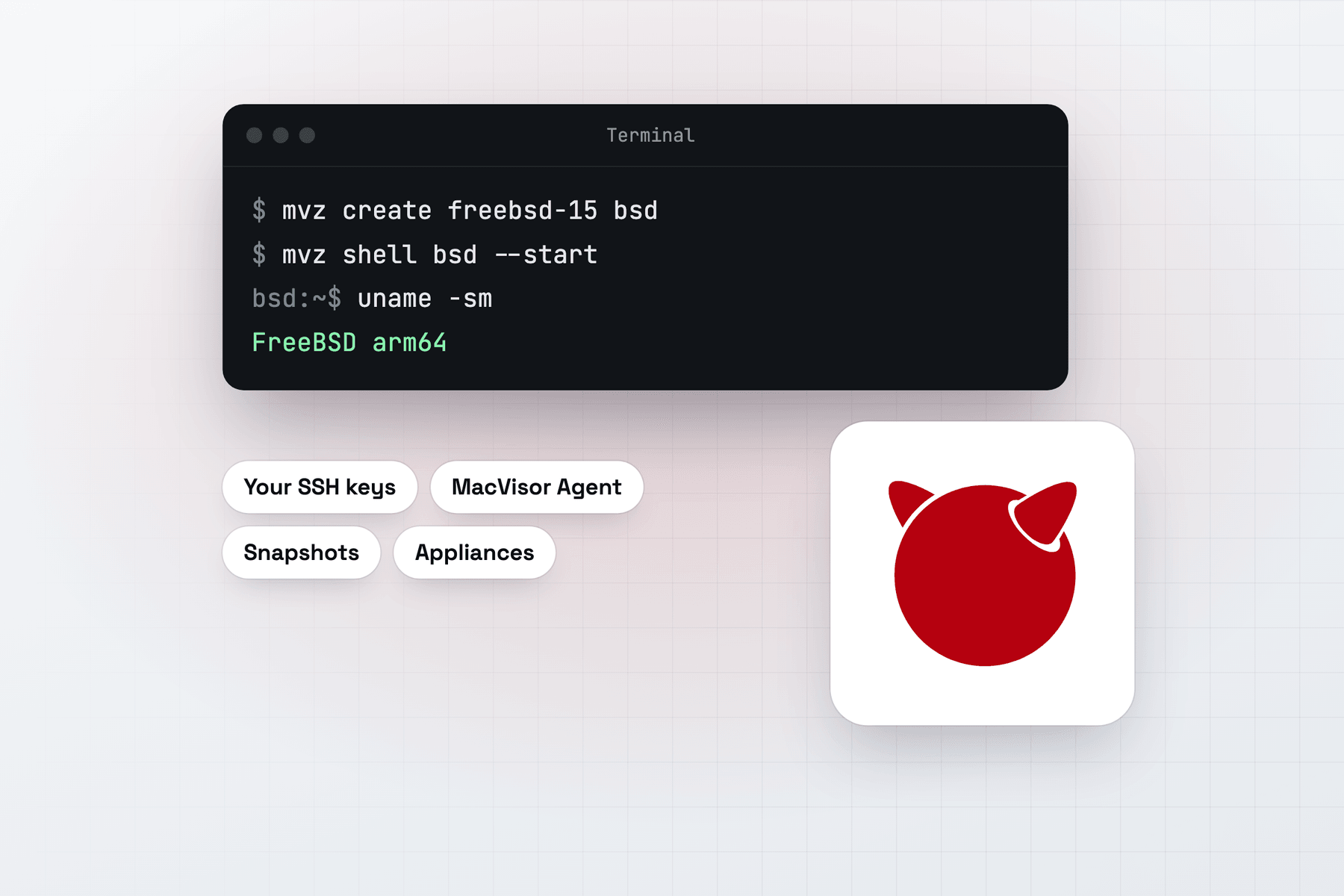
A FreeBSD VM on your Mac is somewhere to try a release before you upgrade a server, build and test software on ARM64 FreeBSD, or learn the base system without spare hardware. MacVisor makes one from FreeBSD's own cloud image and treats it as it treats every other VM: snapshots, linked clones, templates, networks with a firewall, and an mvz command for each step.
Create a FreeBSD VM
In the app, press ⌘N, choose FreeBSD, pick FreeBSD 15.1 under Cloud Image, and click Create. Type a Password for the console, or leave it blank and MacVisor makes a random one. From Terminal:
mvz create freebsd bsd                  # FreeBSD 15.1
mvz create freebsd-current bsd16        # the 16.0-CURRENT snapshot
mvz start bsd --headless
mvz wait bsd --ssh                      # returns once the first boot's setup is done
mvz shell bsd| Image | Id (alias) | Build |
|---|---|---|
| FreeBSD 15.1 | freebsd-15 (freebsd) | Tracks FreeBSD's newest 15.1-RELEASE build |
| FreeBSD 16.0-CURRENT snapshot | freebsd-16-snapshot (freebsd-current) | FreeBSD's weekly development snapshot, which may break |
Both are FreeBSD's ARM64 BASIC-CLOUDINIT images with a UFS root, downloaded from download.freebsd.org and checked against FreeBSD's SHA-256 lists. The first VM from an image makes a template, and each VM after that is a linked clone of it that starts without a download. A new VM gets 4 vCPUs, 4 GiB of memory and a 64 GiB disk.
Your own FreeBSD disk image works too, raw, ASIF, qcow2 or an .xz of one: mvz create ~/Downloads/my-freebsd.qcow2 bsd3 --os freebsd. See Create a FreeBSD VM.
What the first boot sets up
MacVisor gives the VM a cloud-init seed, which FreeBSD's own nuageinit reads. The first boot takes 2 to 5 minutes and needs the network. It sets up:
- Your account, with your Mac user name and SSH keys, in the
wheelandoperatorgroups. - sudo, which isn't in FreeBSD's base system. The image bootstraps
pkg, then MacVisor installs sudo, and your account uses it without a password. root is locked. - ntpd, so the clock stays right.
- The root filesystem, grown to the size of the disk.
The Overview's FreeBSD VM card shows Setting up FreeBSD, then Set up: ready for SSH. MacVisor then installs the MacVisor Agent over SSH. Later boots take about a minute and aren't set up again.
Why FreeBSD needs MacVisor's boot volume
FreeBSD's drivers and Apple's virtual hardware don't agree out of the box. FreeBSD's virtio graphics driver keeps the virtual CPUs busy before the disk attaches, and its network driver can't set up the offload features of Apple's virtual network adapter, so the adapter never comes up. FreeBSD's loader has settings that avoid both.
MacVisor attaches a small read-only boot volume in front of every FreeBSD VM's disk. It starts FreeBSD's loader from the VM's own disk with those settings, so the stock GENERIC kernel boots and nothing in the guest changes. It also makes the virtual power button shut FreeBSD down cleanly, in 7 to 17 seconds when the guest is idle. The same boot volume starts FreeBSD-based appliances and FreeBSD VMs imported from UTM, VirtualBuddy or Parallels Desktop. See How MacVisor boots FreeBSD.
The MacVisor Agent over a serial port
FreeBSD has no virtio-vsock driver, so the MacVisor Agent reaches the Mac through the VM's third serial port, /dev/ttyV2.0. In a new VM it's installed for you, and later versions arrive from the Mac by themselves. It gives the VM:
- The guest's FreeBSD version, kernel, hostname and addresses, for the Overview,
mvz ipandbsd.mvz. - The memory the guest uses, on the Overview.
- File transfer both ways:
mvz send bsd <file>puts files in the home folder, andmacvisor-send <file>in the guest sends one to the Mac. - Port forwards you add, a clean Shut Down and Restart, the clock set after a pause or resume, and the guest's writes flushed before a snapshot.
mvz shellandmvz execcarried through it, so they work without the guest's network.
mvz ports add bsd --host-port 8080 --guest-port 80 --name web
sudo service macvisor_agent status      # in the guest
Every FreeBSD VM also has a serial port for a QEMU guest agent, /dev/ttyV1.0, which MacVisor uses for addresses and shutdown while its own agent isn't connected. See MacVisor's agent and The QEMU guest agent.
Console and SSH
- SSH takes keys only: Open in Terminal on the Overview,
mvz shell bsd, orssh bsd.mvzaftermvz ssh-config --install. - The console is FreeBSD's serial console, on
/dev/ttyV0.0. The VM's window shows the loader, then turns to the console by itself when the login prompt appears, about a minute into the boot. Display | Console in the toolbar switches between them. From Terminal,mvz console bsdattaches, and Control-] detaches. - The password is for the console's login prompt only.
mvz password bsdprints it, and Type Password (⌃⌘V) types it into the console.
See The console.
Snapshots, clones and templates
Live and disk-only snapshots, revert, clones, linked clones and templates all work. Take a disk-only snapshot before a system or package upgrade, and revert if it goes wrong.
mvz snapshots take bsd --disk-only --name "Before upgrade"
mvz snapshots revert bsd "Before upgrade"
mvz clone bsd bsd-test --linked         # the source must be stopped
mvz template bsd on                     # keep it as a base for later VMs
A copy keeps the original's console password, because FreeBSD sets up an account only at a disk's first boot. Change it in the guest with passwd. See Snapshots and recovery.
Networks
A new VM is on the Default MacVisor Network. Move it to a custom network to give it a segment of its own and a firewall the Mac enforces:
mvz networks create lab
mvz set bsd --network lab               # applies at the next start
mvz networks firewall lab on --outbound deny --allow out:tcp:80 --allow out:tcp:443
Reach the VM as bsd.mvz, which follows its address. A DHCP reservation may not apply, because FreeBSD's DHCP client doesn't identify itself the way macOS matches reservations. Port forwarding isn't automatic: add forwards with mvz ports add, or use ssh -L. See Custom networks and Network firewall.
FreeBSD-based appliances
ARM64 router and firewall images built on FreeBSD, such as pfSense-based, OPNsense-based and armsense images, boot through the same boot volume as FreeBSD VMs. Make them as appliances, without cloud-init:
mvz create ~/Downloads/<appliance-image> fw --no-cloud-init --os freebsdAn appliance has no MacVisor account, so you set it up through its own web UI or console. A QEMU guest agent from its packages or plugins gives MacVisor its addresses and a clean shutdown. See Appliances and the network lab for a router between two networks.
Limits
- No display after the loader. The window shows the serial console.
- No installer ISO. Start from the catalogue or a disk image.
- No clipboard sharing or shared folders. Use
mvz sendorscp. - No container runtimes, Rosetta or automatic port forwarding.
mvz createrefuses--runtimeand--homefor FreeBSD. - No memory pressure level on the Overview's Memory card, only the memory in use.
- ARM64 only. x86-64 FreeBSD images won't boot.
See Limits for the full list.
When MacVisor isn't the right choice
If you want to run bsdinstall from FreeBSD's ISO with your own partitioning, VMware Fusion lists FreeBSD 12 or later as an Arm guest and installs it from the ISO with open-vm-tools. For FreeBSD on x86-64, you need an emulator such as UTM's QEMU, or an Intel machine. If you want a FreeBSD desktop, MacVisor doesn't offer one.
MacVisor fits when FreeBSD is a server you keep beside your Linux, macOS and Windows VMs: one catalogue, snapshots, linked clones, networks with a firewall and the same mvz commands. Every single-Mac feature is in every license, including the one-time Pro license, and the 30-day trial is free. See MacVisor vs. VMware Fusion and MacVisor vs. UTM.