
 DeltaSnap
 DriveSync
 Noject
 DeltaSync

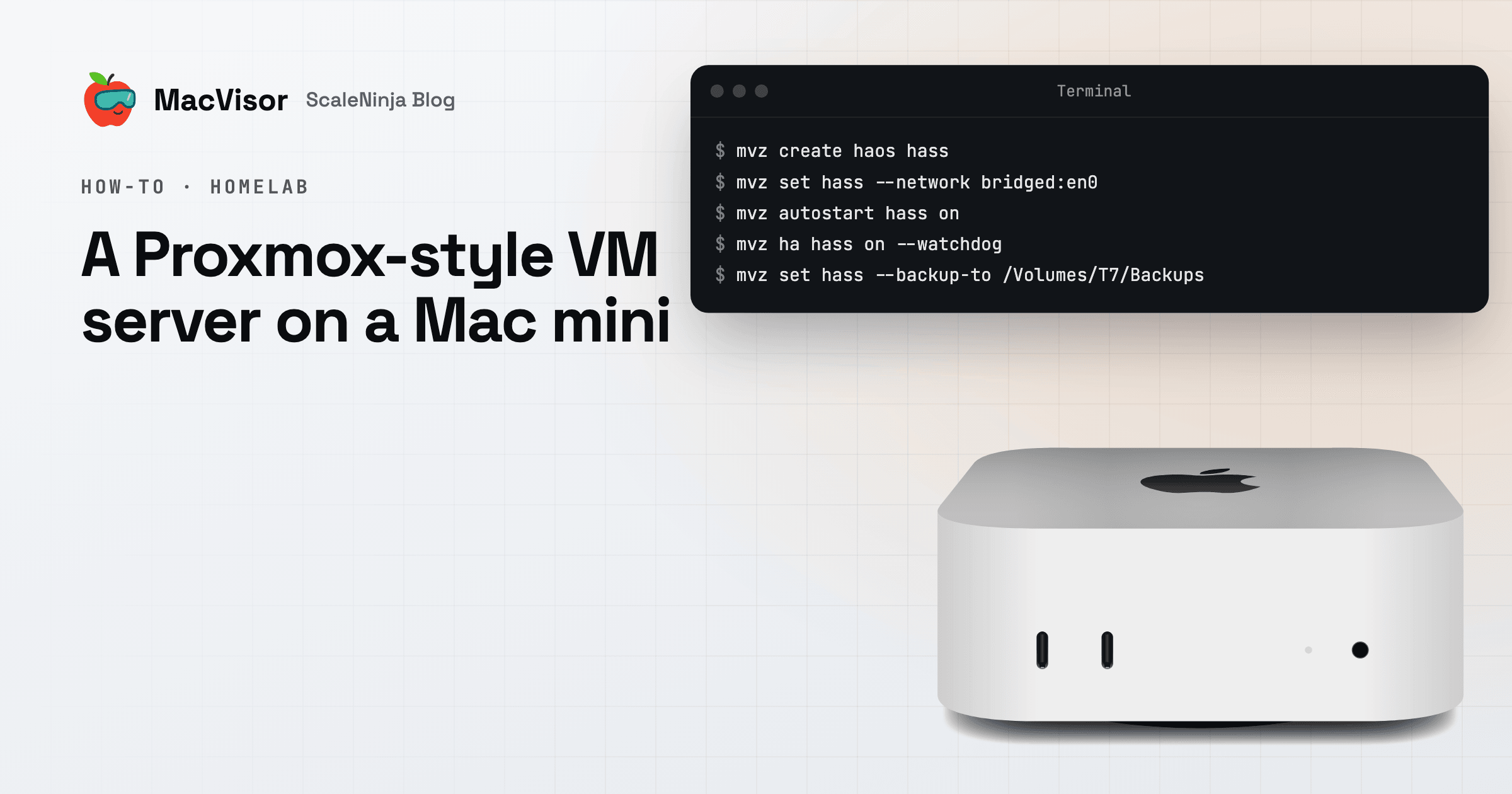
A Proxmox box in a homelab does a few jobs well. It runs VMs with nobody at a screen, brings them back after a reboot or a power cut, puts them on your LAN and VLANs, backs them up, and is managed from somewhere else. A Mac mini is a tempting machine for that work: small, quiet, frugal, and fast for ARM64 guests.
Proxmox VE can't be its operating system, though. Proxmox added an official ARM64 build in version 9.2, but for machines that boot with UEFI and describe their hardware through ACPI, and Apple Silicon Macs don't. So this guide does it the other way round: macOS stays on the Mac mini, and MacVisor runs the VMs on Apple's own Virtualization framework.
Here's how the Proxmox habits map across, and where they don't.
What maps across
| On a Proxmox host | On a Mac mini with MacVisor |
|---|---|
| VMs start at boot | Start at Login, after power-failure restart and automatic login |
| Restart a VM that failed | High availability, the VM Watchdog and your own health checks, on the one Mac |
qm on the host | mvz over SSH |
| Web interface on port 8006 | The app, over Screen Sharing when you're away. No web interface |
vmbr0 bridge, VLANs | Bridged adapters, VLAN interfaces, custom networks with DHCP reservations |
| Proxmox firewall | The network firewall, enforced by the Mac's own packet filter |
| Snapshots | Snapshots, and automatic disk-only snapshots while a VM runs |
| ZFS snapshots of the whole pool | APFS snapshots of a VM volume of its own, on a schedule, with DeltaSnap |
| vzdump and Proxmox Backup Server | Scheduled backups to a drive or a share, while the VM runs |
| Templates, cloud-init, linked clones | Cloud images set up by cloud-init, linked clones, registry (OCI) images |
| QEMU guest agent | The MacVisor Agent, or the QEMU guest agent in appliances |
| USB passthrough | USB passthrough, attached again at every start |
| LXC containers | Docker, Podman or k3s in a Linux VM |
Guests are ARM64: Linux distributions, Windows 11 on ARM, FreeBSD, up to two macOS VMs at a time, and appliances such as Home Assistant OS and OpenWrt.
1. Make the Mac behave like a server
A Proxmox host boots straight into its VMs. MacVisor's VMs run under a background service that belongs to a logged-in user, so the Mac has to get itself to a login with nobody there:
- Restart after a power failure:
sudo pmset autorestart 1. - No sleep when idle: System Settings → Energy, or
sudo pmset -c sleep 0. - Automatic login on, which means FileVault off. Decide based on who can physically reach the Mac.
- The background service allowed in Login Items & Extensions.
The dashboard's Unattended Auto-Start panel checks each step once a VM is set to start at login. Run a Mac mini as an always-on VM host has the full chain.
Install MacVisor with Homebrew, or from the download page:
brew install --cask scaleninja/tap/macvisorApprove the background service and the network helper once, at the Mac or over Screen Sharing. After that, SSH is enough for most things.
2. Put VMs on your network
The Default MacVisor Network is NAT, reachable only from the Mac. For services the rest of the house uses, bridge a VM to the Mac's Ethernet port, and it gets an address from your router like any other device:
mvz create haos hass                   # Home Assistant OS, from MacVisor's catalogue
mvz set hass --network bridged:en0     # on your LAN, through the Mac's Ethernet
networksetup -listallhardwareports names the Mac's interfaces. For segments of your own, MacVisor has VLAN interfaces, which you make in the app, and custom networks with DHCP reservations and a firewall the Mac enforces outside the guests:
mvz networks create services
mvz create ubuntu web --runtime docker --network services
mvz networks firewall services on --outbound deny --allow out:udp:53 --allow out:tcp:443
The firewall filters IPv4 only. A router VM fits here too: OpenWrt with its LAN on a VLAN interface and its WAN on the default network. See Custom networks and Network firewall.
3. Make each VM a service
mvz autostart hass on                  # start at every login
mvz ha hass on --watchdog              # restart after a crash, or if the guest stops responding
mvz hooks web check set 'curl -fsS -m 10 http://web.mvz/health'
High availability restarts a VM that crashes or fails to start, with growing waits and at most 10 restarts an hour, and leaves alone a VM you stopped on purpose. The watchdog needs the MacVisor Agent or a QEMU guest agent in the guest. The health check is your own command, and can restart the VM at most once a day. Unlike Proxmox HA, this all happens on one Mac: there's no cluster to move a VM to. See High availability.
A Zigbee or Z-Wave stick goes to Home Assistant the same way, once:
mvz usb attach hass 10c4:ea60 # now, and at every startmacOS may ask on the Mac's screen the first time it hands the stick to a VM.
4. Templates and clones
Proxmox users build a template and clone it. In MacVisor, a cloud image is already the template: mvz create downloads the distribution's own image once, and every VM made from it is a linked clone of it, set up on its first boot with your account, SSH keys and agent. To fork a VM you've set up, a linked clone shares its disk as a read-only base and writes only its own changes:
mvz clone web web2 --linked # the source must be stoppedmacOS images built for tart come from their registry with mvz clone ghcr.io/<image> <name>. See Linked clones and Registry images.
5. Backups and volume snapshots
Snapshots live inside the VM, so they don't survive the drive. Backups do:
mvz set hass --backup-to /Volumes/T7/Backups     # daily at 03:00, keeps the newest 7
mvz set web --auto-snapshots daily               # disk-only snapshots while it runs
mvz backups list hass
Backups run while the VM does, to an external drive or a network share. Time Machine leaves VMs out, so this is the copy that counts. See Backups.
ZFS-style snapshots of the whole VM volume
On a Proxmox host with ZFS, a recursive snapshot of the pool catches every VM disk at the same instant, and tools like Sanoid take them on a schedule and prune them. APFS snapshots a whole volume the same way, and DeltaSnap, our APFS snapshot manager, takes and rotates those snapshots.
Give the VMs an APFS volume of their own first, on the internal disk or an external APFS drive. Left on the Mac's usual Data volume, every snapshot would also hold everything else that changes on the Mac.
dsnap list -t container                    # disk3 is usually the internal one
dsnap create disk3/VMs                     # a volume at /Volumes/VMs that shares the container's free space, like zfs create
Add /Volumes/VMs as a storage location with Add Location… in MacVisor's Storage section, then move the VMs onto it:
mvz locations                              # the new location's name
mvz move hass <location>                   # a running VM is suspended, moved and resumed
In DeltaSnap, turn on Track Volume for VMs and choose the cadences, such as hourly and daily. From there dsnap reads much like zfs:
dsnap snapshot VMs@before-upgrade          # like zfs snapshot
dsnap schedule set VMs --hourly=24 --daily=7
dsnap diff --format=zfs VMs@HEAD~1 VMs@HEAD   # what changed, in zfs diff's style
How it compares with ZFS:
- Every VM on the volume at the same instant. For a running VM that's like a power cut, without the flush MacVisor's own snapshots and backups ask the guest for. Journaled file systems recover from it. For a database, take the snapshot with the VM shut down.
- Space only for what changes. A snapshot shares blocks with the live disks and grows with what the VMs write afterwards. Busy VMs write a lot, so keep fewer of their snapshots.
- No rollback in place. There's no
zfs rollback. To go back, shut the VM down and restore its package from a snapshot in DeltaSnap. It recovers files and folders, not the whole volume. - Same drive. Like ZFS snapshots, they're lost with the drive. The backups above are the copy that survives it.
6. Run it from somewhere else
Over SSH, mvz creates and runs VMs, takes snapshots, clones, manages networks and firewall rules, and activates the license. mvz console <vm> attaches to a Linux or FreeBSD VM's serial console, the way you'd use the console in Proxmox's web interface.
A few things still want the Mac's screen, over Screen Sharing: first-run approvals, a VM's display, VLAN interfaces and network port forwards, and macOS's USB prompt. See Managing a Mac you aren't sitting at.
What's different
Better to know these before you move a homelab:
- A user session, not bare metal. VMs start after automatic login, so FileVault and an unattended reboot don't mix.
- No web interface or remote API. SSH and Screen Sharing do that job today.
- One Mac, no cluster. No live migration, no shared storage, no quorum.
- No LXC. Containers run in a Linux VM. See Docker and Kubernetes on a Mac without Docker Desktop.
- ARM64 guests only. x86 images, such as many vendor appliances, won't boot.
- No ZFS, and no PCI or GPU passthrough. VMs live on APFS, which snapshots whole volumes (see above) but has no rollback in place. USB passes through.
- Memory can't be overcommitted. vCPUs can be shared out, memory can't.
If you need any of those, a small x86 PC with Proxmox VE is the better box. If you don't, a Mac mini makes a quiet, low-power VM host that comes back by itself after a power cut.
Try it
Download MacVisor for a free 30-day trial, with every single-Mac feature. A one-time Pro license covers one or two Macs.