
 DeltaSnap
 DriveSync
 Noject
 DeltaSync

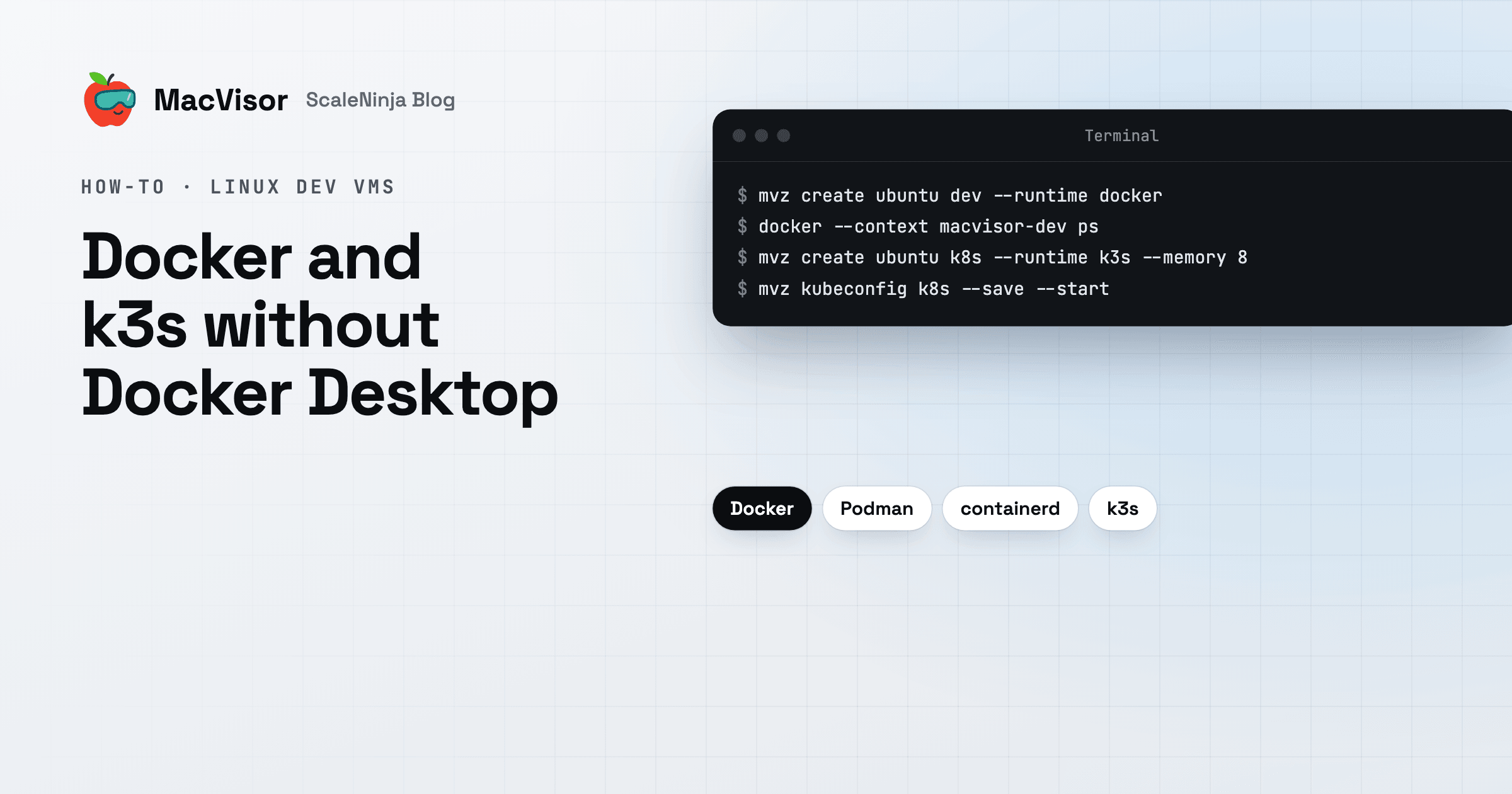
A Linux VM in MacVisor can come with a container runtime already installed: containerd with nerdctl, Docker Engine, Podman, or k3s for Kubernetes. Your Mac's docker and kubectl then talk to it, and the ports your containers publish show up on the Mac's localhost.
It's one of the things a MacVisor Linux VM does, not the reason MacVisor exists. If containers are all you need, a dedicated tool is lighter. More on that at the end.
A Docker VM in one command
mvz create ubuntu dev --runtime docker
mvz wait dev --start                 # starts it and waits until Docker is installed
docker --context macvisor-dev ps
In the app, choose New VM → Linux → Cloud Image, pick a distribution, and choose the runtime in the form. The VM is made from the distribution's own cloud image, set up on its first boot by cloud-init with your account, your SSH keys, the MacVisor Agent and the runtime. Nothing else is installed or shared unless you ask.
--runtime takes containerd, docker, podman, k3s or none (the default). Give the VM more room with --cpus, --memory (in GiB) and --disk.
How docker on the Mac reaches the VM
While the VM runs, MacVisor forwards its Docker API to a socket on the Mac, ~/.macvisor/run/<id>.docker.sock. The connection goes through the MacVisor Agent over a virtual socket, so there's no network setup, no TCP port to open, and nothing exposed on your LAN.
mvz create makes a docker context for it, named macvisor-<name>, when the docker command is on your Mac. For a VM you made in the app, or before you installed the docker CLI, make it yourself:
mvz docker dev            # makes the macvisor-dev context
mvz docker dev --use      # and makes it docker's current context
docker run --rm -p 8080:80 nginx
mvz docker dev --remove deletes the context again. If another VM already has the name, MacVisor adds the VM's short id to it.
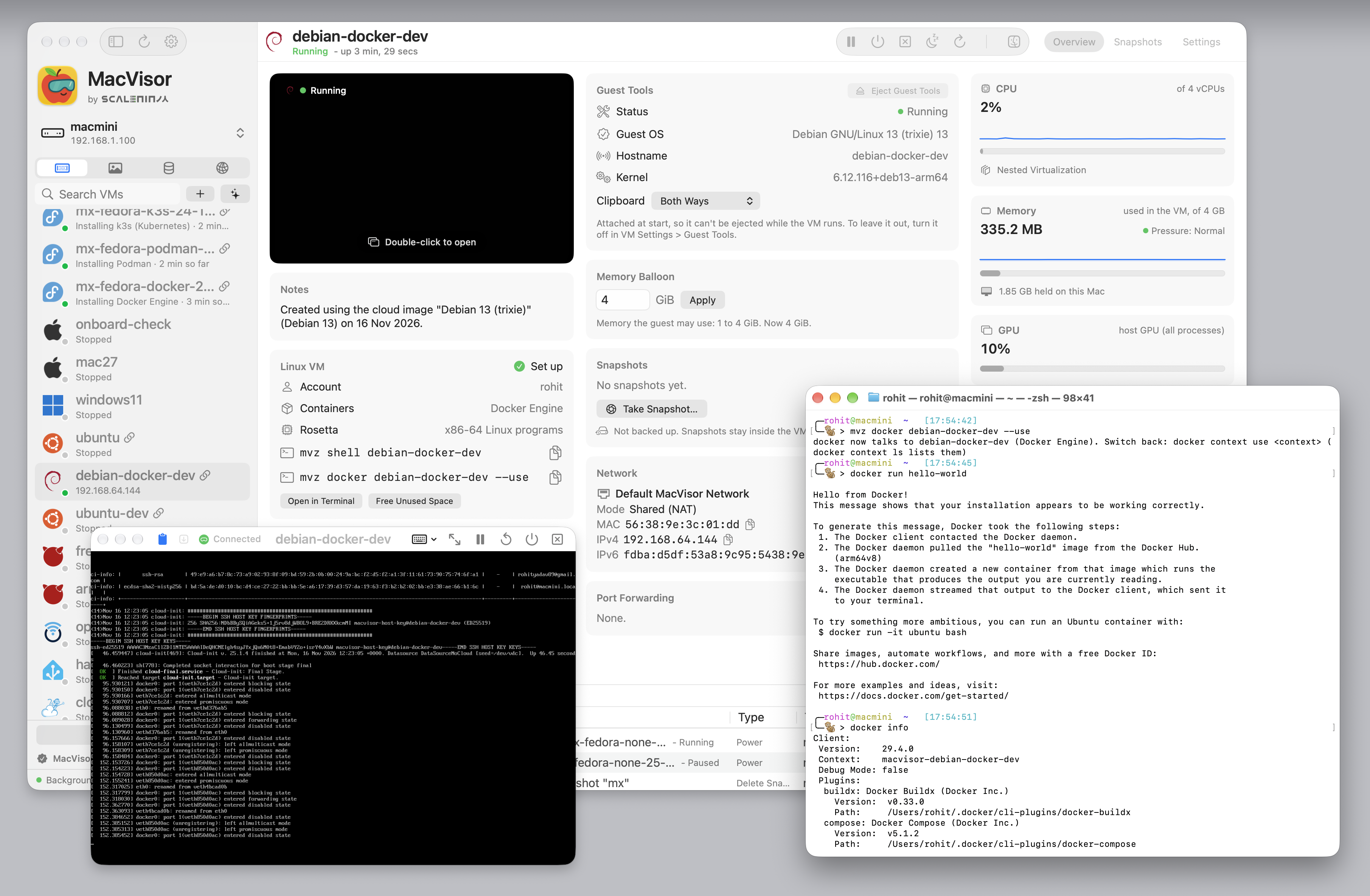
Podman works the same way: a VM made with --runtime podman forwards Podman's Docker-compatible API, so the same docker --context commands work. containerd has no Docker API, so use nerdctl in the guest:
mvz exec dev -- nerdctl run --rm alpine uname -mPorts appear on localhost
Any TCP or UDP port the guest listens on appears on the Mac's 127.0.0.1 at the same number, for as long as it listens. Publish port 8080 from a container and http://localhost:8080 reaches it. Nothing asks first, so MacVisor keeps automatic forwards away from ports the Mac's own software expects:
- Skipped: TCP 22 (use
mvz shell), ports below 1024 except 80 and 443, UDP ports from 32768 up, and k3s ports other than the API server. - Held back, with the reason shown on the VM's Overview and in
mvz show <vm>: Docker's own API (2375, 2376), databases such as PostgreSQL (5432), MySQL (3306), Redis (6379) and MongoDB (27017), Screen Sharing (5900), AirPlay Receiver (5000, 7000), Ollama (11434) and a few more.
For a port that's held back, add a forward yourself, in VM Settings → Network → Host Port Forwarding or with:
mvz ports add dev --host-port 15432 --guest-port 5432 --name postgres--no-forward at create, or the switch in VM Settings → Cloud-Init, turns automatic forwarding off for a VM. Inside the guest, host.mvz.internal is your Mac, as host.docker.internal is in Docker. See Port forwarding for the full list.
Kubernetes with k3s
mvz create ubuntu k8s --runtime k3s --memory 8
mvz kubeconfig k8s --save --start
KUBECONFIG=~/.kube/macvisor-k8s.yaml kubectl get nodes
kubeconfig --start starts the VM if it isn't running and waits for setup. --save writes ~/.kube/macvisor-<name>.yaml; without it, the kubeconfig prints to standard output. The API server is forwarded to 127.0.0.1:6443 on the Mac.
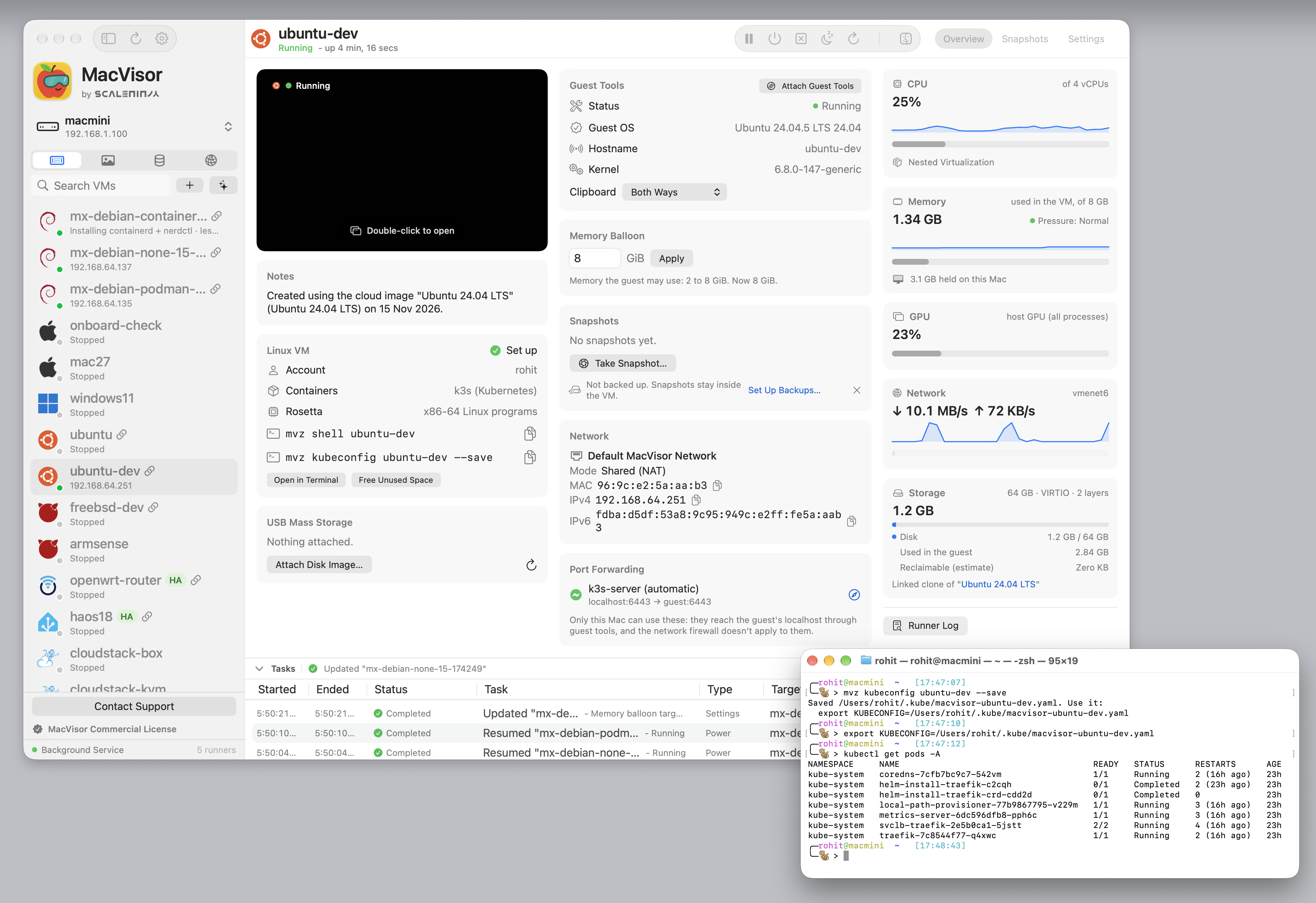
- Run one k3s VM at a time. Only one running VM can hold
127.0.0.1:6443, and every k3s kubeconfig points there. If another k3s VM has it,mvz kubeconfigsays so. - Give it memory. At least 4 GiB, and keep the memory balloon's target above half of it. A k3s guest squeezed further stops responding.
- The version is pinned (v1.36.5+k3s1 at the time of writing), and MacVisor caches k3s and nerdctl on the Mac after the first download, so later VMs don't fetch them again.
Which distributions offer which runtime
The catalogue has Ubuntu, Debian, Fedora, Rocky Linux, AlmaLinux, Oracle Linux, CentOS Stream, openSUSE and Alpine. Every runtime works on every one of them, except:
| Image | Not offered | Notes |
|---|---|---|
| Alpine Linux | Podman, k3s | containerd runs as a system service, so use sudo nerdctl |
| Oracle Linux 9 | k3s | Docker Engine, Podman and containerd work |
| Oracle Linux 10 | Docker Engine, k3s | Podman and containerd work |
| Fedora, CentOS Stream | Nothing | Podman is in the image even with no runtime chosen |
The New VM form hides what an image can't run, and mvz create refuses it and lists what the image offers. See Runtimes by distribution. The Ubuntu and Fedora pages have more on each.
Your code in the VM
--homeshares your home folder read-only, at the same path in the guest. Your account has the same name and UID, so files belong to you on both sides.- A project folder, read-write:
mvz shares dev add ~/src/app, or VM Settings → Shared Folders. Shares apply at the VM's next start from shut down. - Editors:
mvz ssh-config --installlets plainssh dev.mvzand VS Code Remote-SSH reach the VM by name.
Share what the VM needs, and read-only where you can: anything running in the VM can read what you share with it.
What a full VM adds
Containers in the VM run as they would on any Linux server. Around them, MacVisor gives you:
- Snapshots before a risky change:
mvz snapshots take dev --name before-upgrade, and revert if it goes wrong. - Rosetta for x86-64 Linux programs, when it's installed on the Mac.
- Nested virtualization on M3 and later Macs, so the guest can run KVM.
- Named networks with a firewall, for a lab of several VMs. See Network lab.
- Other systems next to it: macOS, Windows 11 and FreeBSD VMs, managed the same way.
When something else fits better
If you only want to run containers on your Mac, a tool built for that is the lighter choice. OrbStack and Docker Desktop start a shared Linux machine for you and manage it out of sight, with file sharing and networking tuned for containers. Apple's container tool runs each container in a lightweight VM of its own. When containers are the whole job, any of the three is lighter than a full Linux VM you manage yourself.
MacVisor fits when you also want full VMs: a Linux box you control down to the kernel, a k3s node next to a macOS or Windows guest, snapshots and backups of the whole machine, or VMs that keep running on a Mac mini home server with the app closed.
Download MacVisor for a free 30-day trial with every single-Mac feature. The Linux guests page and the CLI reference have more.