
 DeltaSnap
 DriveSync
 Noject
 DeltaSync

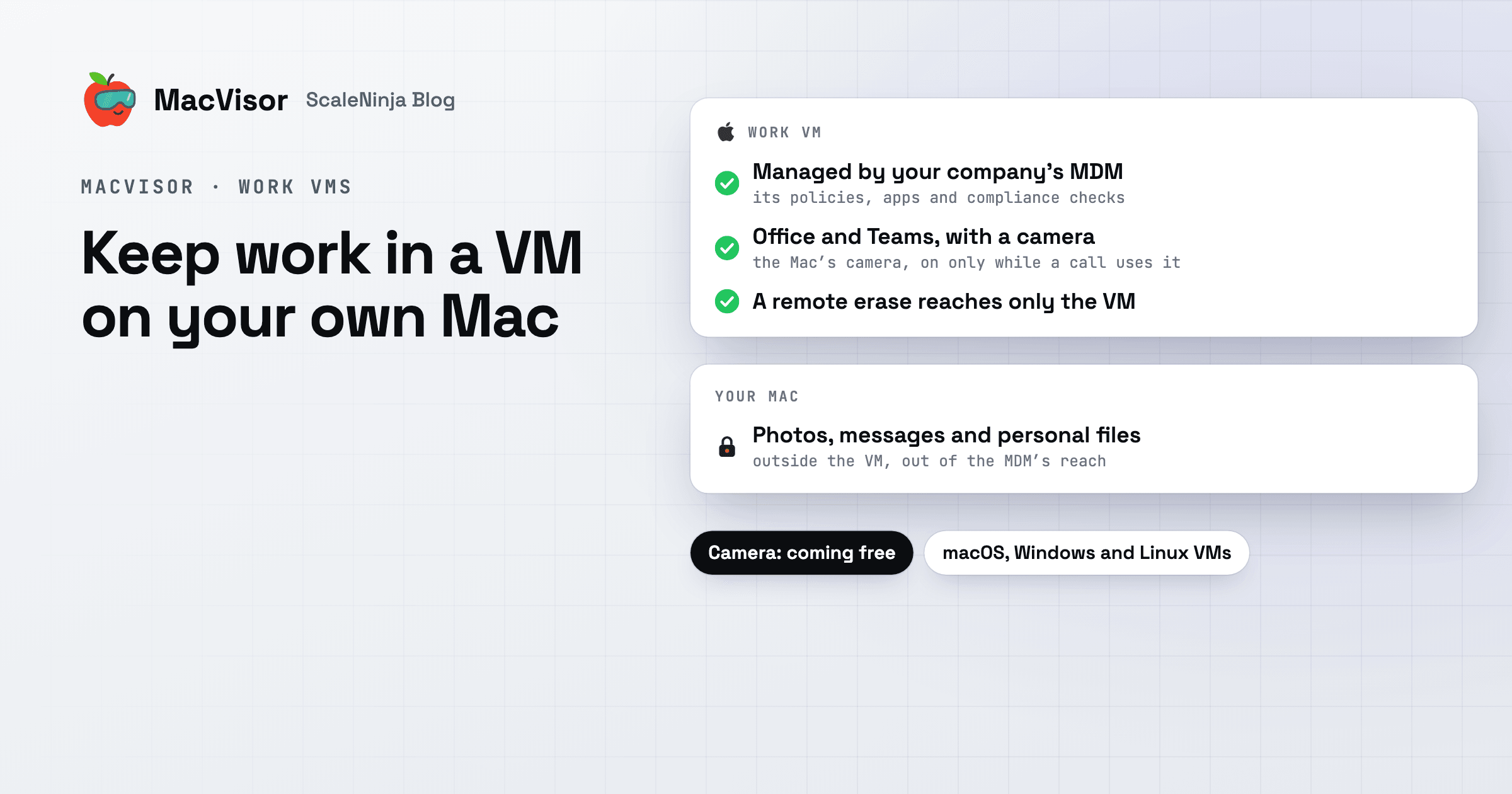
At a previous job, management decided to bring every device into Microsoft Intune. I did my work on a Mac I'd bought myself, with my photos, my messages and the rest of my life on it. Enrolling it meant handing my employer control of that Mac, including the power to erase it remotely. I wasn't willing to do that.
So I put work in a macOS VM instead: Intune, Office and Teams inside the VM, everything personal outside it. It worked well, with one exception. Meetings. The VM had my Mac's microphone and speakers, but no camera. I tried UTM and VMware Fusion and couldn't get the camera into the VM in either, so I joined every Teams call with my video off.
MacVisor's next update fixes that part: a VM can have a camera, fed from your Mac's, in macOS, Windows and Linux guests. It's free for every MacVisor 27 license.
Why keep work in a VM
When a company enrolls a Mac in its MDM, it gets a lot of control. With Intune, a personally owned Mac enrolls through the Company Portal, and Microsoft's docs say that "provides the same level of control as supervised macOS devices" (Microsoft). Device Enrollment lets the MDM manage "many different aspects of device use, including the ability to erase the device" (Apple).
That's reasonable for a Mac the company owns. On your own Mac it means your company's policies, compliance checks and remote erase reach your photos too.
With a work VM, all of that lands in the VM instead:
- The MDM manages the VM. Its policies, apps, compliance checks and, if it comes to it, the erase, stay inside it.
- Your Mac stays yours. Photos, personal accounts and files sit outside the VM, out of the MDM's reach.
- Work has an off switch. Shut the VM down at the end of the day, and work stops.
Apple has an answer of its own for personal devices: account-driven User Enrollment, on macOS 14 or later. It "is designed for BYOD", where "the user, not the organization, owns the device", it's never supervised, and work data is removed when you unenroll "without affecting the user's personal data" (Apple). If your company's MDM supports it on the Mac, ask for it. Intune's macOS docs list only Company Portal enrollment for personal Macs.
A customer who works this way
One MacVisor customer runs their company work in a macOS VM for a related reason. Their work is privacy-sensitive, so it lives in a tightly controlled VM on a Mac they own. It's part of a bring-your-own-device setup that meets ISO 27001, with strict separation between their customers.
Their meetings happen in the VM too. Until now, getting video into it took a complex NDI setup. With the camera, it's a setting.
MacVisor helps with the separation as well. Give each customer a VM of its own, and each VM a custom network with its own firewall. Traffic between VMs on the same network isn't filtered, so separate customers need separate networks.
How the camera works
The camera comes in MacVisor's next update, and its docs are up already. It's off for every new VM. Turn it on per VM in VM Settings → Camera, from the Camera menu in the VM window's bar, or from Terminal:
mvz cameras                  # the Mac's cameras, by name
mvz set work --camera on     # the Mac's default camera
You can also pick one of the Mac's cameras by name, such as a webcam plugged into the Mac.
- The Mac's camera is on only while an app in the VM uses it. Pausing, suspending or stopping the VM turns it off.
- macOS asks you once whether MacVisor may use the camera.
- The picture is 1280 x 720 at 30 frames a second, with no camera controls such as zoom or focus.
The microphone and speakers work as before, so a VM gets video, sound and a microphone for calls.
What we've tested so far: Photo Booth in a macOS 27 guest, and Microsoft Edge in a Windows 11 guest, which is the engine the new Teams app is built on. We haven't tried the Teams and Zoom desktop apps themselves yet, and we'll add what we find here.
In a macOS VM
The guest sees MacVisor Camera, a camera extension that MacVisor's guest agent installs. Allow it once in the VM, in System Settings → General → Login Items & Extensions → Camera Extensions, which takes an administrator's password. Apps in the VM then list MacVisor Camera and ask for it as they would for any camera.
Installing and allowing it both take an administrator, which you may not be once your MDM manages the VM. So turn the camera on and allow the extension before you enroll. Or your IT team can allow it ahead of time with a system extension policy for team VXNWQ9H93X and com.scaleninja.macvisor.camera.extension; we haven't tried that with an MDM yet. The camera needs macOS 14 or later in the guest. See macOS VMs: Camera.
In a Windows VM
Windows lists MacVisor Camera as a Windows virtual camera, so apps that use Windows' own camera stack can use it. Two limits matter on a managed PC:
- Apps that use only DirectShow, such as some older conferencing apps, may not list it.
- App Control for Business (WDAC), AppLocker and Smart App Control in enforcement mode would block the camera, as they would MacVisor's agent: neither is Authenticode-signed yet. If your company enforces one of them through Intune, ask IT before you count on the camera.
See Windows VMs: Camera.
Before you do this: IT, Apple and Microsoft
A work VM is only a good idea if the people whose rules apply agree to it.
- Ask IT first. Enrolling a VM in place of your Mac changes what the company manages. Do it with IT's agreement, not around it. Some security policies accept a managed VM, and some don't.
- Apple's macOS license allows macOS in a VM for software development, testing during development, macOS Server, or personal, non-commercial use (section 2B(iii)). If your job is software development, a macOS work VM fits. For other work, a Windows VM, with its own license, is the cleaner choice.
- Microsoft Intune supports macOS VMs "for testing purposes only. Don't use virtual machines (VMs) as official devices for employees or students" (Microsoft). For Windows, Intune supports managing VMs running Windows Enterprise, though not settings that use a TPM, such as BitLocker's.
- Microsoft supports Windows 11 on Apple Silicon Macs through Parallels Desktop and Windows 365. MacVisor isn't on that list, so Microsoft won't help with Windows in a MacVisor VM.
If IT says no, ask about a Windows 365 Cloud PC, User Enrollment, or a company Mac for work. Each keeps work off your own Mac without a VM.
Switching Macs
A work VM is also easier to move than a work setup. On a new Mac, a fresh setup means enrolling again, reinstalling Office and Teams, and signing back in to everything. A VM moves as one package:
mvz export work /Volumes/T7      # on the old Mac, with the VM shut down
mvz import /Volumes/T7/work.mvz  # on the new Mac
A MacVisor backup restores the same way. Office, Teams, your files in the VM and its settings come with it. A few things to expect:
- The VM gets a new identity on the new Mac. To the guest it's a new computer, so your MDM is likely to see a new device and ask you to enroll again, and some apps may ask you to sign in again.
- A Windows VM's TPM stays sealed to the old Mac. Move it with
mvz tpm exportandmvz tpm import, or BitLocker asks for its recovery key. See Moving a Windows VM to another Mac. - Exports and backups aren't encrypted. Keep them on an encrypted drive, because they hold your company's data.
Keeping work and personal apart
A few settings make the line between the VM and your Mac sharper:
- Clipboard: sharing is on both ways by default. If your company's data policy says so, set it to Mac to VM only, or off:
mvz set work --clipboard to-vmor--clipboard off. - Shared folders: share none, or only a folder kept for work. Never your home folder.
- Network: a custom network with a firewall keeps the VM away from your home network, and a separate one per customer keeps customers apart.
- FileVault on your Mac protects the VM's disk along with everything else.
When it's coming
The camera arrives in MacVisor's next update, free for every MacVisor 27 license and the free trial. The changelog lists what else is in it. Try the rest of this setup on the trial today: a work VM, its network and firewall, and moving it to another Mac.
For a company that wants to offer work VMs to everyone with their own Mac, MacVisor Business is licensed per Mac from one Mac.