
 DeltaSnap
 DriveSync
 Noject
 DeltaSync

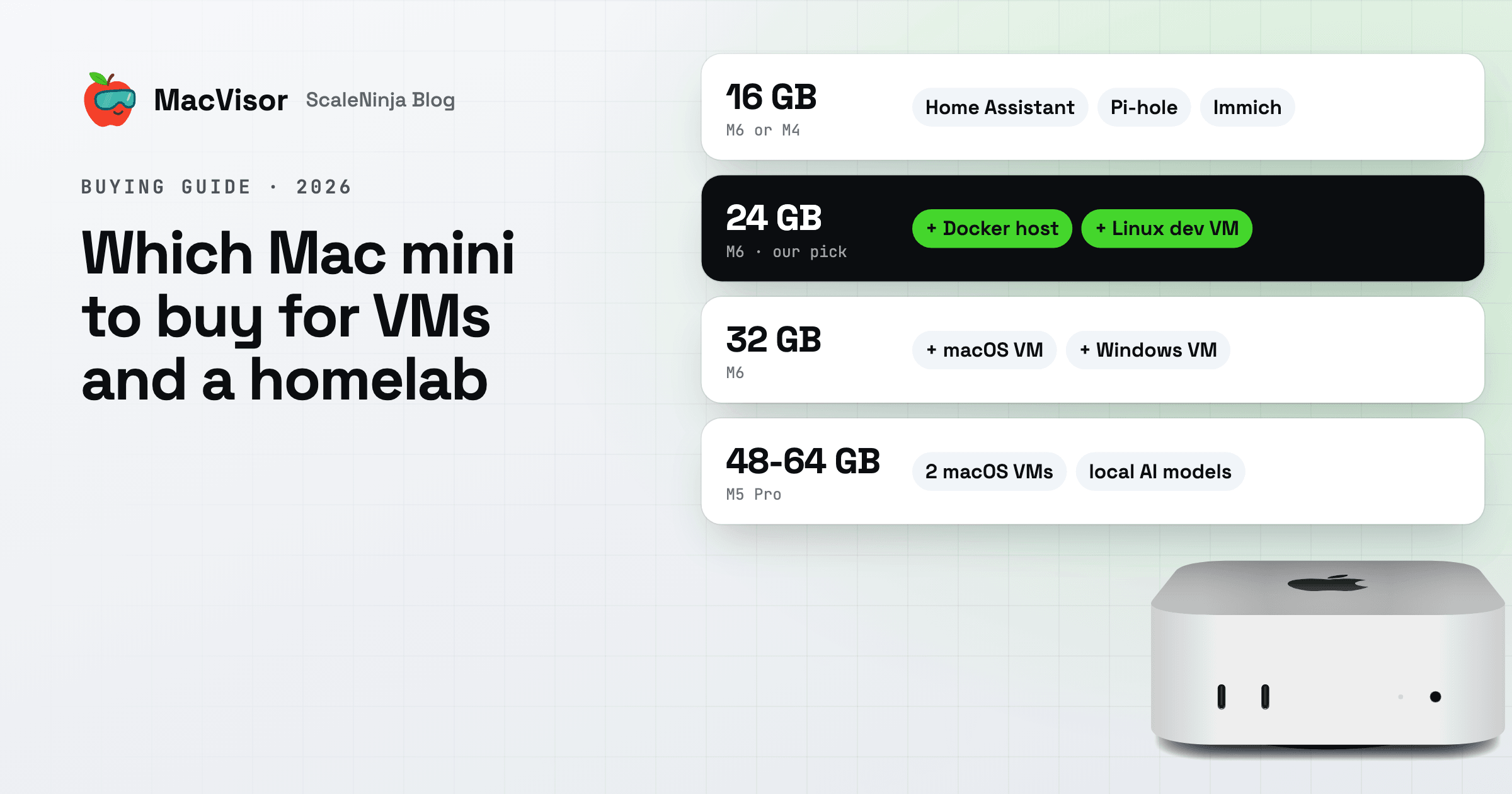
The short answer: for a homelab of Linux VMs and appliances, buy the M6 Mac mini with 24 GB and 512 GB ($1,299 at Apple, less on sale). Choose 32 GB if a macOS or Windows VM will run alongside them, and the M5 Pro with 48 or 64 GB only for several macOS or Windows VMs at once, local AI models, or a build Mac. On a tight budget, a discounted M4 with 16 GB runs a few small Linux services. Memory decides how many VMs a Mac mini runs; the chip rarely does.
Here's why, how to work out your own number before you buy, and what Mac mini owners on r/macmini told us they run.
Should it be a Mac mini at all?
Not always, and we'd rather say so up front. We make MacVisor, a VM app for Macs, so weigh this accordingly.
- For Linux services only, an x86 mini PC is cheaper. A used office mini PC with Proxmox runs Home Assistant, Pi-hole and a few containers for a fraction of a Mac mini's price, and you can add memory later. A Mac can't run Proxmox, and Asahi Linux doesn't support the M4 or later yet.
- For Home Assistant alone, a Raspberry Pi or Home Assistant's own hardware is enough.
- A Mac mini earns its price when you want macOS VMs (only a Mac can run them legally), a quiet box that idles at a few watts, a Mac you also use as a Mac, or local AI models in its unified memory.
The Mac mini range
Apple's US list prices on 25 November 2026, before tax. The M6 and M5 Pro have been on sale since 22 September 2026.
| Mac mini | Memory | Storage | Apple price |
|---|---|---|---|
| M6, 12-core CPU | 16 GB | 256 GB | $899 |
| M6, 12-core CPU | 16 GB | 512 GB | $1,099 |
| M6, 12-core CPU | 24 GB | 512 GB | $1,299 |
| M6, built to order | 32 GB | 512 GB | $1,499 |
| M5 Pro, 15-core CPU | 24 GB | 512 GB | $1,699 |
| M5 Pro, built to order | 48 GB | 512 GB | $2,299 |
| M5 Pro, built to order | 64 GB | 512 GB | $2,699 |
Both have 2.5 Gb Ethernet. The M6 has Thunderbolt 4 and tops out at 32 GB; the M5 Pro has Thunderbolt 5 and goes to 64 GB. Either can have 10 Gb Ethernet for $100. Memory is fixed when you buy, so it's the one choice you can't undo, and Apple charges for it: $200 to go from 16 to 24 GB on the M6, and $400 to 32 GB. Sources: Apple's Mac mini specs, MacRumors and Daring Fireball.
Black Friday: on 24 November, Amazon had the M6 at $779 (16 GB, 256 GB), $949 (16 GB, 512 GB) and $1,199 (24 GB, 512 GB), and the M5 Pro (24 GB, 512 GB) at $1,549 (9to5Mac). Built-to-order models with 32, 48 or 64 GB are rarely discounted. Prices move daily, so check before you buy.
The M4 and M4 Pro, on sale
Retailers are selling off the 2024 Mac mini. In November, Best Buy had the M4 with 16 GB and 256 GB at $649, against its $799 list price (TechRadar). Apple's refurbished store had no Mac minis when we looked, but they come and go.
For VMs, an M4 is the same arithmetic as an M6 with less to spend: it also tops out at 32 GB (the M4 Pro at 64 GB), and it runs nested virtualization like any M3 or later. The differences are Gigabit Ethernet instead of 2.5 Gb, and a slower chip, which a homelab of mostly idle VMs rarely notices. Compare by memory: a 16 GB M4 at $649 is a good small homelab, but a 24 GB M6 on sale is usually the better buy than a 24 GB M4 at nearly the same price.
Memory decides
A VM keeps the memory you give it. Once a guest has run for a while it has touched all of it, for its file cache if nothing else, so the Mac holds about all of it whether the guest is busy or not. Count the memory you assign, not what the guest reports.
MacVisor lets you start VMs past the Mac's memory, and flags it on the dashboard when you do. From there, under load, macOS compresses memory and swaps to the SSD, and everything slows down. So the rule is simple: the VMs you run together, plus macOS, should fit in the Mac's memory.
CPU is different. vCPUs are shared: VMs together can have more vCPUs than the Mac has cores, and it costs nothing until they're all busy at once. That's why a 12-core M6 or a 10-core M4 runs as many homelab VMs as its memory allows.
What each kind of VM needs:
| VM | Memory to give it | Why |
|---|---|---|
| Pi-hole | 1 GB | Pi-hole asks for 512 MB; 1 GB is the least MacVisor gives a Linux VM |
| Home Assistant OS | 2 GB | Home Assistant's stated minimum for a VM |
| A Linux server or Docker host | 2 to 4 GB | MacVisor's default for a Linux VM is 4 GB |
| Immich, for your photos | 8 GB | Immich asks for 6 GB, and recommends 8 |
| A Linux desktop | 6 GB | MacVisor's default for Ubuntu Desktop |
| macOS | 8 GB | MacVisor's default for a macOS VM |
| Windows 11 | 8 GB | MacVisor's default for Windows |
Linux VMs from a cloud image can also give memory back while they run, with a memory balloon: set a lower target and the guest returns what it can spare. Windows can't, and appliances start without one.
What fits in each size
We keep 4 GB for macOS on a headless Mac mini that runs nothing but VMs, and more if you also use it as a desktop. The rest is for VMs:
| Memory | For VMs | For example |
|---|---|---|
| 16 GB | 12 GB | Home Assistant, Pi-hole and Immich (11 GB). Or a macOS or Windows VM with Home Assistant and Pi-hole (11 GB), and nothing else |
| 24 GB | 20 GB | Home Assistant, Pi-hole, Immich, a Docker host and a Linux dev VM (19 GB) |
| 32 GB | 28 GB | Home Assistant, Pi-hole, Immich, a macOS VM and a Windows VM (27 GB) |
| 48 GB | 44 GB | Both macOS VMs Apple allows at once, a Windows VM, and the homelab above |
| 64 GB | 60 GB | All of that with room for a local AI model on the Mac |
Sixteen gigabytes works for a homelab of small Linux services. It gets tight the moment a macOS or Windows VM joins, because one of those takes half of what's left. That's why 24 GB is the size we'd buy: $200 more than the 16 GB model with the same storage, for 8 GB more room for VMs.
Two limits apply whatever you buy: two macOS VMs at a time, a limit of Apple's license and Virtualization framework, and 32 virtual network adapters across the Mac. Neither depends on memory, so neither is a reason to buy more of it.
What Mac mini owners actually run
We asked on r/macmini what people run on an always-on Mac mini. The replies so far:
| Mac mini | What it runs |
|---|---|
| M1, 16 GB, 1 TB | Plex, a file server and a torrent client, with the media on a NAS over SMB. Raspberry Pis still run Pi-hole, Home Assistant and Homebridge. |
| M4, 16 GB, 10 Gb Ethernet | A file server for a RAID enclosure over SMB, and a Tailscale exit node. On a UPS. |
| M1, 16 GB, 10 Gb Ethernet, and an M4 Pro, 64 GB | Docker containers with OrbStack on the M1; local AI models and Immich's machine learning on the M4 Pro. Home Assistant stayed on a Raspberry Pi 5. |
| 2018 Intel i5, 32 GB | Ubuntu Server installed directly, with many Docker containers. |
Two things stand out. Most run 16 GB, and it's enough for them, because Plex, file sharing and Tailscale run as Mac apps and need little memory. VMs change that: each one keeps the memory you give it. And the services that need to be devices on your network, Home Assistant above all, are the ones people kept on a Raspberry Pi. One reader tried Home Assistant in Docker on the Mac and found its Matter and HomeKit discovery broken.
Mac app, container or VM?
The same service can run three ways on a Mac mini, and the choice matters more than the chip:
- As a Mac app, for Plex, Jellyfin, file sharing and Tailscale. It uses the least memory, and a media server can use the Mac's video hardware to transcode.
- In a container, with Docker Desktop, OrbStack or Colima. Containers on a Mac run inside a hidden Linux VM behind the Mac's network address, so anything that finds devices on your network, such as Home Assistant's discovery, can break, and there's no GPU for transcoding.
- In a VM, for Home Assistant OS, Pi-hole, Immich or a Docker host. A VM bridged to the Mac's Ethernet gets its own address on your network, like a separate device. Linux VMs get no GPU either, so keep transcoding in a Mac app.
A typical homelab Mac mini runs a bit of each: Plex as an app, Home Assistant OS and Pi-hole in VMs, and Docker in a Linux VM. The VMs are what the memory table above counts; Mac apps come out of what you keep for macOS, so keep more than 4 GB if you run several.
M6 or M5 Pro?
For a homelab, the M6. Its 12 cores are plenty for VMs that are mostly idle.
The M5 Pro is worth its $400 more (24 GB against 24 GB) when you need one of these:
- More than 32 GB. Two macOS VMs, a Windows VM and the rest at once, or a build Mac running macOS VMs for CI.
- Local AI models. MacVisor's AI sandboxes can run coding agents on models served from the Mac, which live in the Mac's memory alongside the VMs. Our docs suggest a Mac with 24 GB for a small coding model, and 32 GB or more to be comfortable; larger models want the M5 Pro's 48 or 64 GB.
- Sustained CPU work. 15 or 18 cores for builds and tests that keep every VM busy.
Storage: 512 GB, plus an external drive
The 256 GB model is too small for VMs. A macOS installer takes 15 to 27 GB and is kept for later VMs, each VM's disk grows as its guest writes, and snapshots and suspended VMs take space too. VM disks are sparse, so a 64 GB disk only takes what the guest has written, but it adds up.
Buy 512 GB inside, and put the bulky data on an external SSD: a photo library for Immich, media, and MacVisor's backups, which should be on another drive anyway. Format it APFS, so copies, clones and snapshots stay fast. External storage costs a fraction of Apple's internal upgrades.
Ethernet, power and running headless
- Ethernet, not Wi-Fi, for a homelab. Home Assistant and Pi-hole need to be devices on your network, which MacVisor does by bridging the VM to the Mac's Ethernet port. The built-in 2.5 Gb port is enough. 10 Gb is worth its $100 only if your NAS and switch are 10 Gb too; otherwise it can lead to a new switch and new cables.
- A UPS. A small one for the Mac mini and your network switch costs less than a memory upgrade, and it rides out the short power cuts that would otherwise restart every VM.
- Power. Apple rates the M6 and M4 at 4 W idle, and the M5 Pro at 6 W (Apple), less than most x86 mini PCs. VMs that are busy raise that, but a homelab of idle services stays close to it.
- No sleep. A sleeping Mac freezes its VMs. Turn on System Settings → Energy → Prevent automatic sleeping when the display is off, or run
sudo pmset -c sleep 0. - Coming back after a power cut takes three settings: restart after power failure (
sudo pmset autorestart 1), automatic login, and FileVault off, because FileVault stops an unattended boot at the unlock screen. That's a real trade-off for a Mac anyone can pick up. On macOS 26 and later there's a middle way: with Remote Login on before the restart, you can unlock FileVault over SSH from another device, then sign in, for example over Screen Sharing; the VMs start once you're logged in. See Run a Mac mini as an always-on VM host and Always-on host. - Getting back in. Screen Sharing over Tailscale is free and survives restarts. Whatever you use, check that it works after a restart, before anyone logs in.
- Zigbee and Z-Wave radios for Home Assistant pass through to the VM with USB passthrough, new in macOS 27.
A Mac mini you already have
macOS 27 runs on every Apple Silicon Mac mini, from the M1 on, and so does MacVisor. The same arithmetic applies: an M1 or M2 with 16 GB is a fine small homelab, as several r/macmini owners show. What it lacks is nested virtualization, which needs an M3 or later, so no KVM inside a Linux VM.
An Intel Mac mini can't run MacVisor, which is for Apple Silicon only, but it can run Linux directly: one reader's 2018 i5 with 32 GB runs Ubuntu Server and a stack of Docker containers.
Try before you buy
If you already have an Apple Silicon Mac on macOS 27, MacVisor's free 30-day trial runs the VMs you plan to run, so you can see what they take before you choose a Mac mini. When you're ready, Home Assistant OS on a Mac walks through the first VM many homelabs start with.