
 DeltaSnap
 DriveSync
 Noject
 DeltaSync

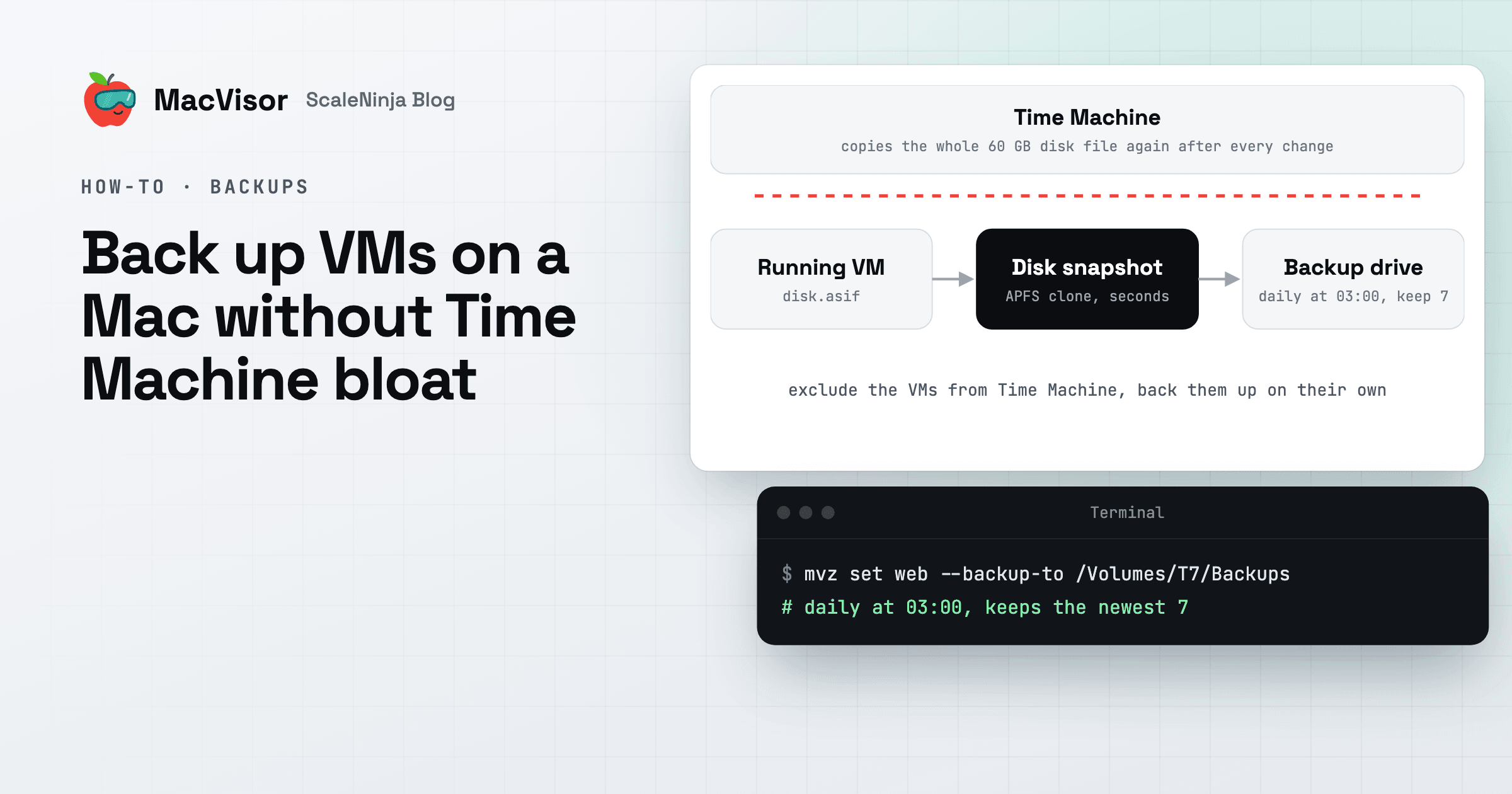
A VM's disk is one big file. Time Machine backs up files, so every time the VM writes a few bytes, the next backup copies the whole disk again. People notice the backup drive filling up, exclude their VMs from Time Machine, and then have no backup of them at all.
Here's why that happens, what's safe to copy, and how to back VMs up properly. We make MacVisor, a VM app for Apple Silicon Macs, so one of the options is ours; the others work with any VM app.
Why Time Machine and VMs don't mix
Time Machine works with whole files. Broadcom's guidance for VMware Fusion puts it plainly: "Time Machine performs file-level backups. Because a virtual disk is a single large file, any minor change within the guest operating system forces Time Machine to back up the entire virtual disk file, leading to rapid storage exhaustion" (Broadcom KB 303386).
So a Windows VM with 40 GB on its disk that runs for an hour costs your backup drive another 40 GB. Time Machine makes hourly backups, and "the oldest backups are deleted when your backup disk is full" (Apple), so a VM you use all day pushes your older backups of everything else off the disk.
There is a second cost on the Mac itself. Time Machine "saves one snapshot of your startup disk approximately every hour, and keeps it for 24 hours" (Apple). A snapshot keeps the blocks your files had when it was taken. A VM rewrites its disk all day, so each snapshot holds on to the old blocks. Excluding the VM doesn't help here: "Excluded items still appear in Time Machine local snapshots" (Apple). Time Machine deletes them as they age or when space is needed, so this is temporary, but it's why a VM host's free space can look odd.
Snapshots, clones and sparse files
A few terms, since they decide what a VM backup costs:
- Sparse file. A disk file that stores only the blocks the guest has written: a 128 GB disk holding 20 GB takes about 20 GB.
- ASIF. Apple Sparse Image Format, the disk image format added in macOS 26 Tahoe and supported by Apple's Virtualization framework. Apple says ASIF files "transfer more efficiently between hosts or disks because their intrinsic structure doesn't depend on the host file system's capabilities", and their size on disk "is proportional to the actual data stored in the disk image" (Apple). A raw disk is sparse only on a file system that keeps holes, such as APFS; copy it to exFAT and it takes its full size. See Disk formats.
- APFS clone. A copy that shares the original's blocks until one of them changes.
cp -cmakes one: it usesclonefile(2), and falls back to a normal copy when source and target are on different file systems (man cp). A clone of a 40 GB disk is instant and takes almost nothing. - Snapshot. A point-in-time view, of a volume (APFS, Time Machine) or of a VM (your VM app). It lives on the same drive as the data. If that drive dies, so does the snapshot.
That last point matters most. A snapshot is not a backup. A backup is a copy on another drive, which you can restore on another Mac.
Copying a running VM is like pulling the plug
Copy a VM's disk while the VM runs and the guest writes to it as you read it: the start of the file comes from one moment and the end from another. That copy may not boot. Parallels warns that Time Machine backups "can guarantee safety only when your Parallels virtual machines were stopped or suspended" (Parallels), and Broadcom that a Time Machine backup of a running Fusion VM "may be corrupt and unusable".
The fix is to copy from one point in time: shut the VM down first, or pause it for the instant APFS takes to clone its disk, and copy the clone. A copy taken that way is crash-consistent: it looks exactly like the disk after a power cut. Modern file systems (APFS, ext4, NTFS) recover from that, and so do databases with a write-ahead log, but anything the guest held only in memory is lost.
Application-consistent goes further: the apps in the guest are told to flush and pause their writes before the snapshot, as Windows does with VSS. For a database server you care about, use its own dump or backup tool inside the guest as well.
Your options
1. Exclude VMs from Time Machine, and back them up separately
Excluding VMs is right; stopping there is the mistake. Exclude your VM folder in System Settings > General > Time Machine > Options (Apple), then use one of the options below. MacVisor excludes its VMs for you, but not its backups and exports.
2. Your VM app's own tools
Most Mac VM apps have snapshots, but not backups to another drive:
| App | What it offers |
|---|---|
| Parallels Desktop | Time Machine, scheduled snapshots inside the VM, cloning, copying files by hand, or third-party tools (guide) |
| VMware Fusion | Broadcom advises excluding VMs from Time Machine and copying the bundle "while the virtual machine is fully shut down" (KB 303386) |
| UTM | Export, Move and Clone actions, no scheduled backup (docs) |
3. Copy it yourself, with the VM shut down
This works with any app, as long as the VM is fully shut down (not suspended or paused):
# Same APFS volume: an instant clone. Fine as a quick fallback, not a backup.
cp -c -R ~/VMs/dev.mvz ~/VMs/Copies/dev-2026-11-23.mvz

# Another drive: a real backup (-S keeps a sparse disk sparse)
rsync -aS ~/VMs/dev.mvz /Volumes/T7/VM-Backups/
Check the copy's size on the other drive. Without -S, rsync writes a sparse raw disk out in full, even to APFS: in our test, a 2 GB raw disk holding 10 MB took 2 GB. On a drive that doesn't keep holes, such as exFAT, a raw disk takes its full size however you copy it. ASIF disks stay compact either way.
In MacVisor, mvz export dev /Volumes/T7/VM-Backups does the same for a stopped VM, snapshots included. The catch is the "shut down" part. A VM you leave running is the one you forget to back up.
4. MacVisor's scheduled backups
MacVisor backs up VMs on a schedule, running VMs included, to a folder on another drive, an external disk or a mounted network share. It's in every license, and off for each VM until you turn it on in VM Settings > Backup or from Terminal:
mvz set dev --backup-to /Volumes/T7/Backups    # turns backups on: daily at 03:00, keeps the newest 7
mvz set dev --backup-schedule weekly --backup-at 22:30
mvz backup dev                                 # one now
mvz backups list dev
What it does, exactly:
- A running VM keeps running. MacVisor asks the guest agent to flush the guest's file systems, takes a disk-only snapshot, which pauses the VM only while APFS clones its disk files, copies the snapshot to the backup folder and deletes it. The result is crash-consistent: a flush, not a freeze, and no VSS.
- A running VM stored on a drive that isn't APFS isn't backed up, since the snapshot would pause it for as long as a full copy takes. It's backed up while stopped. The backup drive itself can be anything.
- Each backup is a whole VM, an
.mvzpackage with the VM's disks, settings and firmware, but no memory, snapshots or logs. It starts as after a power cut. - Only used blocks are copied. A VM with a 64 GB disk holding 1.5 GB made a 1.5 GB backup in our test. On an APFS backup drive, disk files that haven't changed since the previous backup are cloned from it and take no extra space. A disk that has changed is copied again in full, and so is the disk of a VM made from a cloud image, which is written out from its layers every time. So plan on each backup kept costing about the VM's used size. It isn't block-level incremental.
- Every file is checked by SHA-256, and a backup gets its final name only once all of it is written and checked.
- Retention: the newest 7 by default, up to 100. Missed backups run at the next chance; failed ones are retried.
- Restore by double-clicking the
.mvz, File > Import…, ormvz backups restore, on this Mac or another. It comes back with a new identity, so new MAC addresses.
A backup doesn't hold shared folders from the Mac or the guest password in your login Keychain, and it isn't encrypted, so use an encrypted drive. See Backups.
A backup tool with pre- and post-backup scripts can back up running VMs instead, through mvz snapshots take --disk-only and mvz snapshots export: see the example scripts.
A note on local snapshots
If your complaint is the purgeable space on your Mac rather than the backup drive, look at what the local snapshots hold. DeltaSnap, our APFS snapshot manager, lists every snapshot on a volume, Time Machine's included, with how much space each one alone holds. It won't back up your VMs, though: its snapshots live on the same drive.
What to do
- Exclude your VM folder from Time Machine. MacVisor does this for you.
- Pick a backup method that copies VMs to another drive: your app's scheduled backups if it has them, a backup tool with pre- and post-scripts, or a copy you make with the VM shut down.
- Never copy a running VM's disk file directly. Shut it down, or copy from a snapshot.
- Keep VM disks on APFS, in a sparse format such as ASIF, so snapshots are instant and copies stay small.
- Size the backup drive for about one copy of each VM's used data per backup you keep.
- Back up databases inside the guest too, with their own tools.
- Test a restore. Import a backup under a new name, start it, and delete it once it boots.